Compare two PDFs
When a revised specification, report, or contract arrives, compare it with the earlier PDF to see what changed. Open one file, choose Compare…, and select the other under After. Choose a change to see the relevant passages on both original pages.
Follow along with two fictional, one-page specifications: Revision 1 and Revision 2.
Before you start
Section titled “Before you start”- Upload two separate PDFs to the same Space, with distinct names such as
concrete-spec-rev1.pdfandconcrete-spec-rev2.pdf. Comparison does not retrieve earlier versions of a file you replaced. - Wait until both files have been processed. See What happens after you upload a file.
- Use the same extractor and compatible settings for both files. Docling is the default. If Mempipe says the files were read differently, choose the same extractor for both and wait for processing.
Open the comparison
Section titled “Open the comparison”-
Open the earlier PDF.
In Files, select
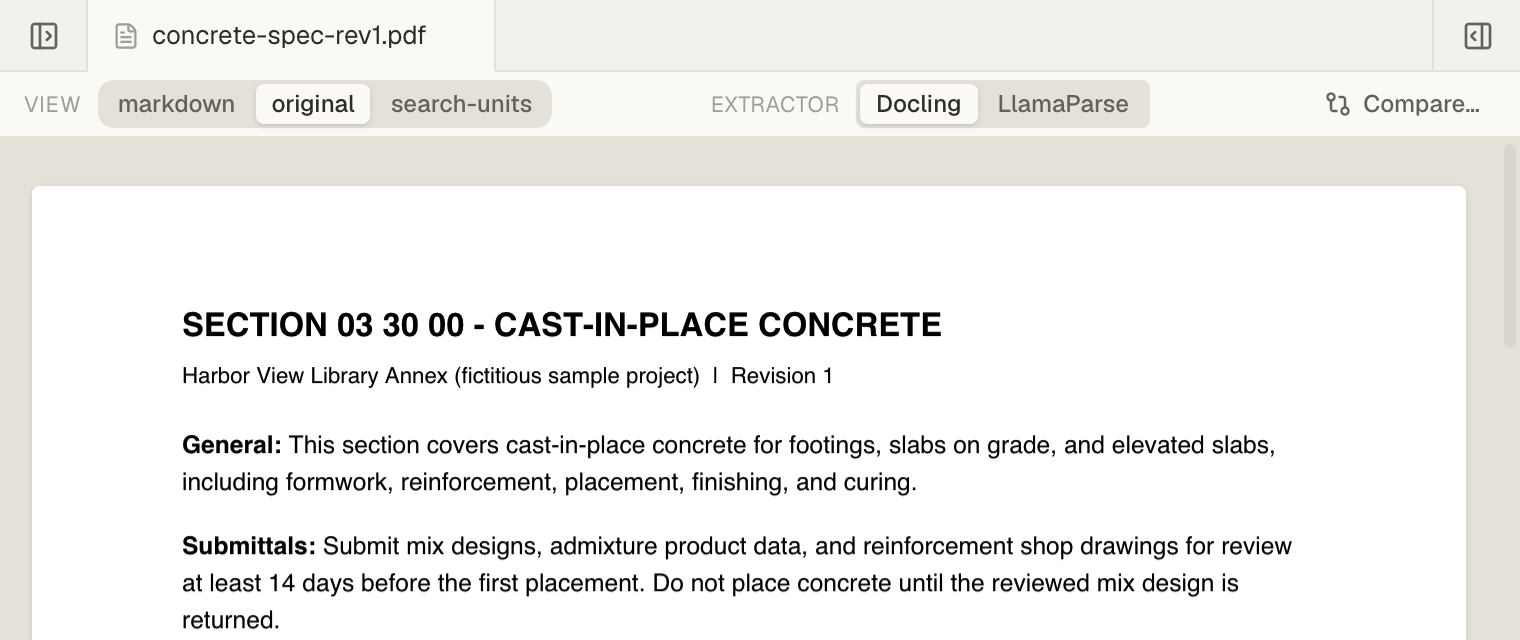
concrete-spec-rev1.pdf. Choose Compare… in the file’s view.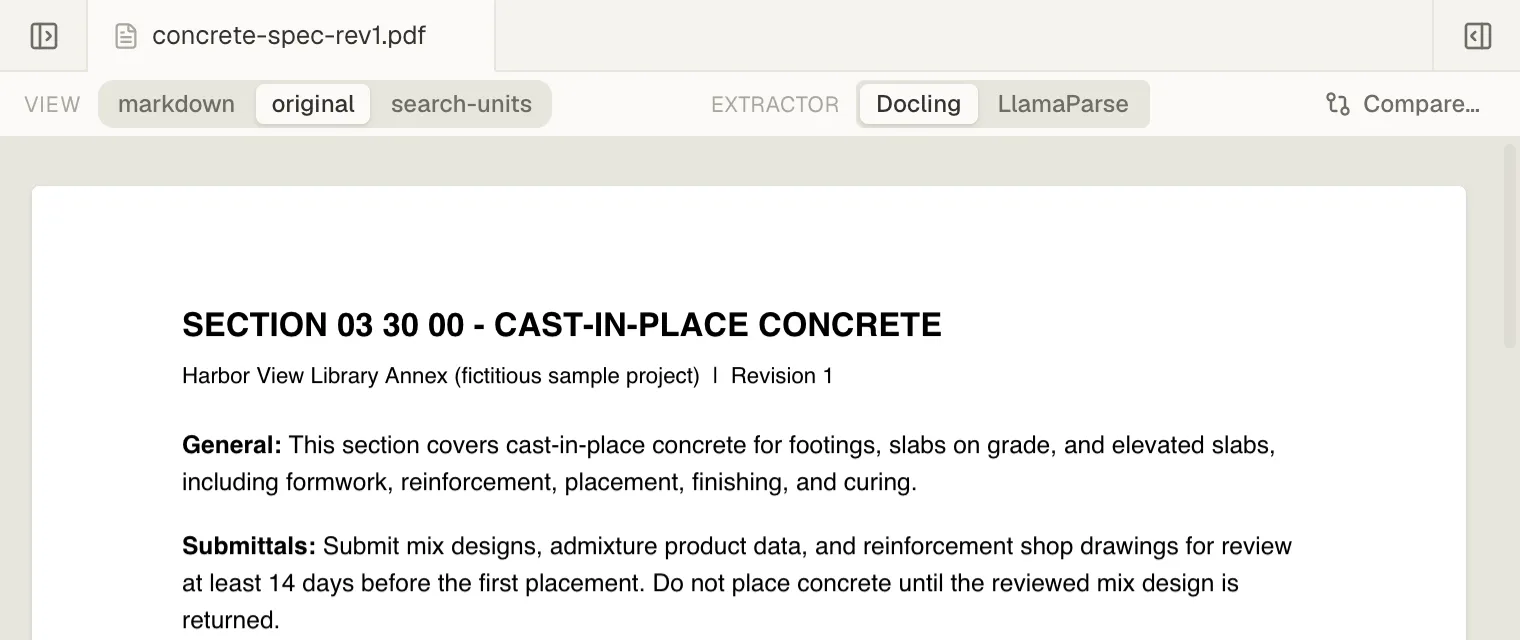
Compare… sits at the right of a PDF's toolbar. -
Choose the later PDF.
The comparison uses Before and After. Choose
concrete-spec-rev2.pdfunder After. You can change either file at the top of the comparison. -
Check the direction.
Use the earlier version for Before and the incoming revision for After. Choose Swap before and after if they are reversed. This direction determines which passages count as added or removed.
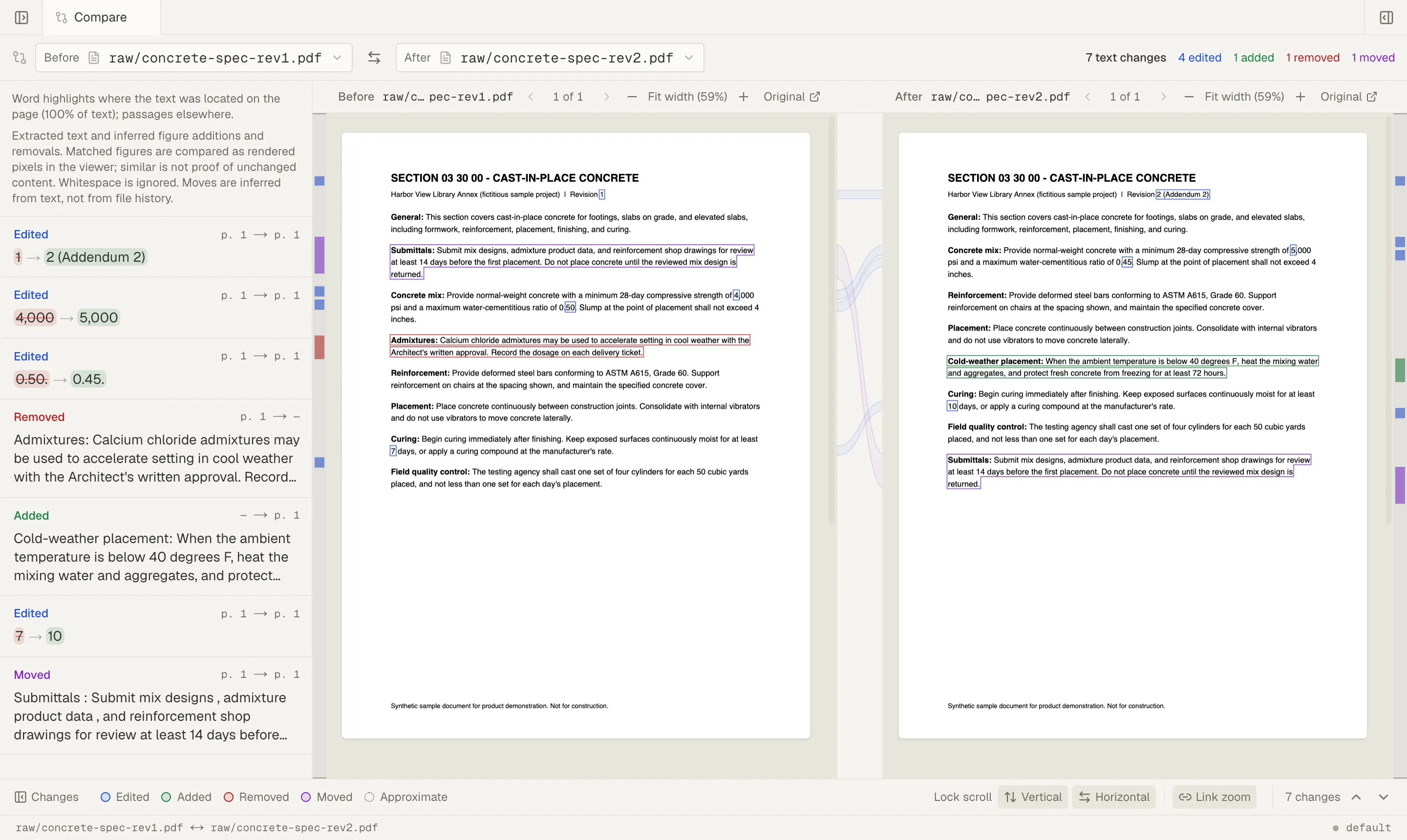
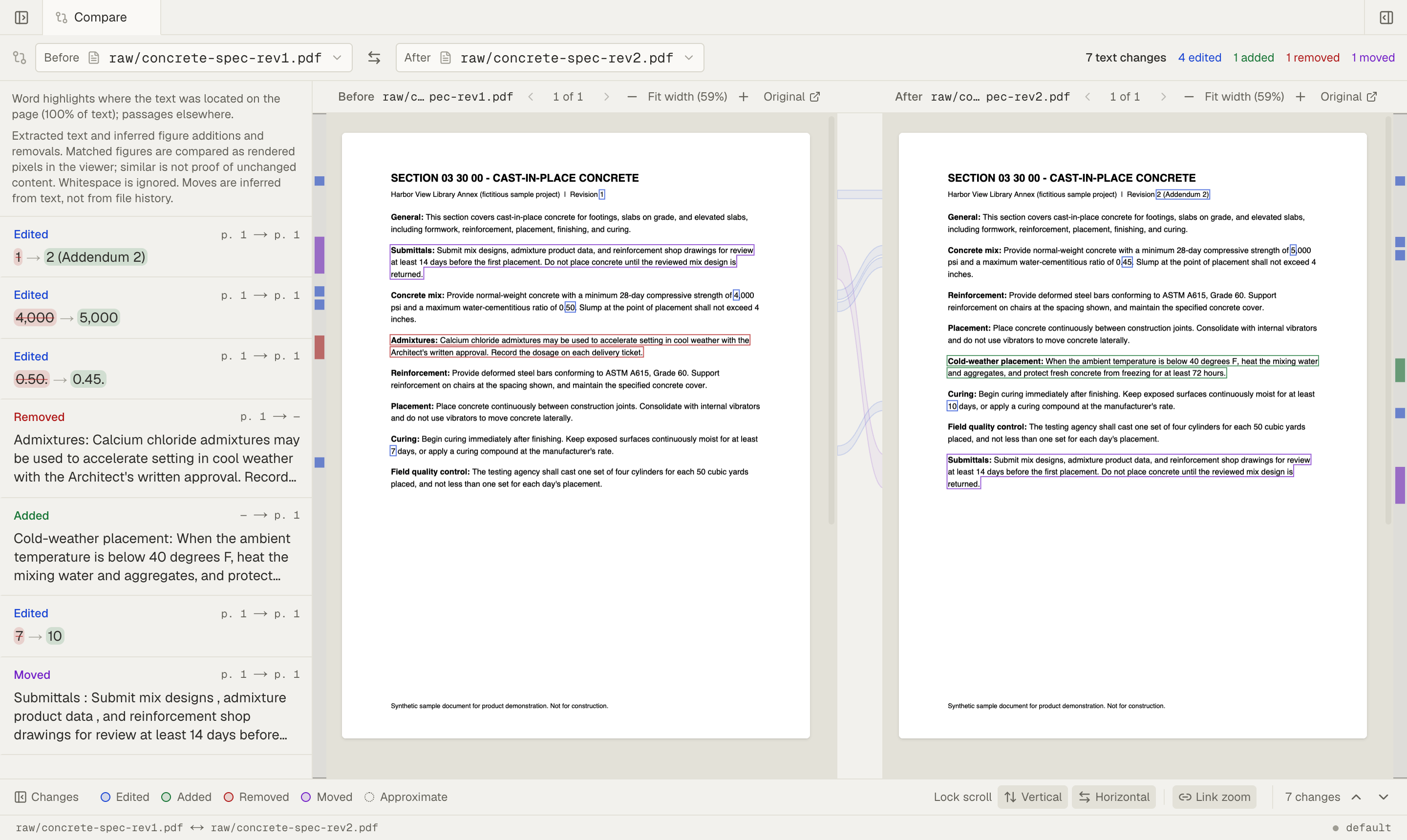
Before and After at the top, the change list on the left, and both original pages side by side. -
Select a change.
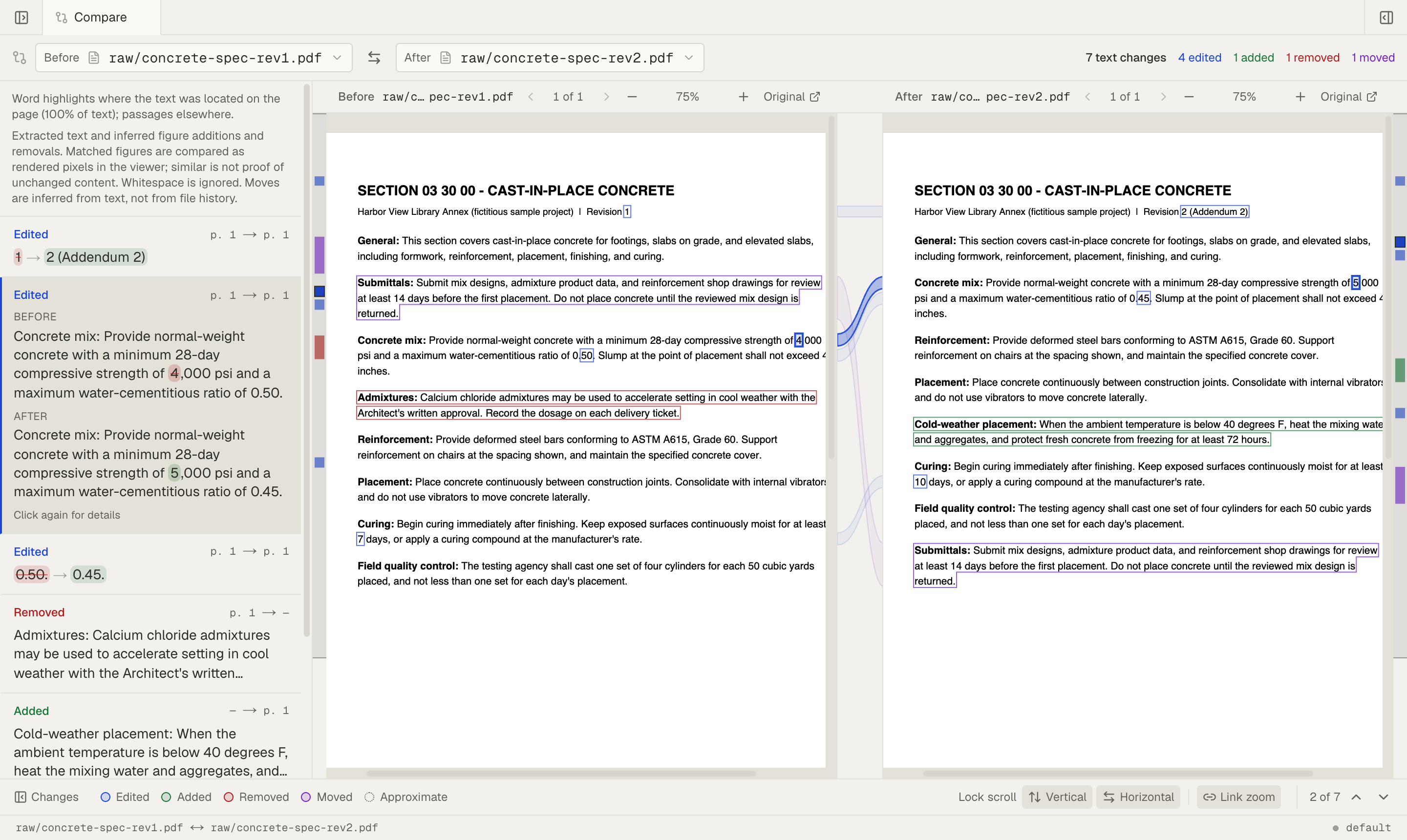
Choose an item in Changes, or use Next change and Previous change. Both PDF panes move to the relevant passage. Read the surrounding text as well as the marked words.
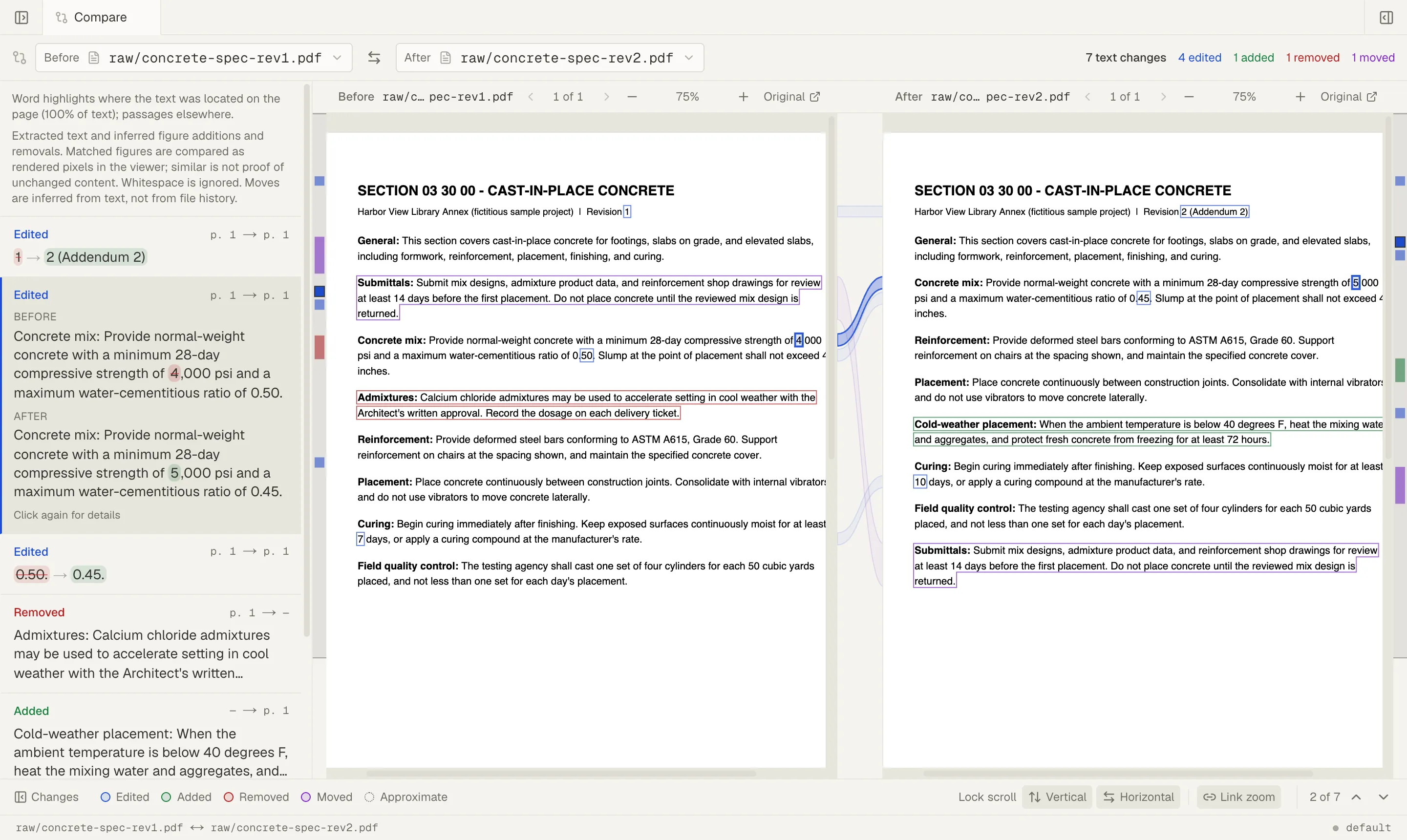
Selecting a change shows its full wording and marks it on both pages.
Read the change list
Section titled “Read the change list”Use the labels to decide what to review:
| Label | What to check |
|---|---|
| Edited | Compare the old and new wording. A changed number, unit, exception, or date may alter the requirement. |
| Added | Read the new passage in After and check which section it belongs to. |
| Removed | Read the passage in Before and check whether the later file really drops that requirement. |
| Moved | Check both locations. Movement is inferred from the extracted text, not recorded file history. A moved passage can also contain an edit. |
In the sample, strength changes from 4,000 psi to 5,000 psi and curing from 7 days to 10 days. Revision 2 also adds a cold-weather paragraph, removes an admixtures paragraph, and moves the submittals paragraph. Review those changes separately: a new value needs an update, while a moved paragraph may leave the requirement unchanged.
Keep your place in both files
Section titled “Keep your place in both files”Use the controls below the PDFs to link or separate vertical scrolling, horizontal scrolling, and zoom. With scrolling locked, the other file follows the corresponding content. Unlock it to inspect one side on its own.
Choose Changes to hide or show the list when you need more room for the pages. The previous and next controls still let you step through findings.
Understand highlights and coverage
Section titled “Understand highlights and coverage”Highlights show how precisely Mempipe located the change on the original page:
- Word highlights mark the changed words.
- A solid Passage outline marks the whole passage for a moved passage, and for a change whose words could not be located precisely.
- A dotted Approximate outline marks the extracted passage area when word positions are unavailable.
The change list shows the old and new wording in each case. The percentage in the highlight note measures how much text was located on the pages. It does not measure comparison accuracy or completeness.
Comparison uses extracted text and ignores whitespace. It can miss changes when extraction misses or misreads content. Figure additions and removals are inferred; matched figures can be compared visually, but a similar-looking figure may still contain a meaningful change. Comparison does not check every mark on a drawing.
Choose Figures in the change list, then select a pair to inspect it. You can hide header and footer changes to focus on the body text; show them again before finishing your review.
Read the coverage note and any warnings. Check important requirements against both originals, especially in scans, tables, or drawings. An empty change list does not prove the documents are identical.
Use the review to update your wiki
Section titled “Use the review to update your wiki”After reviewing a change, give the agent both file paths and ask it to update the affected wiki page with citations to each revision. Keep the older source so the revision note can still cite it. The agent can read the PDFs, but it cannot run this comparison from the chat.
Organize sources and revisions for your wiki gives a folder layout and a reusable update prompt. Update your LLM wiki covers the full maintenance loop.
If something goes wrong
Section titled “If something goes wrong”| What you see | What to do |
|---|---|
| One of these files is still being read | Wait for processing. The comparison checks again for a while; choose Try again once the file is ready if automatic checking has stopped. |
| Files read with different extractors | Open one PDF and switch it to the extractor the other file uses, then wait for its new reading view. |
| Files read with different extraction settings | These two files can’t be compared as they are. Compare two files that were read the same way. |
| An older extractor version | Choose the extractor again for the named file so it is read with the current version. |
| A file could not be read | Open each file to find the one that failed, then switch it to the other extractor, or choose another PDF. See processing failures. |
| A file is too long to compare | Choose a shorter PDF. File size allowed by your plan does not guarantee that its extracted text fits the comparison limit. |
| A file changed after its document was derived | Reload the page once processing finishes. Until then, the comparison shows the previously derived version. |
| The comparison did not finish | Check your connection and choose Try again. |
| A file is missing or is not a PDF | Choose an existing PDF from this Space in the relevant picker. |
Still stuck? Email hello@mempipe.ai with the message you see.