Search inside your PDFs and Markdown files
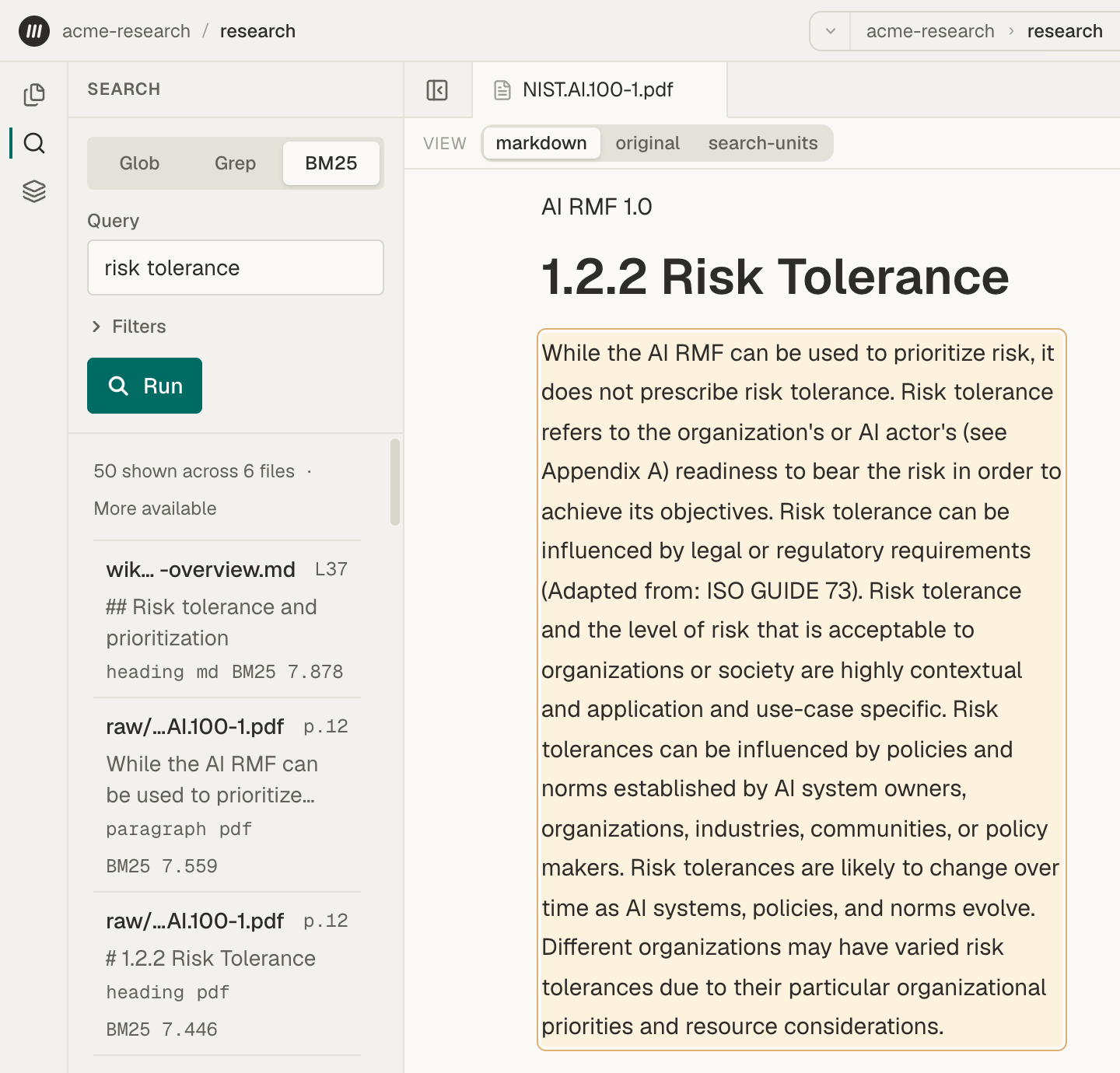
To search inside your files, open Search in a Space, choose BM25, type a few words, and choose Run. Mempipe lists the matching passages from every PDF and Markdown file in the Space, best match first. Choose a result to open the file at that passage.
Search looks inside PDF and Markdown files, one Space at a time. For a PDF, it reads the text Mempipe extracted from the file, the same text the file’s Markdown view shows. It does not look inside CSV or TSV files; you query those with SQL instead.
Before you start
Section titled “Before you start”You need a Space with at least one PDF or Markdown file. A file you just uploaded appears in search once it finishes processing, usually within a minute.
Choose a search mode
Section titled “Choose a search mode”The Search panel has three modes. Choose one at the top of the panel.
| Mode | Use it to | Example |
|---|---|---|
| BM25 | Find passages about a topic, best match first | risk tolerance |
| Grep | Find every passage that contains exact text | third-party software |
| Glob | Find files by name or folder | raw/*.pdf |
BM25 ranks passages by the words you type. A passage that contains more of your words ranks higher, and rare words count for more than common ones. It matches words, not meanings, so use the words your documents use. Search, grep, and glob syntax describes exactly how it reads your words.
The panel opens in Grep mode. Find an exact phrase in your documents covers Grep, and Find a file by name covers Glob.
Search your files
Section titled “Search your files”-
Open Search.
In a Space, choose Search, the magnifying glass in the narrow rail at the left edge of the window. The Search panel opens beside the rail. If the rail is hidden, press
⌘\(Ctrl+\on Windows and Linux) to show the left sidebar. -
Choose BM25.
Select BM25 at the top of the panel.
-
Enter a few words and run the search.
Type a few distinctive words in Query, such as
risk tolerance. Choose Run or press Enter. -
Read the results.
A line above the list counts the results, such as “50 shown across 6 files”. Each result shows:
- the file’s path;
- where the passage is:
p.12is page 12 of a PDF, andL40is line 40 of a Markdown file. PDF pages are counted from the first page of the file, so the number can differ from the one printed on the page; - the first lines of the passage;
- the kind of passage, such as
paragraphorheading, the file type, and the BM25 score. A higher score is a closer match.
-
Open a result.
Choose a result. The file opens in the main area, scrolled to the passage, with the passage highlighted. For a PDF, the original page opens beside the text with the passage outlined. Open a citation and check its source explains this view.
-
Load more results.
When the count line says More available, choose Load more at the bottom of the list.
The results stay in the Search panel while you open files, so you can check several in turn.
Narrow the results
Section titled “Narrow the results”Choose Filters under the query box to limit what BM25 searches:
- Limit sets how many results each page shows, up to 100.
- Path searches one file. Enter its full path, such as
raw/NIST.AI.100-1.pdf. - File type searches one kind of file. Enter the extension without the dot, such as
pdformd.
Grep has more filters, which Find an exact phrase in your documents describes.
If Search shows a message
Section titled “If Search shows a message”- Preparing recent uploads for search. Results may be incomplete. A file you uploaded is still processing. Wait a minute, then choose Run again.
- No results. No passage matched. Try other words, clear the filters, or use Grep to look for exact text. No results does not prove the text is absent: a file may still be processing, or it may use different words.
- A message that says search coverage could not be verified. The Space has PDF or Markdown files, but none of them has reached search yet, so an empty result would tell you nothing. Wait a minute and search again, and open the files directly in the meantime. If a file failed processing, What happens after you upload a file shows how to find out why.
- This Space’s search index is being rebuilt. Wait a minute, then choose Run again.
- Search limit reached. BM25 returns at most 1,000 results for one query. Add words or filters to narrow it.
- stale beside a result. The file has changed since search last read it, so the passage shown may be out of date. Open the file to read its current text. stale — re-deriving means Mempipe is processing the new version now. refresh failed means processing the new version failed; point at the label to see why.
If a file is still missing from search, see Search results are missing or out of date.
See everything search can find
Section titled “See everything search can find”The Search Index page lists every passage that search can find in the Space. Use it to check whether a file has reached search.
-
Open the Search Index.
In the left rail, choose Pipeline, then Search Index under Inspect. You can also press ⌘K and choose Search Index.
-
Check one file.
Enter the file’s full path in Path and choose Apply. Each row is one passage from that file.
-
Open a passage.
Select a row to show its details in the right panel. Choose the arrow icon beside the path there to open the file at that passage.
You can also start from the file. Open it and choose search-units in the View switcher to list the passages prepared for search from that file. It shows them as a Table, or as Raw JSONL, the lines Mempipe stores, and selecting a passage shows its details. Find in Search Index, at the bottom of that list, opens the Search Index filtered to the file.
If a file has no rows, it may still be processing. Check Space Activity under Pipeline, then choose Refresh on the Search Index page. If the page says the index is being rebuilt, refresh it in a moment.
To narrow the list further, choose a Kind, such as heading or table_row, or type a file extension such as md or pdf in File Type. Page Size and the arrows above the list page through it, and a count such as 1–50 of 412 indexed units shows where you are. The Kind, Node, and Artifact columns describe how Mempipe stores each passage; you don’t need them to search.
- Find an exact phrase in your documents when you know the words you’re looking for.
- Open a citation and check its source to read a result in context.
- Ask the agent about your files. It searches for you and cites the passages it uses.