Sign in to Mempipe
To sign in to Mempipe, go to app.mempipe.ai/sign-in, enter your email, and select Email me a sign-in link. Open the link Mempipe emails you within 10 minutes, and you are signed in. You can also select Continue with Google, or sign in with a password if your account has one.
Sign in with an email link
Section titled “Sign in with an email link”-
Open the sign-in page.
Go to app.mempipe.ai/sign-in, or select Sign in at the top of mempipe.ai. If you open a Mempipe page while signed out, the app sends you here and returns you to that page afterwards.
-
Enter your email.
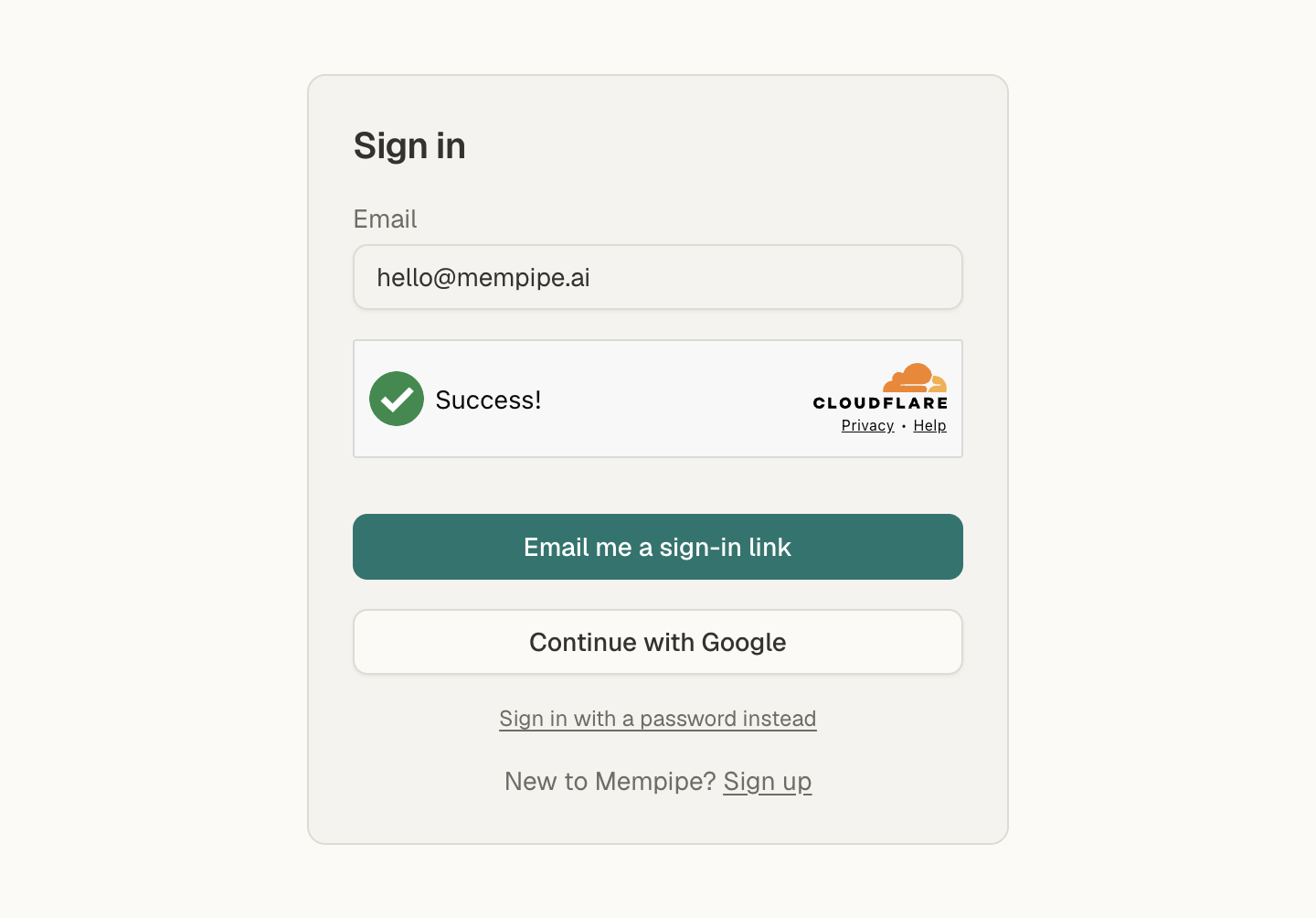
Type the email address you signed up with in Email. A short verification check runs under the field. If it asks, confirm that you are human.
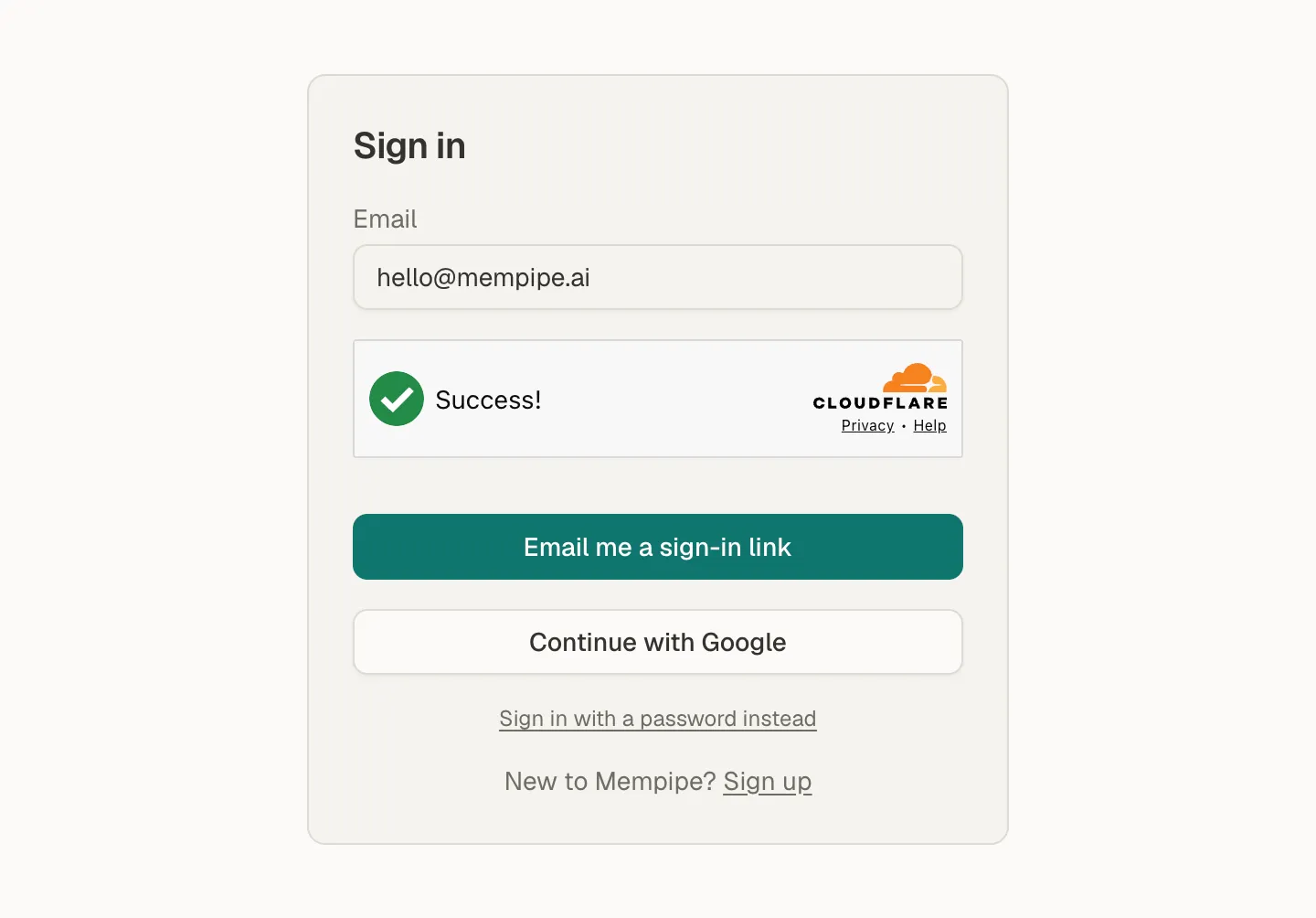
Enter your email, then ask for a sign-in link. -
Select Email me a sign-in link.
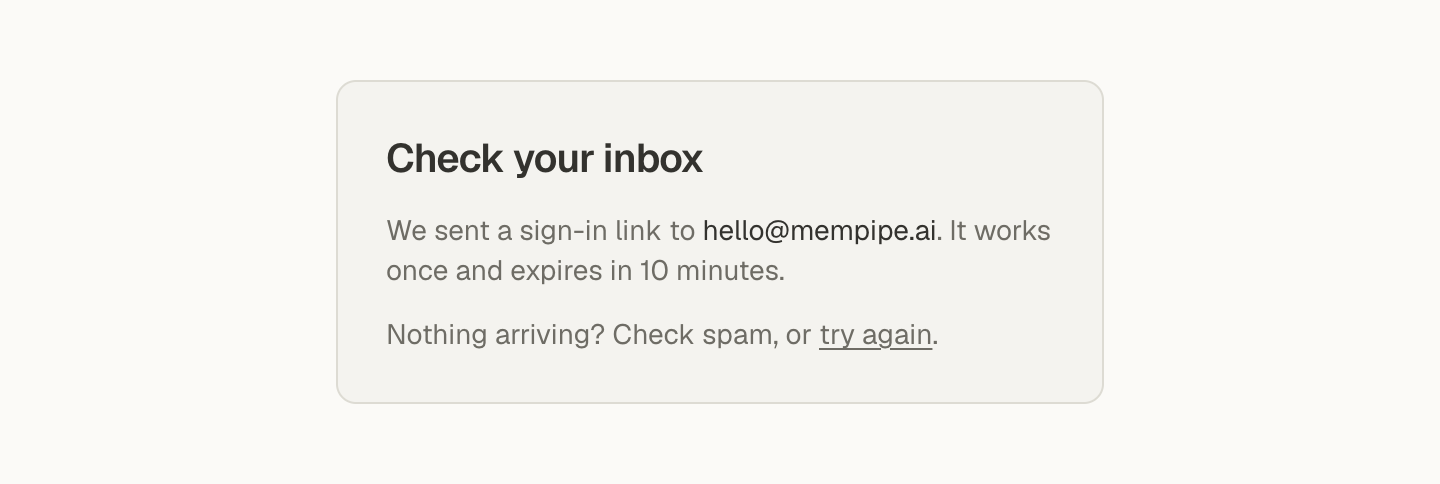
The page changes to Check your inbox.
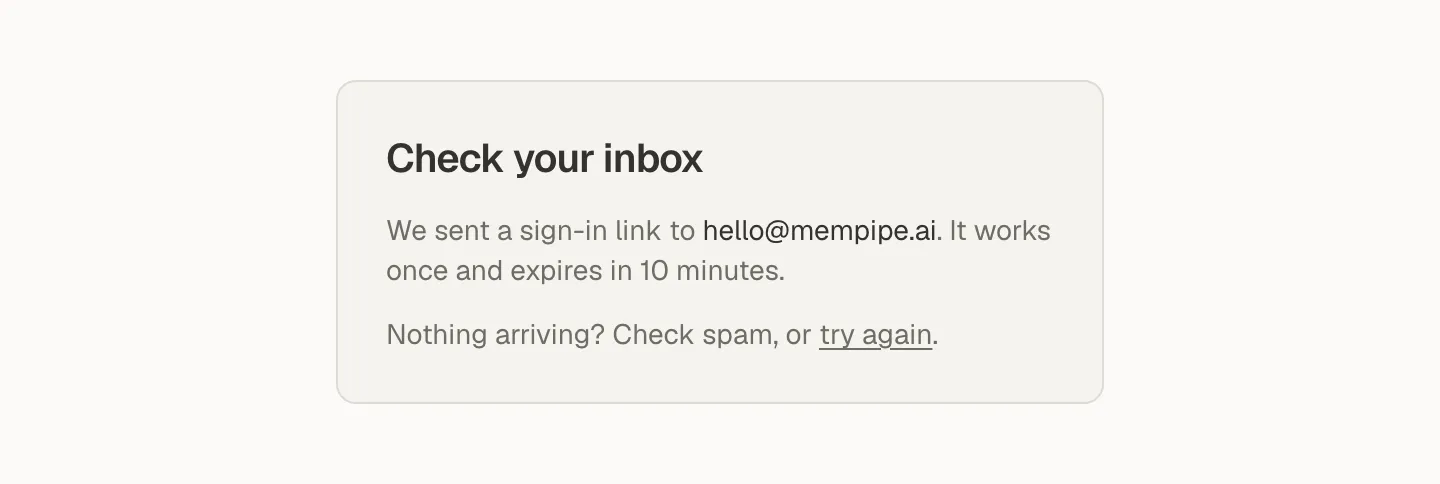
The link works once and expires in 10 minutes. -
Open the link in the email.
Look for an email from Mempipe with the subject “Your Mempipe sign-in link”, and select the link in it. Open it in the browser where you want to be signed in.
Mempipe opens your organizations, or the page you were trying to reach. Use the same email you signed up with: while sign-up is open, a sign-in link sent to any other address creates a new, empty account when you open it.
Sign in with Google
Section titled “Sign in with Google”Select Continue with Google and choose the Google account that uses your Mempipe email. This works whether you signed up with Google or with an email link.
Sign in with a password
Section titled “Sign in with a password”A password works if you set one when you signed up, or later with Forgot password?. If you signed up with a password, your first sign-in with an email link confirms your email and removes any password on the account. Set it again with Forgot password? if you still want one.
- On the sign-in page, select Sign in with a password instead.
- Enter your Email and Password.
- Select Sign in.
To go back to the email link, select Email me a link instead.
Reset or add a password
Section titled “Reset or add a password”Forgot password? resets a password you forgot. It also adds a password to an account you created with an email link or Google.
-
On the sign-in page, select Sign in with a password instead.
-
Enter your Email, and wait for the verification check below Sign in to finish.
-
Select Forgot password?.
The form says “If that email has an account, a password-reset link is on its way.”
-
Open the email with the subject “Reset your Mempipe password” within 1 hour, and select its link.
-
On Reset password, enter a New password of 8 to 128 characters, and select Set new password.
The page says Password updated.
-
Select sign in, and sign in with your new password.
Resetting your password signs you out of Mempipe everywhere, including other browsers and devices.
Sign out
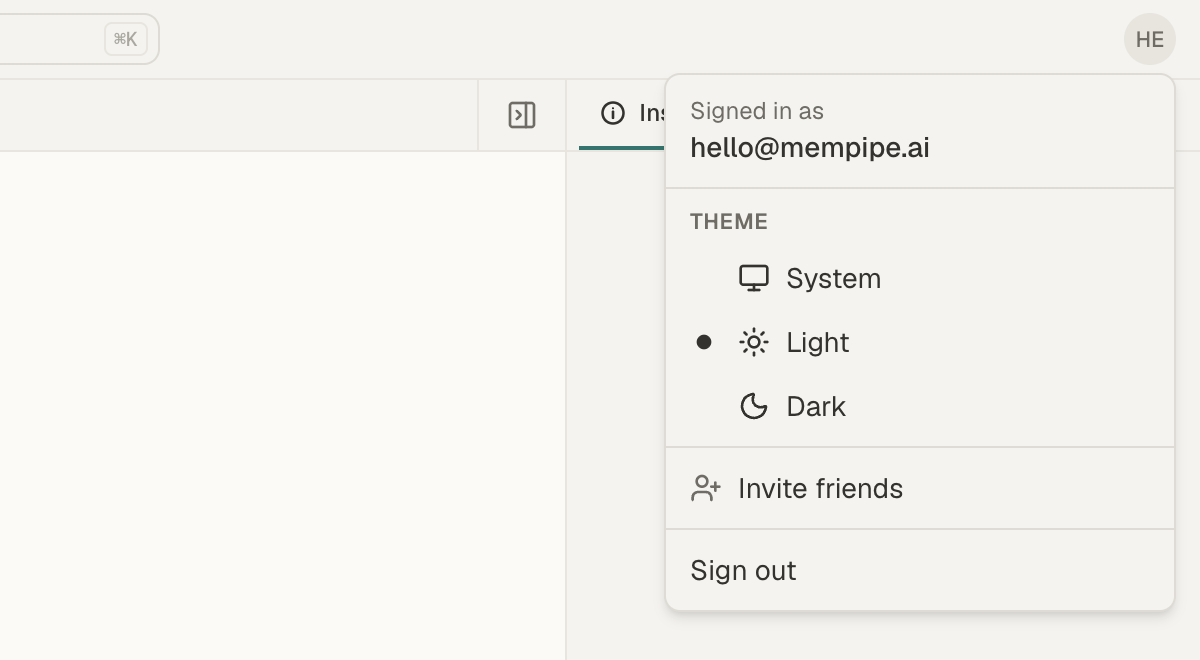
Section titled “Sign out”Select the round button at the top right of the app, which shows two letters from your email address. The account menu opens and shows the email you signed in with. Select Sign out.
If something goes wrong
Section titled “If something goes wrong”- No email arrives. Check your spam folder. On Check your inbox, select try again to go back to the form, then ask for a new link.
- “That sign-in link is no longer valid.” The link expired after 10 minutes, or it was already used. Ask for a new one on the same page.
- “That sign-in link did not work.” Ask for a new link on the same page.
- “Could not send the sign-in link.” or “Could not send the reset email.” Check your connection, then try again.
- “Email or password is incorrect.” Check the email and password. If your account has no password, or you forgot it, reset or add a password, or sign in with an email link instead.
- “Too many sign-in attempts.” Wait a few minutes, then try again.
- “Enter your email first, then use “Forgot password?”.” Type your email in Email, then select Forgot password? again.
- “Complete the verification above to request a password-reset link.” Wait for the verification check above Forgot password? to finish, then select Forgot password? again.
- “That reset link is no longer valid.” Reset links work once and expire after 1 hour. Request a new one from the sign-in page.
- “That email has a Mempipe account that hasn’t confirmed its inbox yet.” You signed up with a password, and your email isn’t confirmed. Sign in with an email link once, and Google sign-in works after that. That first email-link sign-in removes your password; set a new one with Forgot password? if you want it.
- “Google sign-in was cancelled.” You closed or backed out of Google’s page. Select Continue with Google again.
- “Could not start Google sign-in.” Select Continue with Google again. If it keeps failing, sign in with an email link.
- “Verification expired or failed.” Complete the new verification check on the form, then try again.
- “Verification is missing.” or “Verification could not load.” Check your connection, reload the page, and try again.
- “Can’t verify your session.” The app couldn’t reach the sign-in service. You may still be signed in. Wait a moment, then select Try again.
Still stuck? Email hello@mempipe.ai from the address you sign in with, and include the message you saw.
Next step
Section titled “Next step”Create and switch organizations and Spaces, or find your way around a Space. New to Mempipe? Create an account first.