What happens after you upload a file
After you upload a PDF or Markdown file, Mempipe extracts its text and structure so you and your agents can read it, search it, and cite its passages. After you upload a CSV or TSV file, Mempipe reads it into a table you can sort, filter, and query with SQL. This processing usually takes under a minute. While it runs, the file shows Deriving… beside its name in Files.
What each type of file gets
Section titled “What each type of file gets”| File | After processing |
|---|---|
| A markdown view of its text, with headings, lists, tables, and figures. It is included in search, and citations open the passage on its page. | |
Markdown (.md, .markdown) |
A reading view with formatting and working links. It is included in search. |
| CSV, TSV | tables, schema, and query views. It is not included in search. |
| Anything else | Nothing. The file is stored as you uploaded it. |
Processing never changes the file you uploaded. The original view shows a PDF or text file exactly as you uploaded it.
Read the label beside a file
Section titled “Read the label beside a file”Right after you upload or save a file, Files shows a label beside its name:
- Deriving… means Mempipe is processing the file.
- Ready means processing finished. The label shows for a few seconds, then goes away. Search results can take another moment to include a new PDF or Markdown file.
- Search failed means you can read the file, but search won’t include it.
- Derive failed means processing failed. The file is stored, but its reading or table view isn’t available.
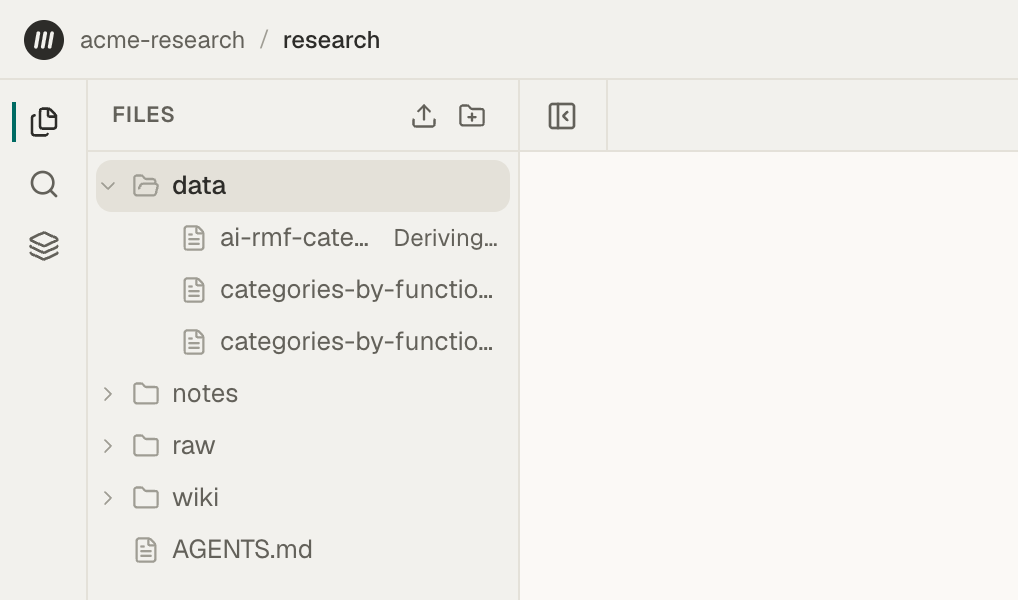
These labels only appear for files you upload or save in the current browser tab. They don’t come back after you reload the page. If processing a large PDF takes more than about five minutes, the label disappears before it finishes. To check on a file at any time, open it or look in Space Activity.
Open a file before it’s ready
Section titled “Open a file before it’s ready”You can open a file while it is processing:
- A PDF opens in its original view, which shows the PDF right away. Its markdown view says Docmap view is still deriving until the text is ready, then shows the text on its own. Choose Retry to check sooner.
- A Markdown file’s reading view says Reading view is still deriving, then shows the note on its own. Choose Retry to check sooner, or choose original in the View switcher to see the text now.
- A CSV or TSV file’s table view shows Deriving… until the table is ready.
When you save or upload a new version of a file, Mempipe processes it again. Until it finishes, the reading or markdown view shows the previous version with a stale — re-deriving note in its corner.
See what happened in Space Activity
Section titled “See what happened in Space Activity”Space Activity lists the changes to the files in a Space: uploads, edits, renames, moves, deletions, and processing steps, with the reason a step failed. The last step, adding a file to search results, isn’t listed, so search can take another moment after Search units derived.
-
Open Space Activity.
In the narrow rail on the left, choose Pipeline, then Space Activity.
-
Find the file.
Each row shows the time, what happened, and the file. Processing steps read Text extracted, Search units derived, Tables derived, or Derivation failed. To narrow the list, type part of a file name in Search and choose Apply. Or choose View derived or Derivation failed under Event Type, which filters the list straight away. Page Size sets how many rows show at once, and the arrows above the list move between pages. Switching a PDF’s extractor adds an Extractor change requested row, followed by the new processing steps.
-
Read the details.
Select a row to show its details in the Inspector on the right. By names who made the change. For a failed step, Why it failed gives the reason.
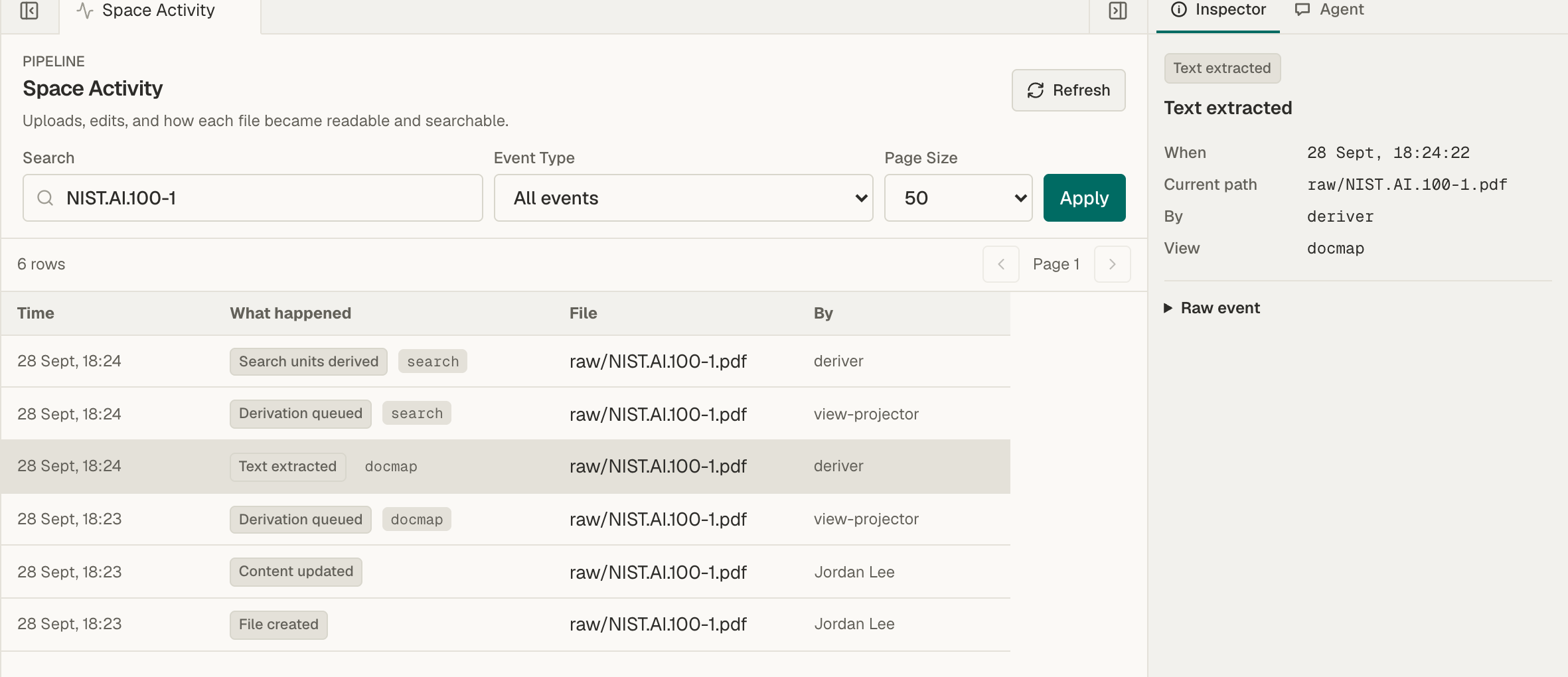
The list doesn’t update on its own. Choose Refresh to load new activity.
If processing fails
Section titled “If processing fails”- A PDF shows Derive failed. Open it and switch the extractor next to Extractor, from Docling to LlamaParse or back. Choose how a PDF’s text is extracted.
- Any file shows Derive failed or Search failed. Upload the file again and choose Replace. Mempipe processes the new copy from the start.
- It still fails. Read Why it failed in Space Activity. A file is stuck processing or failed explains what each reason means. If you can’t fix it, email hello@mempipe.ai with the file name and that reason.