What a connected AI can read and change
An AI app connected to Mempipe over MCP can search and read files: in one Space, or in every Space you belong to if you connect all your Spaces. It can save files only if you tick write access when you approve the connection. What it can save then depends on the connection:
- One Space: create and replace Markdown, SQL, and chart files.
- All your Spaces: also add PDF and CSV files from ChatGPT, and delete one file at a time.
No connection can rename or move files, delete a folder, or change your account.
One Space per connection
Section titled “One Space per connection”A connection made from a Space’s MCP Endpoint page reaches that Space only. The app can’t see your other Spaces, your organization’s settings, or your plan. To give an app more Spaces, add a connection for each, or connect all your Spaces with one connection.
What it can read
Section titled “What it can read”Every connection can:
- see the Space’s folders and file names, and find files by name;
- search the text of PDF and Markdown files that are ready, ranked by relevance or by exact words and patterns;
- read a PDF’s or Markdown file’s text with links to each passage, and look at the figures in it;
- read any text file exactly as saved, such as a note, a CSV file, or an SQL file;
- run read-only SQL queries over CSV and TSV files;
- check a file’s type and size, and which of its views are ready;
- follow a wiki link, such as
[[overview]], to the file it opens.
What a one-Space connection can change
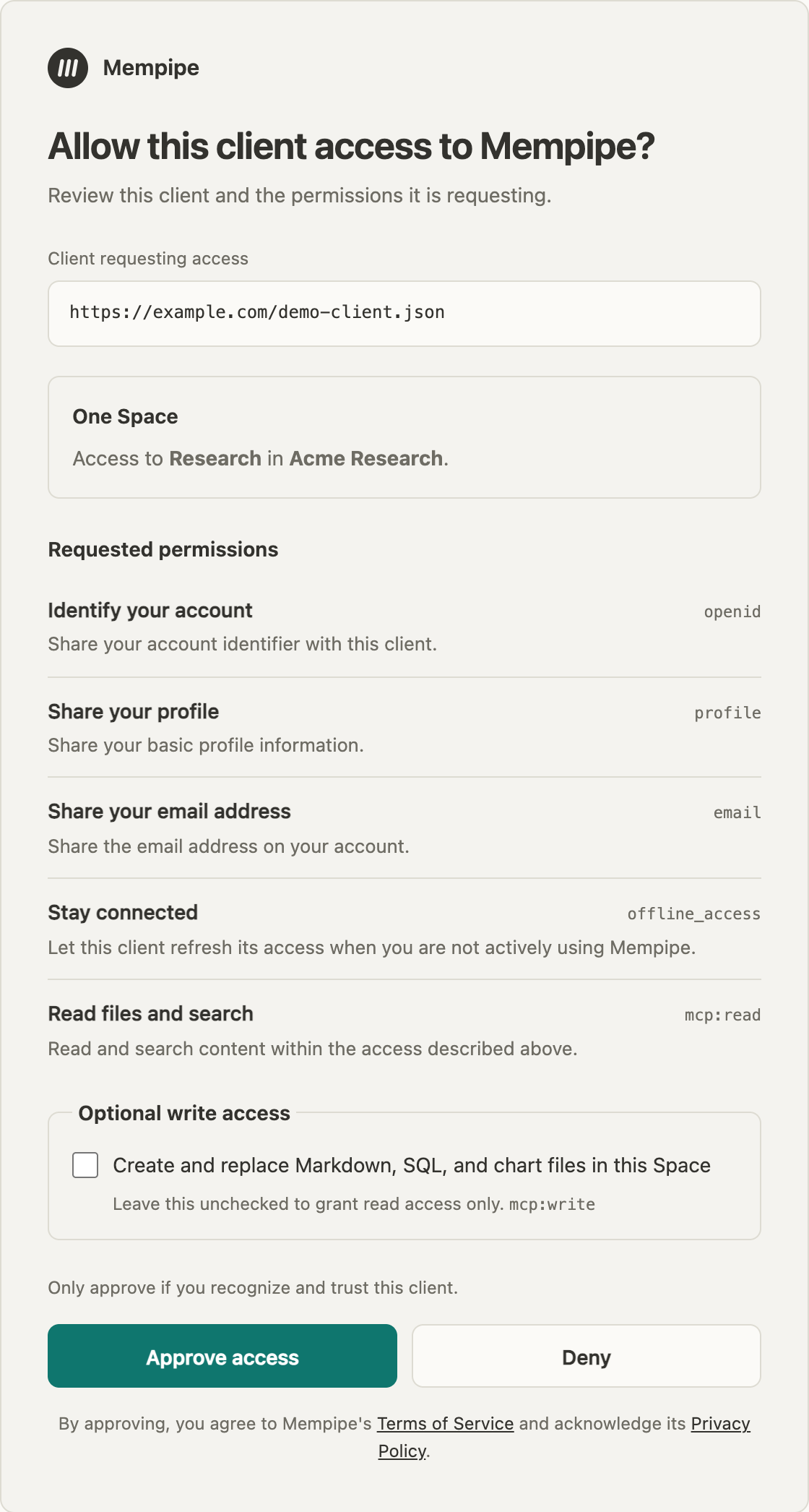
Section titled “What a one-Space connection can change”When you connect one Space, Allow this client access to Mempipe? may show a box: Create and replace Markdown, SQL, and chart files in this Space. It is unticked. Leave it unticked, and the app can only read. Tick it, and the app can also:
- create a new Markdown (
.md), SQL (.sql), or chart (.vl.json) file, with any folders it needs; - replace one of those files with a new version, after reading its current text.
Each file it saves can be up to 256 KB. If someone changes a file after the app read it, Mempipe refuses the app’s save, so the app can’t overwrite a change it hasn’t seen. The app’s new files count toward your plan’s storage and file limits.
The box appears only if the app asks for write access. If it doesn’t appear, that connection can only read.
What the all-Spaces connection can change
Section titled “What the all-Spaces connection can change”When you connect all your Spaces, the box reads Add, replace, and delete files in every Space you belong to, including Spaces you join later. It is unticked. Ticked, it covers every Space the connection can read, including ones you join later. The app can then also:
- create and replace Markdown, SQL, and chart files, as a one-Space connection can;
- in ChatGPT, save a PDF, Markdown, or CSV file you attached to the chat, or added in Mempipe Notebook, as a new file;
- delete one file of any type, after reading it. That includes PDFs and other files you uploaded.
Some limits apply:
- Adding a file never overwrites one. If a file with the same name is already in that folder, Mempipe refuses to add it, and the app has to choose another name. Replacing a text file works as for one Space. Your plan’s file size limit applies.
- Deleting is one file at a time. Mempipe refuses to delete a folder. It also refuses if the file changed after the app read it.
- Only ChatGPT can add PDF and CSV files. Claude and other apps can save Markdown, SQL, and chart files, but not PDFs or CSV files yet.
- ChatGPT on a phone can’t pass on attachments. Attach the file in ChatGPT on the web instead.
A deleted file disappears from the Space’s files and search, and Mempipe stops giving its text to any app. Chats that already read it keep what they read. As when you delete a file yourself, there is no trash or undo.
Your AI app may ask you before it saves or deletes a file, depending on its own settings. Don’t count on that question: tick write access only for an app you trust to change your files.
What it can never do
Section titled “What it can never do”No connection can:
- edit the contents of a PDF, a CSV file, an image, or any file other than Markdown, SQL, and chart files;
- rename or move files or folders, or delete a folder;
- create or delete Spaces, or change your account, organization, or plan.
A one-Space connection also can’t add PDF or CSV files, or delete anything.
What the approval page lists
Section titled “What the approval page lists”The heading is Allow this client access to Mempipe?. The complete identifier appears separately under Client requesting access. It may be a web address or a string of letters and numbers. The access boundary names the Space and organization, or explains that the connection can read all your Spaces.
Under Requested permissions, each permission has a readable title and description beside its exact scope code:
mcp:read: search and read this Space, or all your Spaces.offline_access: stay connected without asking you to sign in again.openid,profile, andemail: tell the app which Mempipe account you signed in with, including your name and email address.
Optional write access, mcp:write, appears in its own box below the list, as described above. An app may ask for only some of these. Read Only approve if you recognize and trust this client above the buttons before choosing Approve access.
Where your content goes
Section titled “Where your content goes”Whatever the app reads from your Space goes to that app, and to the AI model it uses to answer you. What happens to it there follows that app’s own terms, not Mempipe’s. Connect only apps you trust with the Space’s files.
What Mempipe records
Section titled “What Mempipe records”Each file an app saves or deletes appears in Space Activity under your name, as File created, Content updated, or Deleted. To see that an app saved it, select the row and open Raw event: its Metadata shows "via": "mcp" and the app’s client ID. Searching Space Activity for mcp finds these rows. Space Activity doesn’t list what an app reads. See what happened in Space Activity shows how to open and search it.
Mempipe checks your access on every request the app makes. If the Space is deleted, or you can no longer open it, the app’s next request fails.
Change or remove access
Section titled “Change or remove access”- To add write access, remove the Mempipe server in your AI app, add it again, and tick the box when you approve. Mempipe asks again because the app is asking for more than you approved before. An all-Spaces connection made before 10 October 2026 is read-only, because write access wasn’t offered then. Reconnect it the same way to add write access.
- To disconnect an app, remove the Mempipe server in that app. Each app’s page shows where.
Mempipe remembers what you approved for each app and Space. If you add the same app again later, it may connect without asking, with the access you approved before. Mempipe does not yet have a page to review or withdraw an app’s access.
Questions about a connection? Email hello@mempipe.ai.