Connect an AI assistant to Mempipe with MCP
To connect an AI assistant to Mempipe, open your Space, choose Pipeline, then MCP Endpoint, and choose Add beside your AI app. Follow the steps it shows, then sign in to Mempipe in the browser window that opens and choose Approve access. The assistant can then search and read the files in that Space and cite them in its answers.
MCP, the Model Context Protocol, is the open standard AI apps use to connect to outside tools and data. Each Space has its own MCP address, so one connection reaches one Space. The MCP Endpoint page has setup steps for Claude, Claude Code, ChatGPT Desktop, Codex, Cursor, and VS Code.
Before you start
Section titled “Before you start”- A Space with files in it, and the Mempipe account you use to open it. See Upload files to a Space.
- Processed files. Wait until Mempipe has processed your PDF and Markdown files, so the assistant can search them. What happens after you upload a file shows how to check.
- An AI app that can add a remote MCP server, sometimes called a custom connector. Some apps offer this only on certain plans. The page for your app says more.
You don’t need an API key or token. You sign in to Mempipe in your browser, and your AI app keeps the sign-in.
Connect your AI app
Section titled “Connect your AI app”-
Open MCP Endpoint.
In Mempipe, open the Space. Choose Pipeline in the left rail, then MCP Endpoint under Serving.
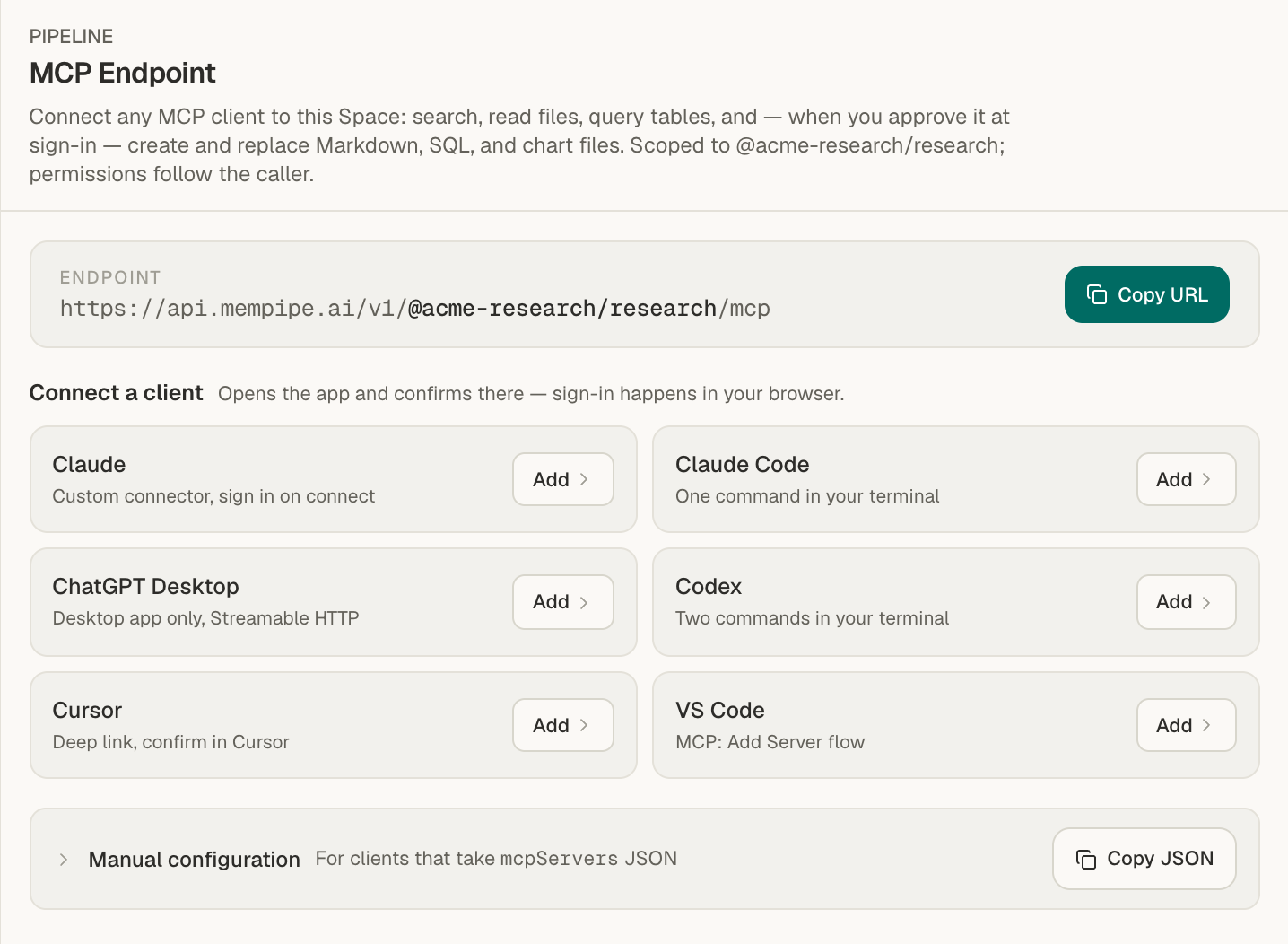
The page shows the Space’s address under Endpoint. For the Research Space in the Acme Research organization, it is
https://api.mempipe.ai/v1/@acme-research/research/mcp.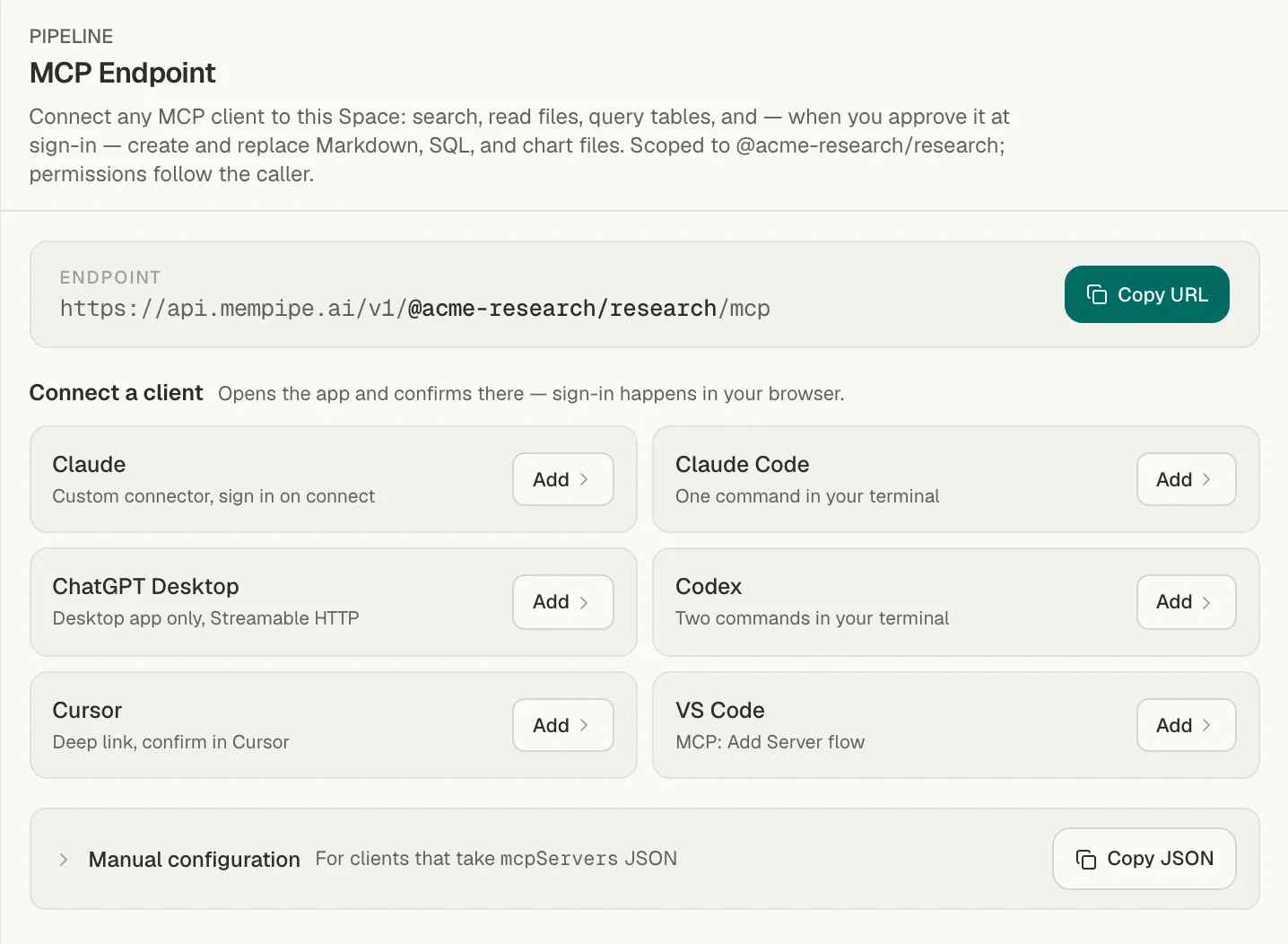
MCP Endpoint gives the Space's address and setup steps for each app. -
Choose Add beside your AI app.
Under Connect a client, choose Add beside your app. A window lists the steps for that app and shows what to use: the Space’s address, a command to run, or a link that opens the app. Copy it with the button at the bottom, such as Copy URL or Copy command, and follow the steps.
Each app has its own page with more detail:
- Claude
- Claude Code
- ChatGPT, or Mempipe Notebook, the app for ChatGPT
- Codex
- Cursor or VS Code
-
Sign in to Mempipe.
Your AI app opens a browser window to sign in to Mempipe. If the page offers an emailed sign-in link, Google, or Sign in with a password instead, choose the method you use for your Mempipe account. If you need an account, choose Sign up; your connection request stays with you.
If your existing session satisfies the connection request, OAuth goes directly to the approval step. If the sign-in or signup page shows your current account, choose Continue as that account, or Sign out to use another account. A connection that requires a fresh sign-in asks you to sign out first.
If you see a password-only page and normally sign in by email link or Google, choose Sign in on the Mempipe app, sign in there in the same browser, then connect again from your AI app.
-
Approve access.
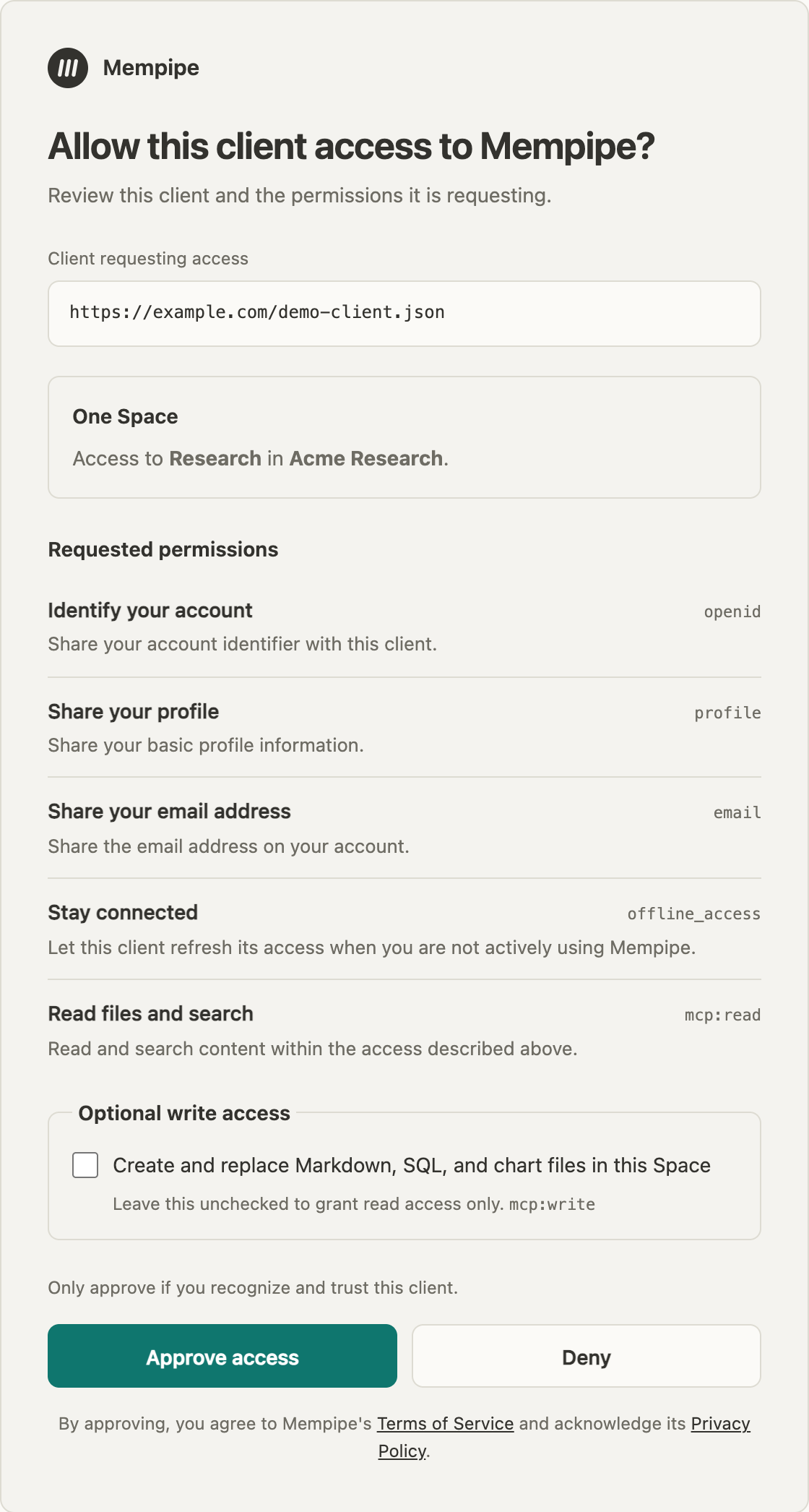
The Allow this client access to Mempipe? page shows the complete client identifier under Client requesting access, and the Space and organization it asks for. Check that they are the ones you expect. Read the trust warning above the buttons before choosing Approve access.
If the app asks to save files, the page also shows a box: Create and replace Markdown, SQL, and chart files in this Space. Leave it unticked to let the app only search and read. Tick it if you want the app to save notes and wiki pages. What a connected AI can read and change explains both choices.
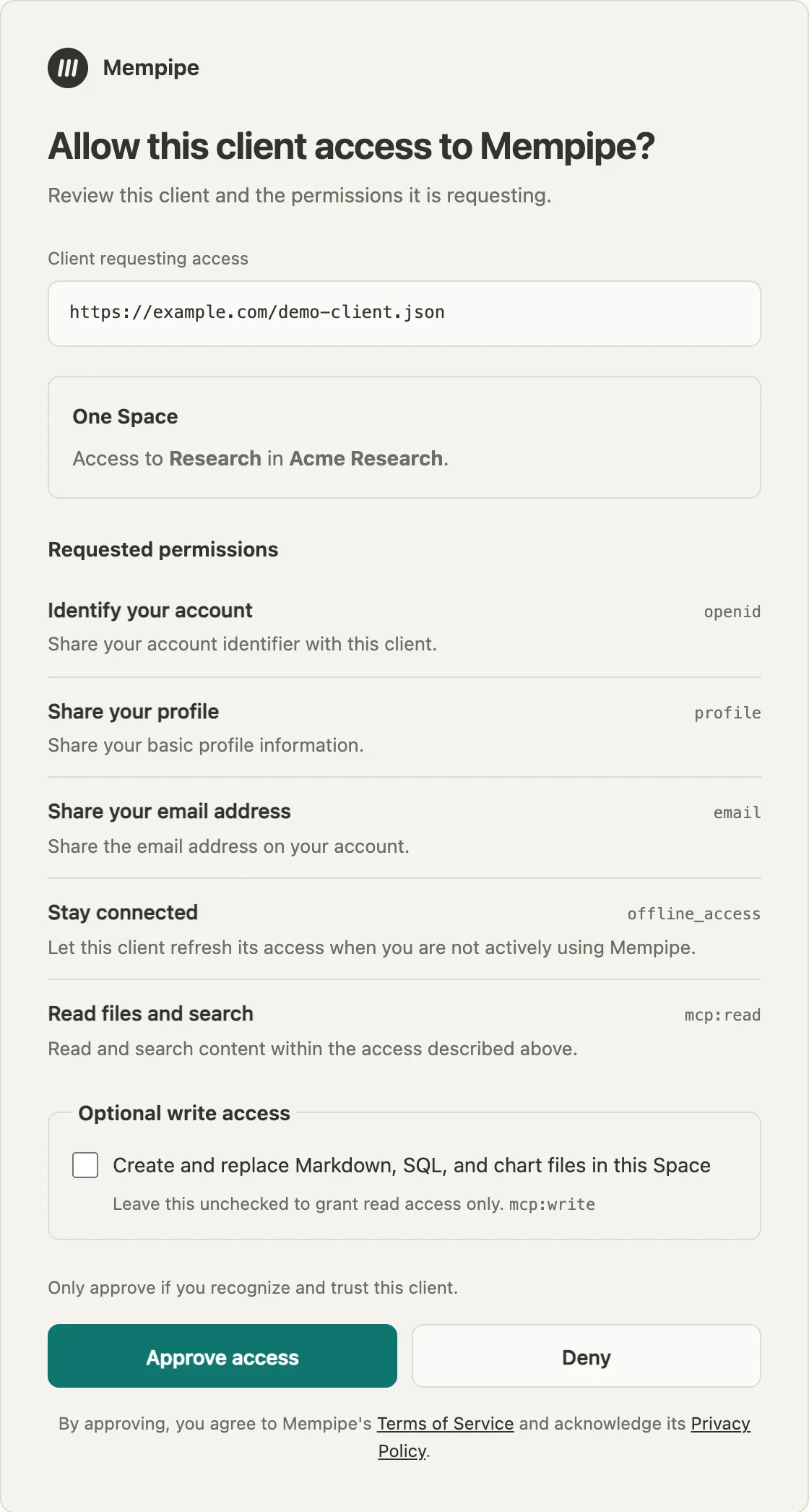
The consent screen for one Space. Leave optional write unchecked to grant read access only. Choose Approve access. The browser hands you back to your AI app. Deny refuses access, and your AI app reports that access was denied.
-
Ask a question.
Name the connection in your first question, so the assistant uses it. Replace the topic with your own:
Use the Mempipe connection. Search my files for what they say about [topic], and answer with links to the passages you used. Tell me if you can’t find evidence.
The assistant now answers from your files. Its answers include links to Mempipe. Open one to see the passage it used, in the file it came from. Open a citation and check its source shows what to check.
Connect an app that isn’t listed
Section titled “Connect an app that isn’t listed”Any app that can add a remote MCP server over HTTP, and sign in with OAuth, can connect.
-
Choose Copy URL beside the address at the top of MCP Endpoint. In your app, add a remote MCP server, often called Streamable HTTP, and paste the address.
-
If your app takes an
mcpServersconfiguration in JSON, expand Manual configuration and choose Copy JSON. It looks like this, with your organization and Space in place ofORGandSPACE:{"mcpServers": {"mempipe-ORG-SPACE": {"url": "https://api.mempipe.ai/v1/@ORG/SPACE/mcp"}}}
The app then opens your browser to sign in, as in step 3 above. An app that can only send an API key can’t connect, because Mempipe signs in through your browser instead.
Add Mempipe Notebook to ChatGPT as a custom MCP server
Section titled “Add Mempipe Notebook to ChatGPT as a custom MCP server”The usual way to add Mempipe Notebook is to install it from ChatGPT’s plugin directory. If your ChatGPT workspace doesn’t allow directory plugins but does allow custom MCP servers, you can add it yourself. OpenAI describes this setting for developers testing their own apps, in Connect and test your plugin, and its guide has the current labels.
Unlike a Space’s own address, this address connects every Space you belong to, as Mempipe Notebook from the directory does. Connect an AI assistant to all your Spaces explains what that covers.
-
Add a custom MCP server.
Open chatgpt.com/plugins. Choose the plus button, then Add custom MCP server. Name it
Mempipe. -
Enter Mempipe’s address.
Under Connection, enter
https://api.mempipe.ai/v1/mcp. For authentication, choose OAuth, so that ChatGPT signs you in to Mempipe. Read ChatGPT’s risk warning, choose I understand and want to continue, then Create as a plugin. -
Sign in to Mempipe and approve.
On Allow this client access to Mempipe?, check that it asks for every Space you belong to. To let ChatGPT add files, tick Add, replace, and delete files in every Space you belong to, including Spaces you join later. What a connected AI can read and change explains the choice. Then choose Approve access.
-
Install it, and pick it in a new chat.
Install the new Mempipe plugin when ChatGPT offers it. Start a new chat, type
@, and choose Mempipe. Use Mempipe Notebook in ChatGPT covers the rest.
Connect more than one Space
Section titled “Connect more than one Space”Add one connection for each Space. Each Space’s MCP Endpoint page gives its own address and a name for the connection, such as mempipe-acme-research-research, so the connections don’t clash in your app.
To read every Space from one connection, see Connect an AI assistant to all your Spaces. It can also add and delete files, if you allow it when you connect.
If the connection fails
Section titled “If the connection fails”- You don’t have a password. Request an emailed sign-in link or choose Google when offered. If you see a password-only page, choose Sign in on the Mempipe app, sign in there in the same browser, then connect again from your AI app.
- The connection request is no longer valid. Go back to your AI app and connect again to start a fresh request. Signing in or creating an account does not extend a connection request’s expiry.
- Your email or password is incorrect. Check both and try again, or choose an emailed sign-in link when offered.
- Your AI app reports that access was denied after you signed in. The account you signed in with can’t open this Space. In Mempipe, sign out from the account menu, then connect again and sign in with the account you use for this Space.
- Your app has no option to add a server. Check that your app and plan support custom MCP servers. On Claude Team or Enterprise, an Owner adds the connector for you.
- The assistant says search is not ready or not available. The Space has no search index yet. Check its files in Space Activity. If a file is still being processed, wait until Search units derived appears, then ask again a moment later. If a step failed, see If processing fails. Meanwhile, the assistant can still find files by name and read them. See Search results are missing or out of date.
- The assistant says it can’t save files. You approved read access only. See how to add write access.
- A link in an answer asks you to sign in. Links open Mempipe, so sign in with an account that can open the Space.
- A page says “Authorization failed”. The address in your AI app doesn’t match a Space Mempipe can find, for example because it was mistyped or the Space was deleted. Copy the address again from the MCP Endpoint page, update it in your AI app, and connect again.
Still stuck? Email hello@mempipe.ai with the name of your AI app and the message it showed.
Disconnect
Section titled “Disconnect”To withdraw access in Mempipe, open the account menu and choose Settings → Connected apps. Find the app, choose Disconnect, and confirm. It can no longer renew access; access it already holds ends within an hour. You can also remove the server in your AI app. Review connected apps and change their access explains both steps.
- What a connected AI can read and change.
- Build an LLM wiki with Claude Code or Codex.
- Ask questions about a PDF and get cited answers, with the agent built into Mempipe.