Query CSV files with SQL
You can query any CSV or TSV file in a Space with SQL. Open the file, choose query in the View switcher, write a SELECT statement, and choose Run or press ⌘+Enter (Ctrl+Enter on Windows). Each file a query reads is named with mp_table('path'), so one query can join several files. To keep a query, save it as a .sql file: it runs again each time you open it, and notes and charts can show its result.
Before you start
Section titled “Before you start”Upload the CSV or TSV file and wait until it opens as a table. Queries read that table, so a new file can be queried once its first processing finishes. After the file changes, queries read the previous version until the new one is ready.
Choose schema in the View switcher to see the column names and types before you write a query.
Run a query
Section titled “Run a query”-
Open the query view.
Open the CSV and choose query in the View switcher. The editor starts with a query that shows the first 100 rows, such as
SELECT * FROM mp_table('data/ai-rmf-categories.csv') LIMIT 100, and runs it straight away. -
Write your query.
Replace the text in the editor. For example, this totals a number column for each value of another column:
SELECT function, SUM(subcategory_count) AS subcategoriesFROM mp_table('data/ai-rmf-categories.csv')GROUP BY functionORDER BY subcategories DESC -
Run it.
Choose Run, or press ⌘+Enter on a Mac or Ctrl+Enter on Windows.
The result appears as a table below the editor. You can sort and filter it like any table. The number of rows and the time the query took show at the right, such as 4 rows · 846 ms.
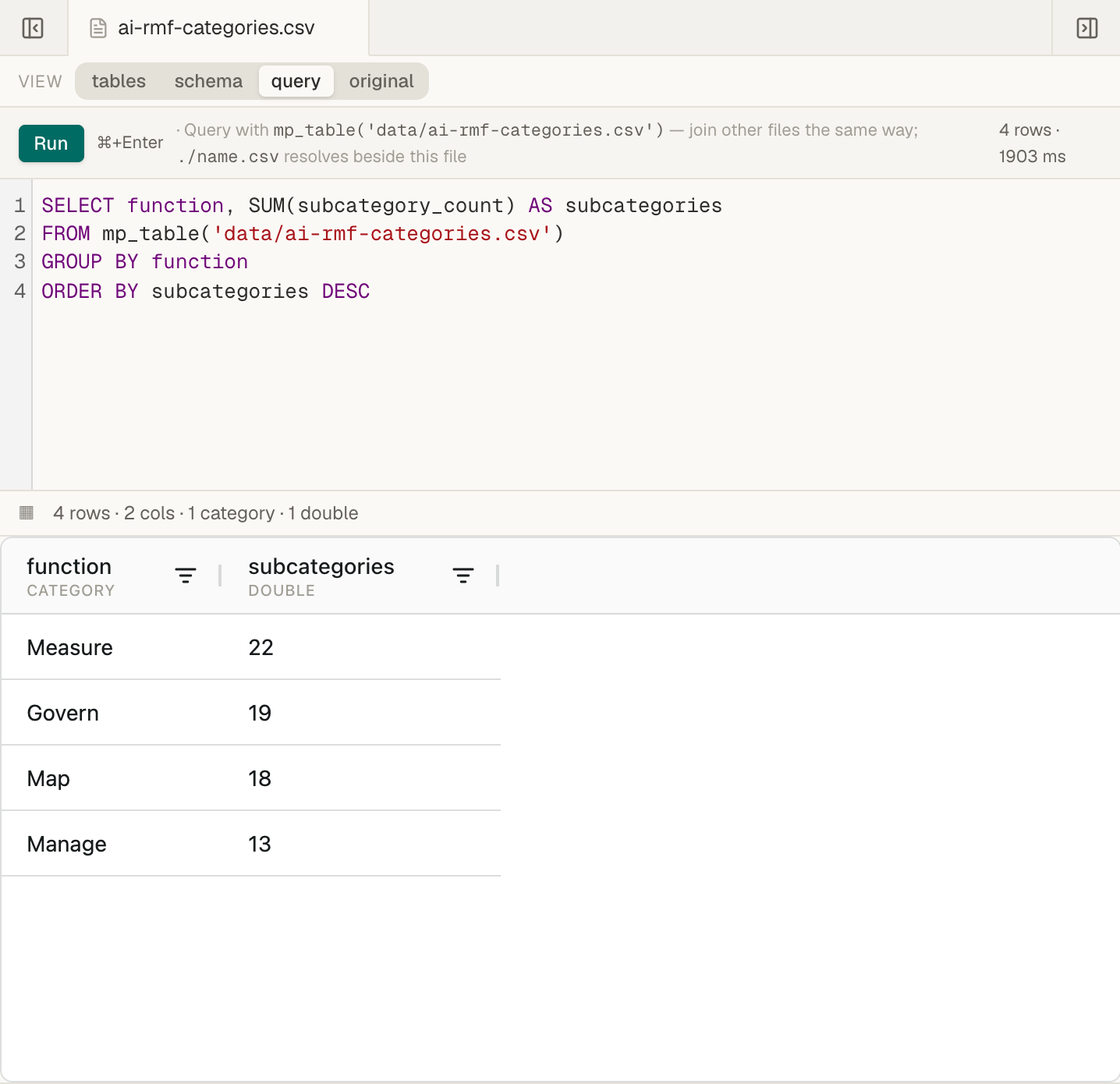
The query you type in a CSV’s query view isn’t saved. It stays while you switch to other tabs, and it is gone when you close the file’s tab or reload the page. To keep it, save it as a .sql file.
Name files with mp_table
Section titled “Name files with mp_table”Every file a query reads goes inside mp_table('…'), in single quotes:
mp_table('data/sales.csv')names the path from the top of the Space. Don’t start it with/.mp_table('./sales.csv')names a file in the same folder as the file you are querying from.mp_table('../shared/regions.csv')goes up one folder first.
To join files, name each one and give each an alias with AS:
SELECT c.region, SUM(o.amount) AS revenueFROM mp_table('data/orders.csv') AS oJOIN mp_table('data/customers.csv') AS c ON o.customer_id = c.idGROUP BY c.regionOne query can read up to eight files. Only CSV and TSV files can be queried.
What a query can do
Section titled “What a query can do”Queries use DuckDB’s SQL, so its functions for text, numbers, and dates work. Within that:
- A query is one
SELECT, which can start withWITH. Queries only read data. They never change a file. - Tables come only from
mp_table(), from names you define withWITH, and from subqueries. - Functions that read files directly, such as
read_csv, aren’t allowed. Usemp_table()instead. LIMITtakes a number, such asLIMIT 100.OFFSETisn’t supported.- Write values into the query itself. Placeholders such as
:nameor?aren’t supported.
Each query has limits:
- It returns at most 10,000 rows. A longer result stops there, and (truncated) appears after the row count. Add
GROUP BYorLIMITto get the rows you need. - It has 5 seconds to run, and its result must be under 8 MB.
- The query itself can be up to 16 KB long.
A query reads the whole file, so totals and counts cover every row, even for files longer than the 10,000 rows the tables view shows.
Save a query as a .sql file
Section titled “Save a query as a .sql file”A saved query is a .sql file in the Space. Files has no button for creating a new file. To create one, do one of these:
- Ask the in-app agent to save it, for example: “Create
data/categories-by-function.sqlthat counts categories and subcategories per function frommp_table('./ai-rmf-categories.csv').” The agent saves the file without asking you first. - Write the query in any text editor, save it with a
.sqlextension, and upload it. - Ask an AI assistant you connected with write access to save it.
Open the .sql file in Files. It opens in the query view and runs straight away.
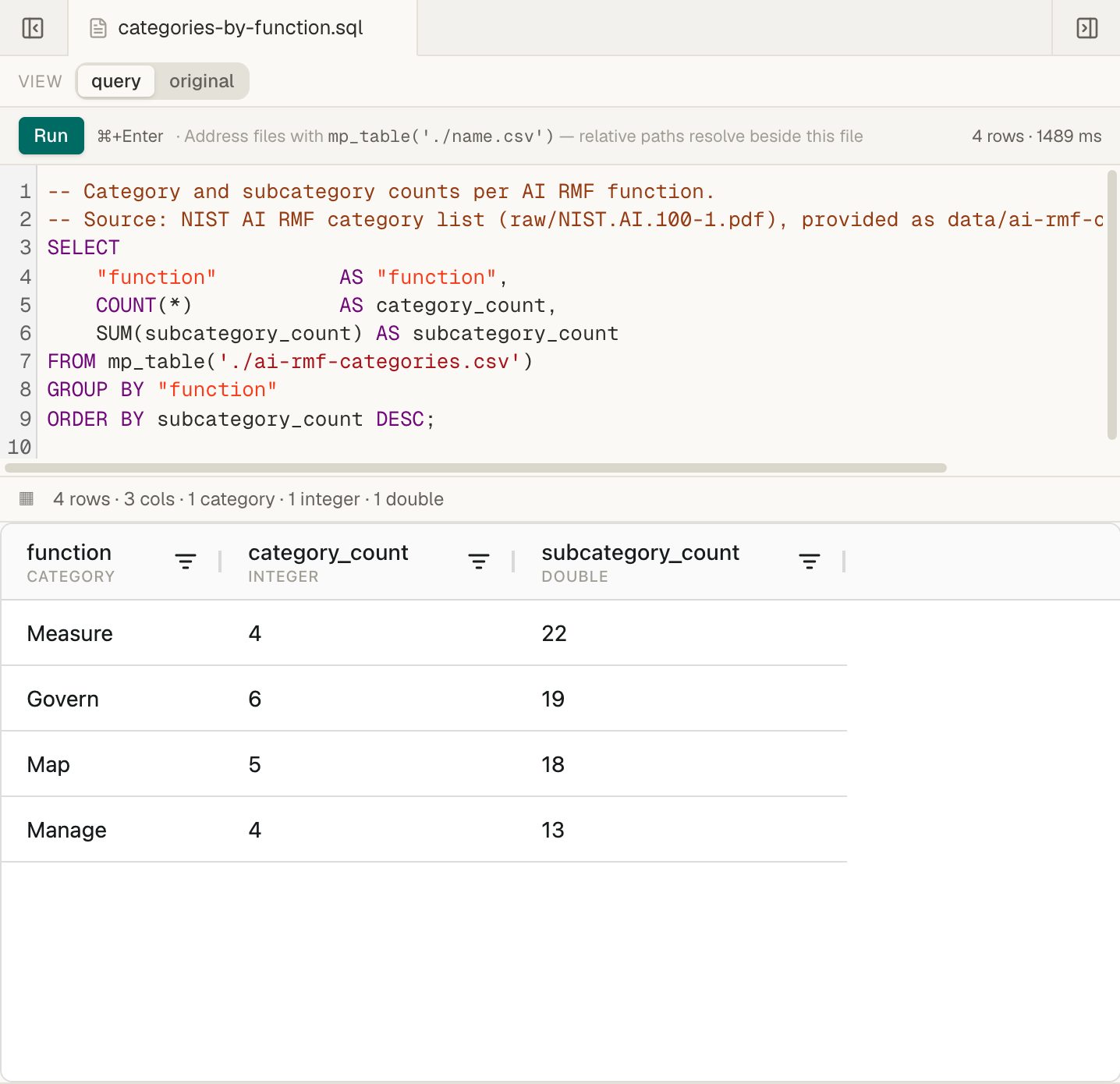
In a .sql file, mp_table('./…') names a file in the .sql file’s own folder.
To change a saved query, edit it in the query view and press ⌘+Enter to try it. Then press ⌘S on a Mac, or Ctrl+S on Windows, to save it. While you have unsaved changes, the file’s tab shows a dot before its name. If the file changed after you opened it, saving shows the same choices as a note that changed while you were editing.
A saved query’s result can appear in other places, and each one runs the query again when it opens:
- In a note,
![[categories-by-function.sql]]on a line of its own shows the result as a table. Write and edit Markdown notes explains embeds. - A chart can plot the result. Make a chart from your data shows how.
When a result may be out of date
Section titled “When a result may be out of date”When a file a query reads has just changed, a label next to the row count says so:
- stale — re-deriving means the result comes from the previous version of the file while Mempipe reads the new one. Run the query again in a few seconds.
- stale means the result comes from an earlier version of the file. Run the query again later for the latest data.
- last derivation failed — showing previous means Mempipe couldn’t read the newest version of the file, so the result comes from the version before it. See A file is stuck processing or failed.
If a query fails
Section titled “If a query fails”The result area shows Query failed and the reason. The most common ones:
mp_table('data/missing.csv') does not resolve to a file in this Space.Check the file’s name and folder. A path without./starts from the top of the Space.mp_table addresses are Space-root paths without a leading '/'. Remove the/at the start of the path.unknown relation. The query names a table that isn’t insidemp_table('…'). Put the file’s path insidemp_table().with more than one mp_table() reference every reference needs an alias. AddASand a short name after eachmp_table().Referenced column "…" not found. Check the column name in the schema view. Column names ignore capital letters, but a name with spaces or punctuation needs double quotes, such as"Order Date".is not queryable. A file the query reads isn’t a CSV or TSV file, so it can’t be queried.has no derived table yet. A file the query reads is still being processed for the first time. Run the query again in a few seconds.Query timed out after 5000ms.Make the query do less: filter earlier withWHERE, or group into fewer rows.query result exceeded the … result budget. The result is over 8 MB. Select fewer columns, or group the rows.bind parameters (?, $1, :name) are not supported. Write the value into the query instead.… is not allowed; only a single read-only SELECT. Queries can only read. To change the data, edit the CSV file.
When the CSV file you opened is the one that can’t be read, the query view shows the same panel as its tables view instead of Query failed:
- Deriving… means the file is still being processed for the first time. The view opens on its own when it is ready.
- Derivation failed or Not queryable means Mempipe can’t read the file as a table. Open a CSV file as a table explains what to do.