Find an exact phrase in your documents
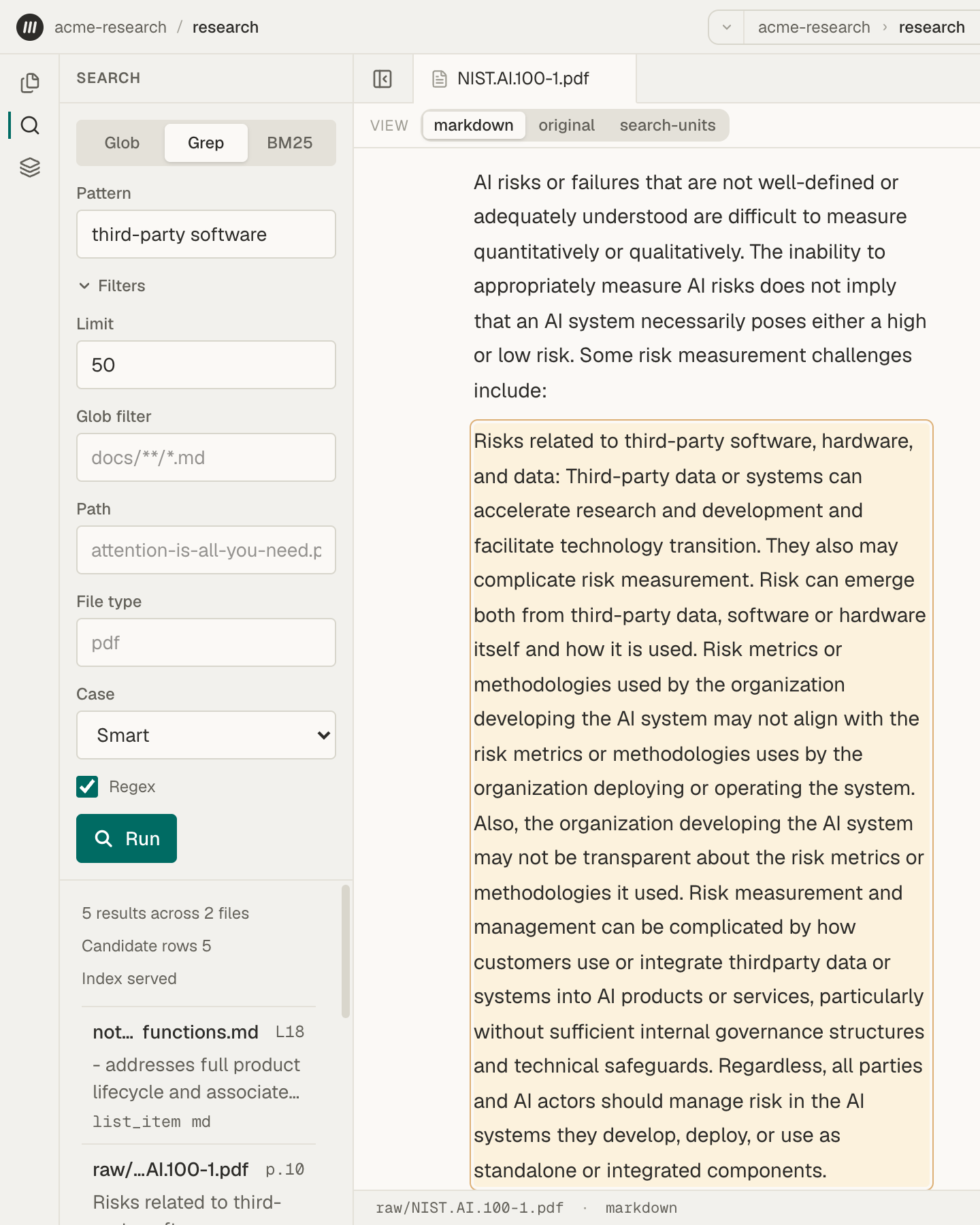
To find an exact word or phrase, open Search, choose Grep, type the text in Pattern, and choose Run. Grep lists every passage in the Space’s PDF and Markdown files that contains that text. If your text includes punctuation such as . or (, first choose Filters and clear Regex, so every character matches itself.
Before you start
Section titled “Before you start”Grep searches the same files as BM25: the PDF and Markdown files in the Space that have finished processing. For a PDF, it reads the text Mempipe extracted, the same text the Markdown view shows. Search inside your PDFs and Markdown files explains which files search covers.
Find exact text
Section titled “Find exact text”-
Open Search.
In a Space, choose Search, the magnifying glass in the rail at the left edge. The panel opens in Grep mode.
-
Enter the text.
Type the word or phrase in Pattern, such as
third-party software. -
Decide whether you need Regex.
Regex is on when the panel opens, so some characters work as patterns instead of matching themselves:
. * + ? ( ) [ ] { } | \ ^ $. If your text contains any of them, choose Filters and clear Regex. -
Run the search.
Choose Run or press Enter.
-
Read the results.
Results are sorted by file path, then by position in the file. Each shows the file’s path, where the passage is (
p.12for a PDF page,L40for a Markdown line), and the passage. Choose a result to open the file at that passage. When the count line says More available, choose Load more.
The count line also shows Candidate rows and either Index served or Scoped scan. They describe how the search ran, and you can ignore them.
What counts as a match
Section titled “What counts as a match”A match must fit inside one passage: a paragraph, heading, list item, table row, or code block. Grep reads the Markdown behind each passage, so formatting marks count, such as the ** around bold text and the address inside a link. In a PDF, a word split across two lines can lose its hyphen, so “third-party” may appear as “thirdparty”. If a phrase runs across two passages, or has bold text, a link, or a line break in the middle, search for a shorter part of it.
Match upper and lower case
Section titled “Match upper and lower case”Choose how letter case matters under Filters, in Case:
- Smart, the default. A pattern in lowercase ignores case, so
trustworthyalso finds “Trustworthy”. A pattern with a capital letter matches case exactly, soGOVERNdoes not find “govern”. - Sensitive. Case always matches exactly.
- Insensitive. Case never matters.
Search with patterns
Section titled “Search with patterns”With Regex on, Pattern is a regular expression, a short code that describes text to match. For example:
| Pattern | Finds |
|---|---|
risk (tolerance|appetite) |
“risk tolerance” or “risk appetite” |
GOVERN \d+\.\d+ |
IDs such as “GOVERN 1.1” and “GOVERN 4.2” |
\bbias\b |
the word “bias”, but not “biased” |
For the full pattern syntax, see Search, grep, and glob syntax.
Narrow the search
Section titled “Narrow the search”Choose Filters to limit which files Grep reads:
- Glob filter searches only files whose paths match a pattern, such as
wiki/*.mdorraw/**. Find a file by name explains patterns. - Path searches one file. Enter its full path, such as
raw/NIST.AI.100-1.pdf. - File type searches one kind of file. Enter the extension without the dot, such as
pdformd. - Limit sets how many results each page shows, up to 1,000.
If Grep shows a message
Section titled “If Grep shows a message”- No results. No passage contains the text. Check the spelling and the Case setting. If the text includes punctuation, clear Regex and run it again. No results does not prove the text is absent: a file may still be processing, or formatting may split the phrase. Try a shorter part of it. Search results are missing or out of date has more checks.
- invalid regex pattern. The pattern is not a valid regular expression. Fix it, or clear Regex to search for the text as typed.
- pattern has no index-servable literal. The pattern is too vague to search the whole Space quickly. Make it include at least three letters or digits in a row that every match must contain, such as
biasin\bbias\b. With Regex on, characters such as.and*are part of the pattern rather than text to find, so they don’t count. Or fill in Glob filter, Path, or File type to search fewer files. - Preparing recent uploads for search. A file you uploaded is still processing, so results may be incomplete. Wait a minute and run the search again.
For other messages, see Search inside your PDFs and Markdown files.
- Open a citation and check its source to read a result in context.
- Find a file by name when you know the file but not where it is.