Ask the agent about your files
The in-app agent answers questions from the files in the Space you have open. It searches and reads your documents, then answers with numbered citations. Select a number to open the passage behind a claim. When you ask, it can also save what you learn as a Markdown note, a SQL query, or a chart in the Space.
Before you start
Section titled “Before you start”- Set up the agent with a provider and an API key.
- Upload a file to the Space and wait until Deriving… beside its name in Files changes to Ready. The agent can’t search a file that is still processing, and search can take another moment to include a file after it shows Ready.
Ask a question
Section titled “Ask a question”-
Type your question.
In the Agent tab, type in the box that reads “Ask a question about this Space…”. Name the file when you know it, and ask for citations:
Read
raw/NIST.AI.100-1.pdf. What are the four core functions of the AI RMF, and what does each one do? Cite the supporting passages. If the document does not say, tell me instead of guessing.Press Enter to send. Shift+Enter starts a new line.
-
Let it work.
The agent says what it is about to do, and a row such as 2 steps lists each search and read it makes. Expand a row to see its steps. Some models also show a Reasoning row, folded by default; expand it to read how the model worked toward its answer. To stop the agent, choose the stop button that replaces the send button while it works.
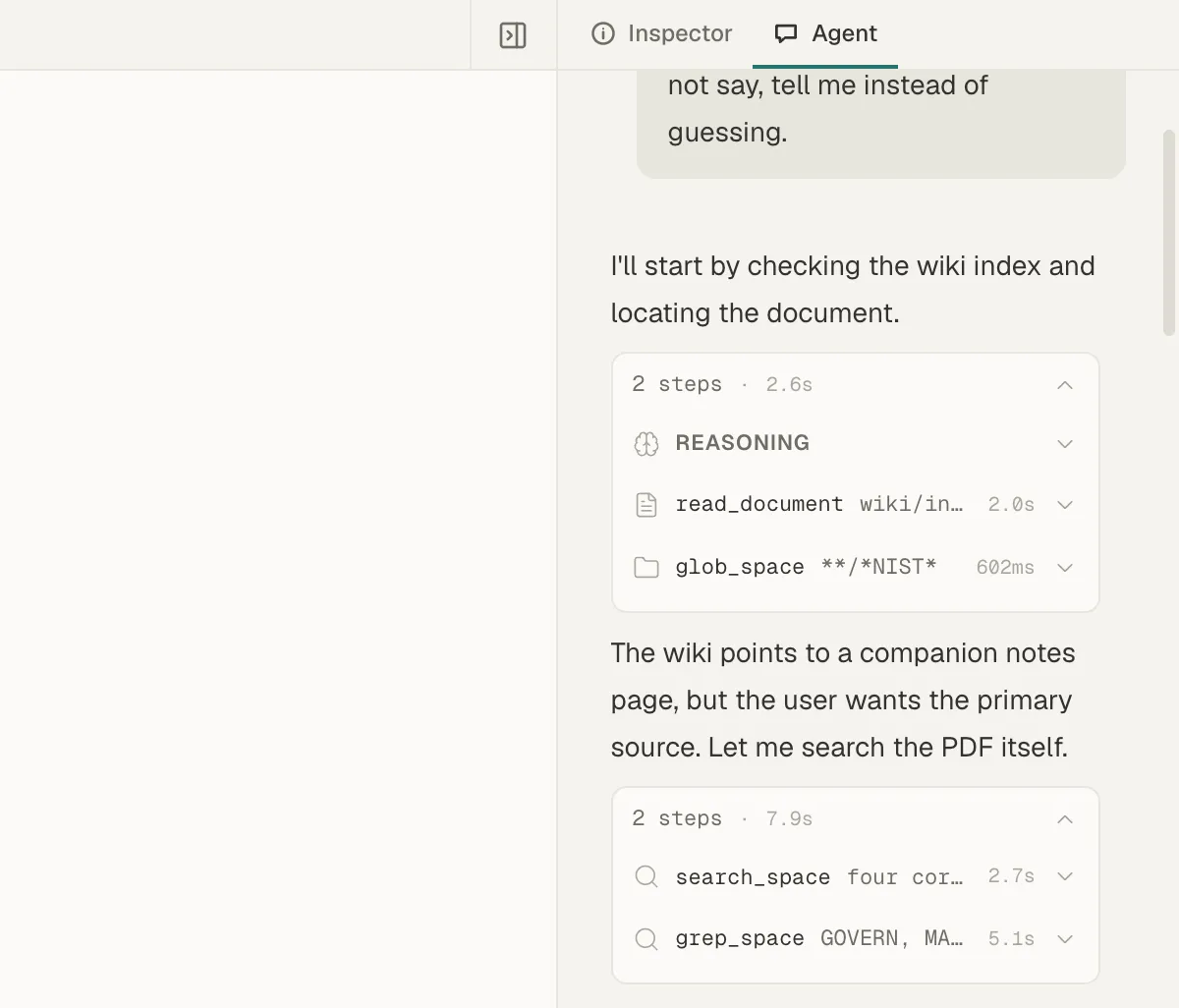
Expand a steps row to see what the agent searched and read. -
Check the citations.
Numbers such as [1] follow the claims in the answer. Point at one to see its file and page, and select it to open that passage, highlighted, in the main area. For a PDF, the original page also opens beside it, with the passage outlined. When the answer finishes, a line such as Used 12 sources below it lists every source it cited. See Open a citation and check its source.
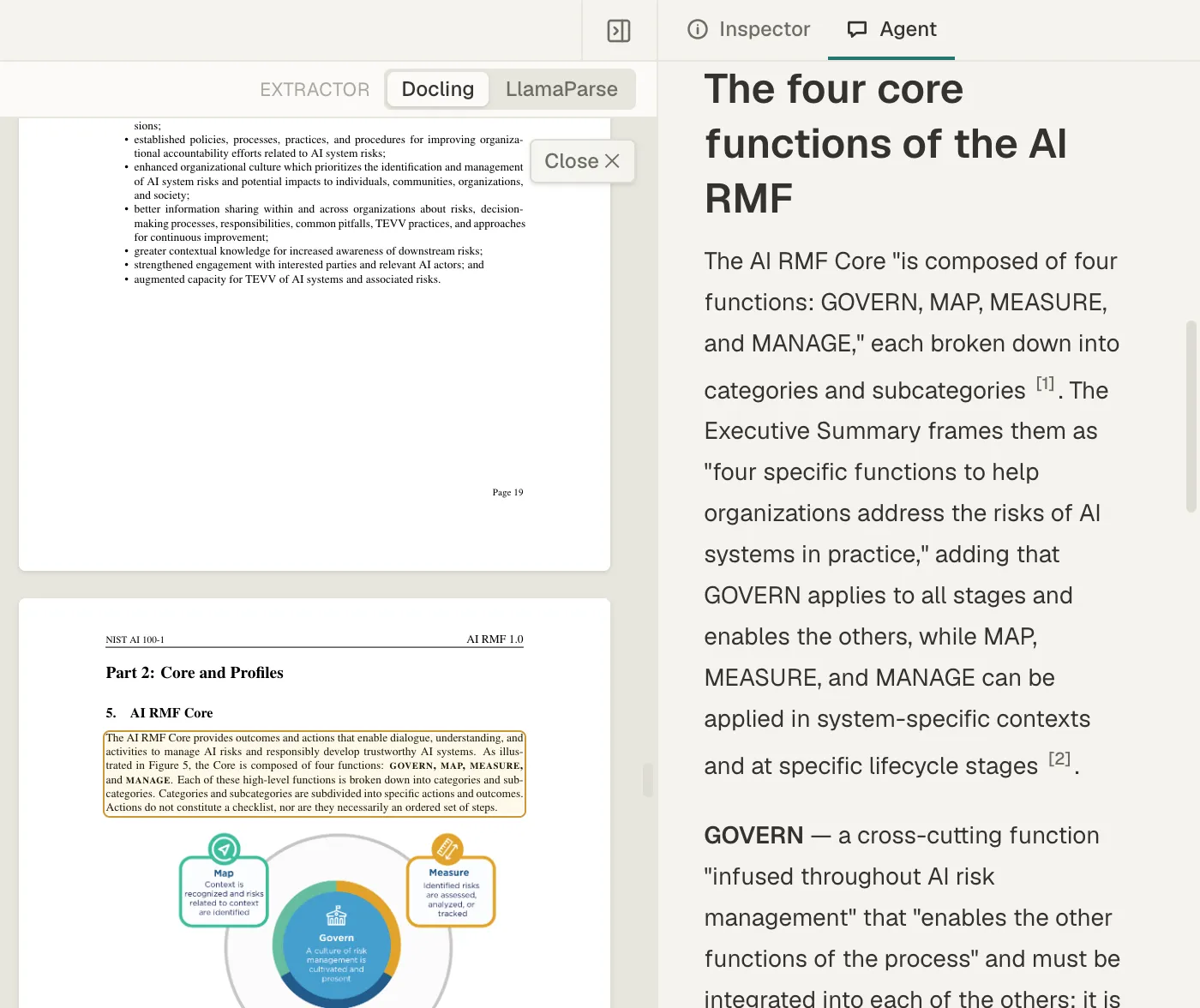
Select a citation number to open its passage. For a PDF, the original page shows the passage outlined. -
Ask a follow-up.
The agent remembers the conversation, so a follow-up such as “What does the document say about the Govern function?” builds on the answer you just checked.
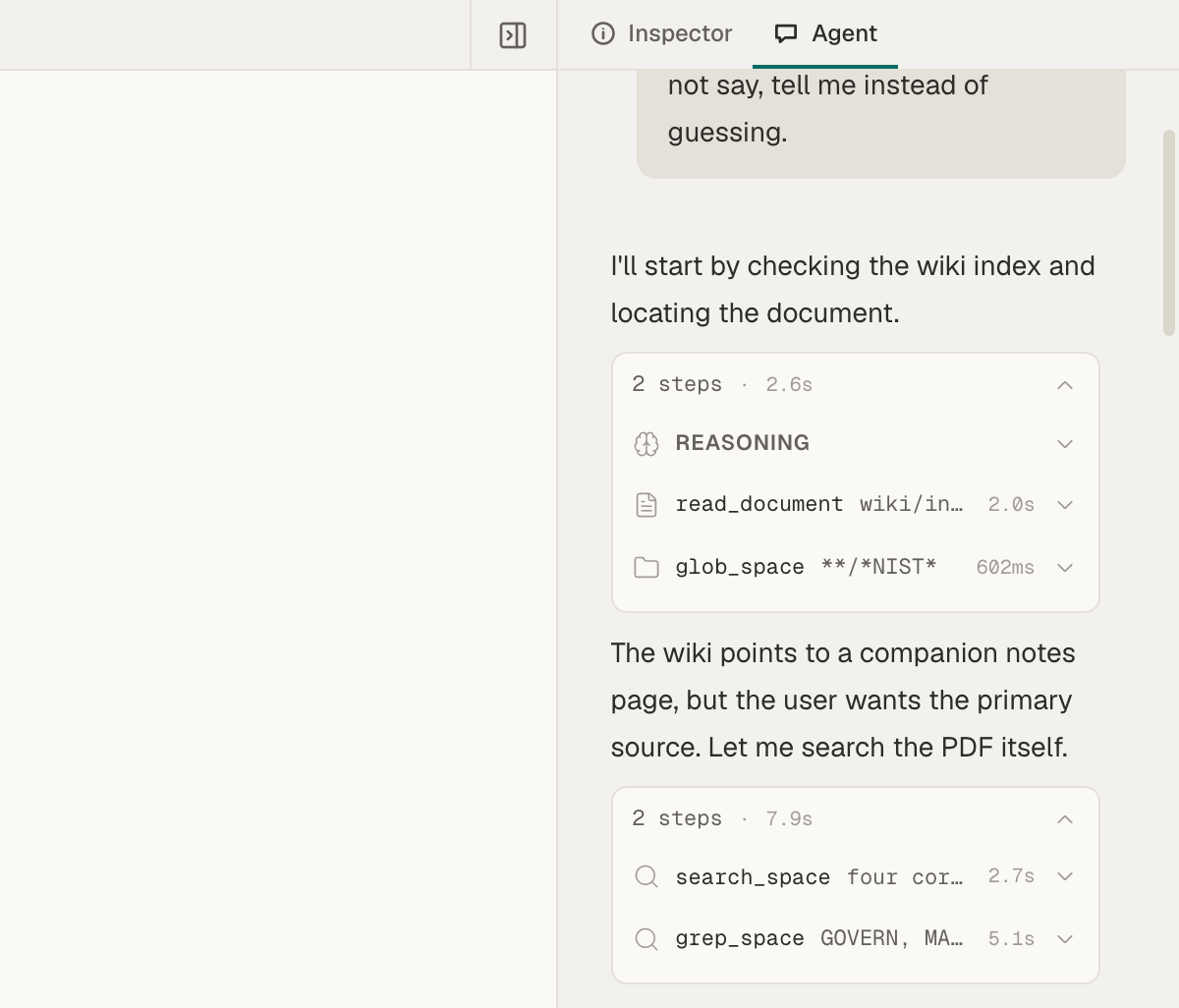
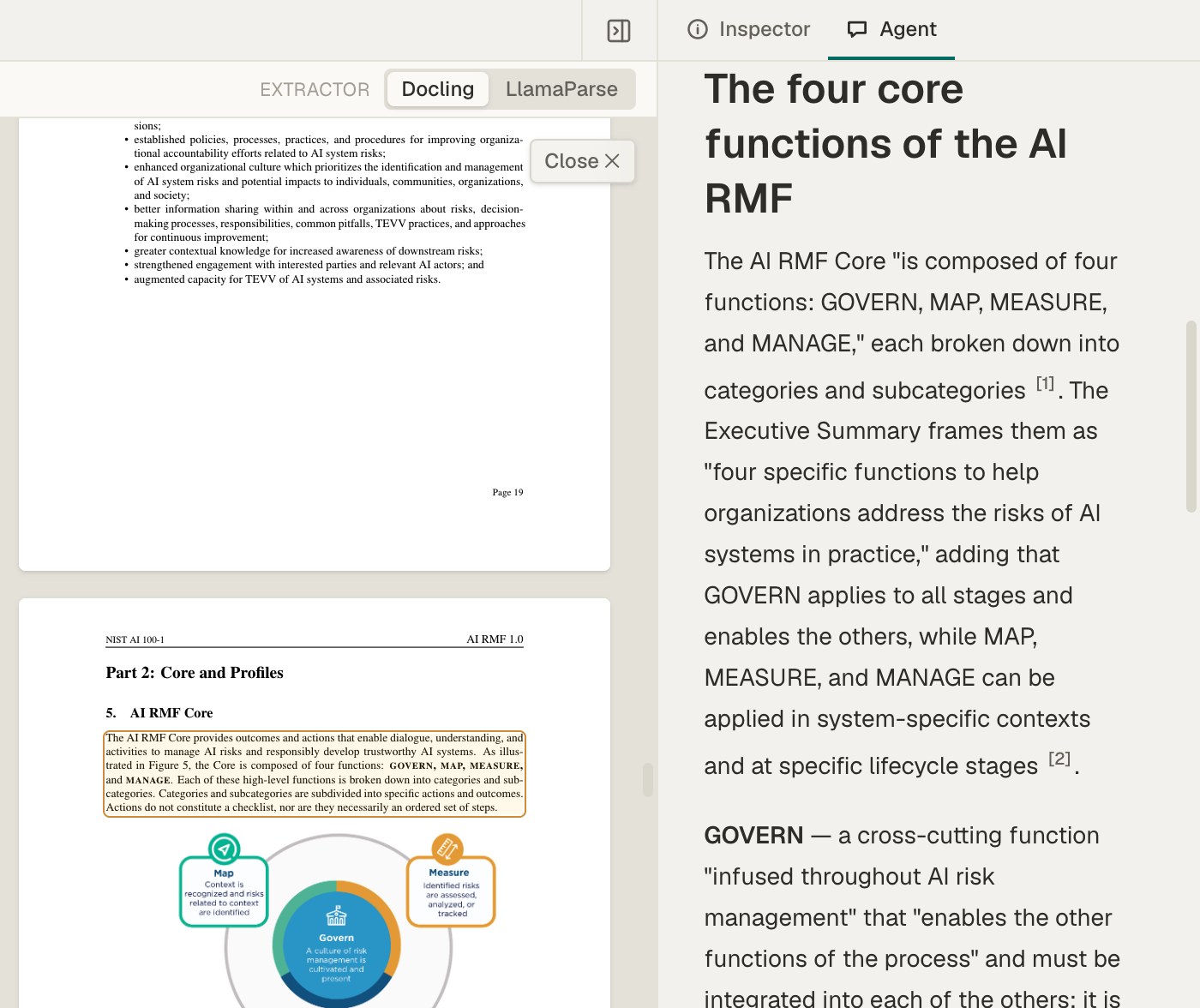
Mempipe tells the agent to answer only from your files, to cite each claim, and to say when it finds no evidence. Models don’t always follow instructions, so check any claim that matters against its source.
- A citation outlined in red could not be matched to anything the agent read. Treat that claim as unverified.
- A stale tag in the list of sources means the passage comes from an older version of the file.
What the agent can use
Section titled “What the agent can use”- One Space. The agent works in the Space you have open, and can’t see your other Spaces.
- Your documents. It searches your files, finds exact phrases, finds files by name, and lists folders. It reads PDFs and Markdown notes as text, and cites passages from them. It can also read any other text file, such as a CSV, exactly as saved.
- What you have open. It knows which file is open in the main area and which one is selected in Files, so you can ask about “this document”.
The agent reads a PDF’s text, not its images. It can’t run a SQL query or see a query’s results, but it can write a .sql file for you to open and run.
Save a note, query, or chart
Section titled “Save a note, query, or chart”Ask the agent to save what you learned:
Save the four functions and their citations in
notes/ai-rmf-functions.md. Keep the original file unchanged.
The new file appears in Files. Expand the steps row to see the write_file step and the path it saved.
The agent can:
- create Markdown (
.md), SQL (.sql), and Vega-Lite chart (.vl.json) files of up to 256 KB each, along with any missing folders; - replace the whole text of an existing file of those types, including your own notes and
AGENTS.md. If the file changed after the agent read it, the save fails instead of overwriting your change.
The agent can’t delete, rename, or move files, or change any other type of file, such as a PDF or a CSV.
There is no approval step: the agent saves a file as soon as it writes it. Mempipe tells the agent to save files only when you ask. The app has no undo or version history, so ask for a new filename when you want to keep the current version of a file.
Keep the conversation
Section titled “Keep the conversation”The conversation isn’t saved. It stays while you switch between Inspector and Agent, but reloading the page, following an ordinary Markdown link in a note, opening another Space, or leaving the Space starts an empty one. A wiki link such as [[overview]] keeps it. To keep what matters:
- Copy an answer. Choose the copy button below a finished answer. Its tooltip reads Copy answer as Markdown. The citations become links that open the source for anyone who can open this Space.
- Download the chat. Choose the download button in the chat box, Download chat as Markdown, to save the whole conversation as a Markdown file on your computer.
- Save it in the Space. Ask the agent to save a summary as a note, as above.
- Copy or download a table from an answer. A table in an answer has buttons to copy it as Markdown, CSV, or TSV, to download it as a CSV or Markdown file, and to view it full screen. A code block has buttons to copy or download it.
The button beside the download button, Export diagnostic JSONL, saves a technical record of every step, including the text the agent read from your files.
Your questions and the text the agent reads go to your model provider. See where your key and questions go.
If something gets in the way
Section titled “If something gets in the way”- An error shows above the chat box: it is your provider’s message, usually about the key or the model. See The agent won’t answer or shows a key error.
- The agent says it doesn’t have enough evidence: check that the file finished processing, name the file in your question, and use words that appear in it. Finding nothing doesn’t prove the file lacks the answer. Search results are missing or out of date has more checks.
- The agent says a file is still processing: wait until the file finishes processing, then ask again.
- A link shows [blocked] after its text: the agent linked to a file instead of citing a passage, and the chat doesn’t open those links. Open the file from Files instead.
- A save failed: expand the steps row and read the
write_filestep’s error. Ask the agent to save under a new name, or to read the existing file and update it.
- Give the agent standing instructions with AGENTS.md, so you don’t repeat them in every question.
- Build and maintain an LLM wiki from the notes the agent saves.