Open a citation and check its source
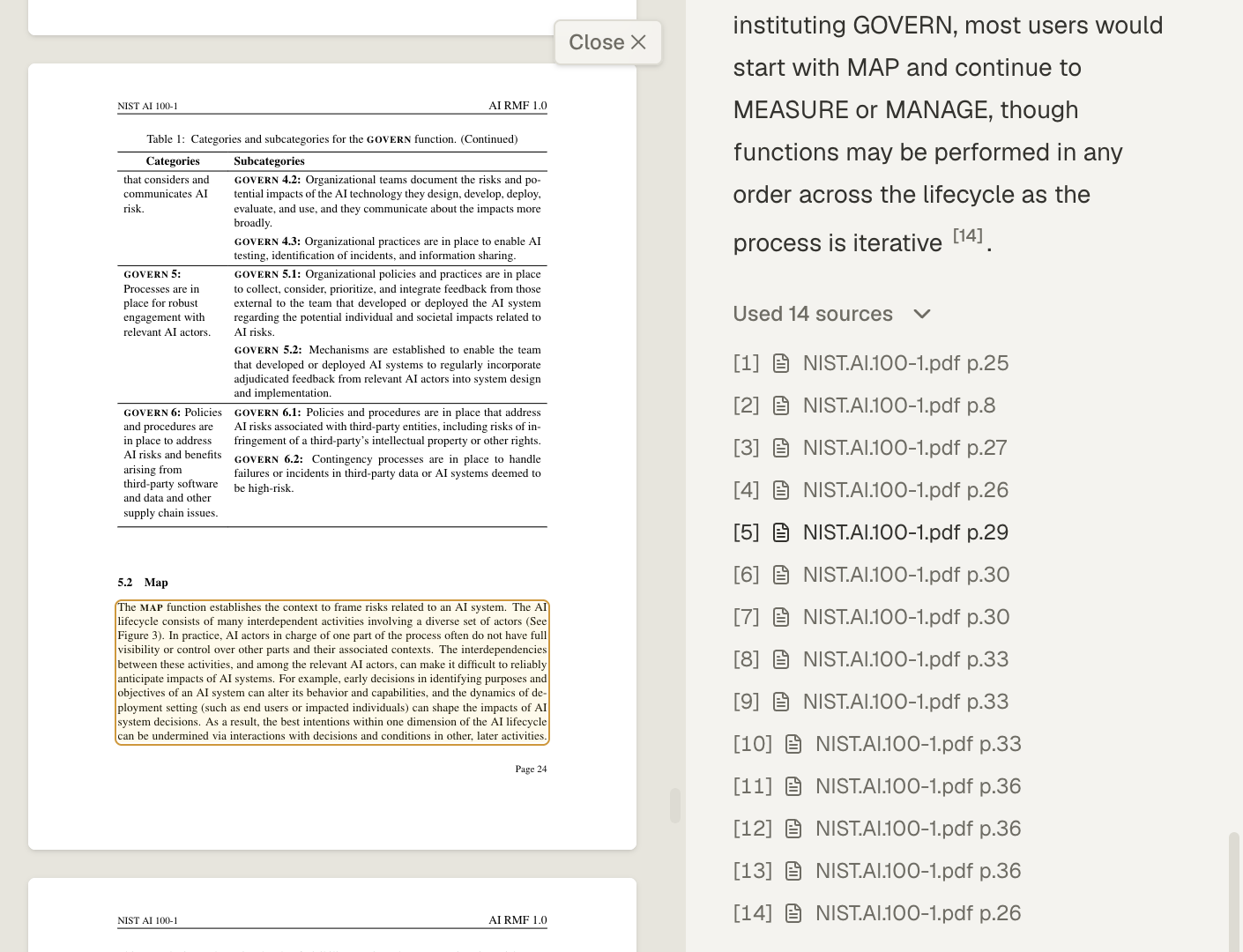
A citation in Mempipe is a link to the exact passage that an answer or note relies on. Click it, and Mempipe opens the source file scrolled to that passage, with the passage highlighted. For a PDF, the original page opens beside the text with the passage outlined, so you can check the claim against the document itself.
Where you find citations
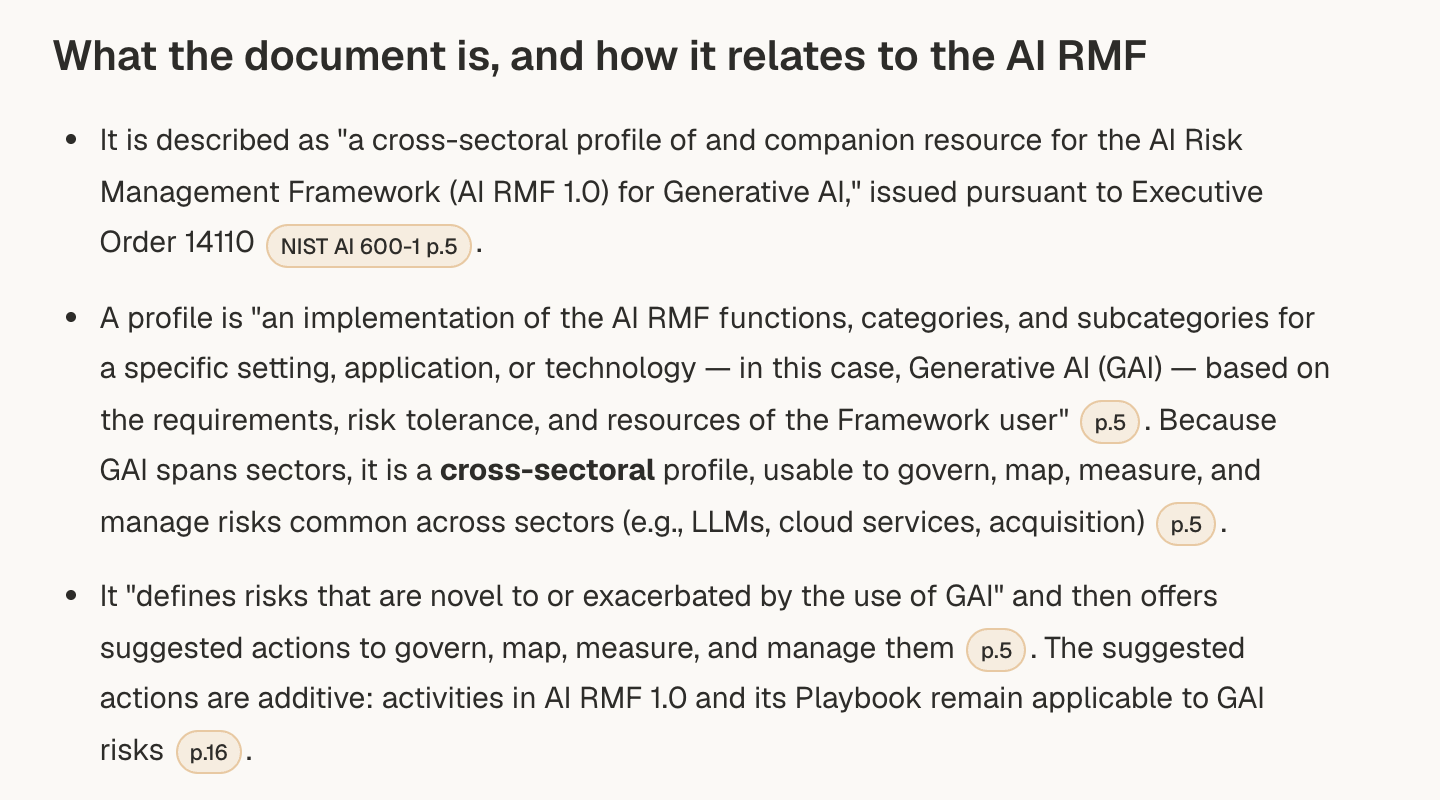
Section titled “Where you find citations”- Agent answers. The in-app agent marks each claim it cites with a number, such as [1]. When the answer finishes, a line such as Used 3 sources appears below it. Choose it to list each source with its file and page.
- Notes and wiki pages. A citation saved in a Markdown file appears as a highlighted label when you read the file. Behind it is an ordinary Markdown link to the passage.
- Answers from a connected AI assistant. An assistant connected to your Space, such as Claude or ChatGPT, gets a full Mempipe link for each passage it can cite. When it includes those links in its answer, they open the passage in your browser.
- Copied answers. The copy button below an agent answer, Copy answer as Markdown, turns each citation into a full link, so it still opens after you paste the answer somewhere else.
Search results open the same way as citations. See Search inside your PDFs and Markdown files.
Check a citation
Section titled “Check a citation”-
Point at the citation.
In an agent answer, a tooltip shows the file and where the passage is, such as
NIST.AI.100-1.pdf p.12.p.12is page 12 of a PDF, andL40is line 40 of a Markdown file. PDF pages are counted from the first page of the file, so the number can differ from the one printed on the page. -
Click it.
The file opens in the main area, scrolled to the passage, with the passage highlighted.
-
For a PDF, compare the text with the page.
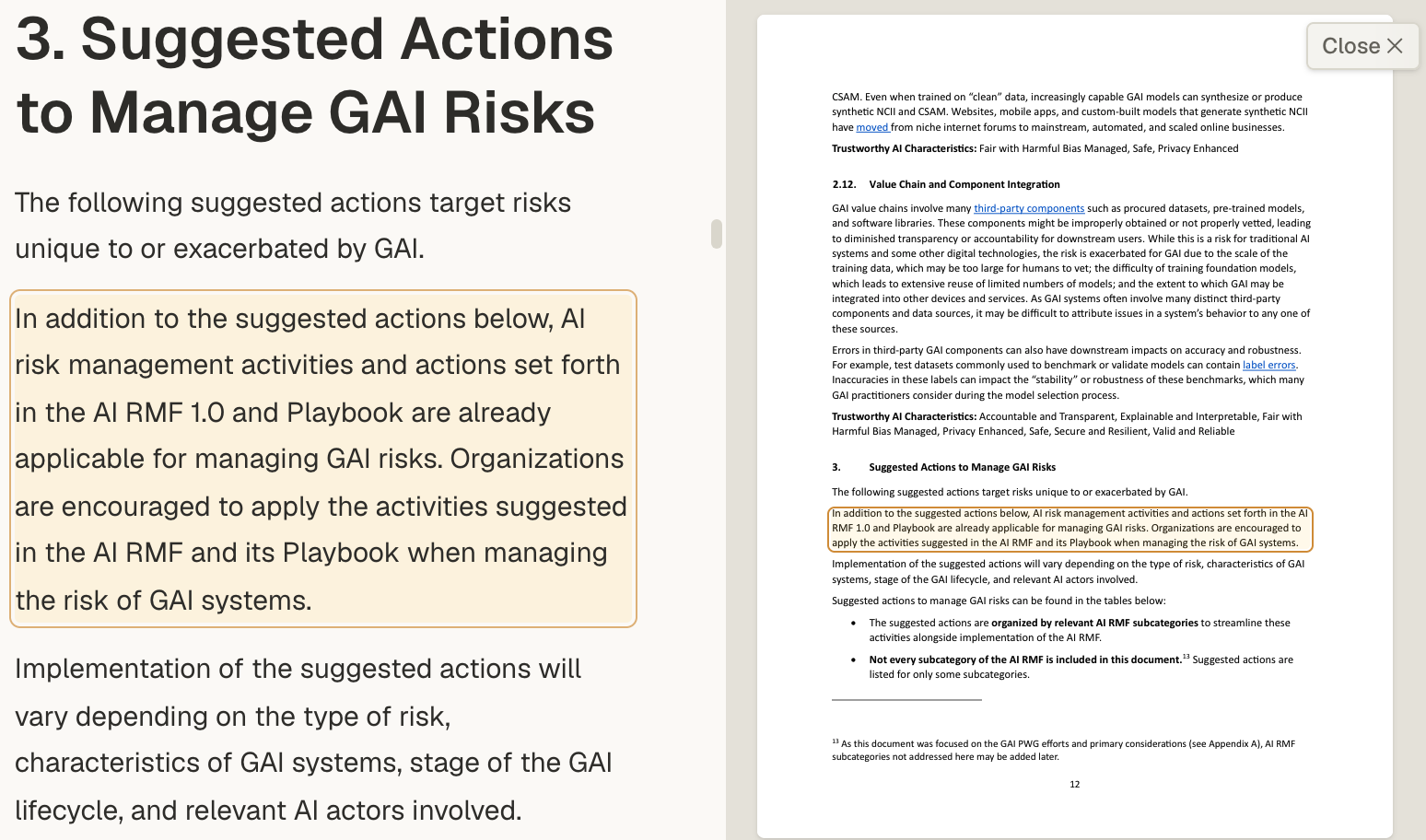
The Markdown text opens on one side and the original PDF page on the other, with the cited passage outlined on the page. In a narrow window, the page appears below the text instead.
-
Read the passage in context.
Check that the passage says what the claim says. Read the text around it, and look at any table or figure on the page that changes its meaning.
-
Close the page.
Choose Close at the top of the PDF page to return to the text alone.
To open a citation in a new browser tab instead, hold ⌘ (Ctrl on Windows and Linux) as you click it. This works for the numbers in an agent answer and the labels in a note. The rows in an answer’s list of sources always open in the current tab.
Open a PDF page from its text
Section titled “Open a PDF page from its text”You don’t need a citation to check a PDF against its page. In a PDF’s Markdown view, point at a section to show its page chip, such as p.12. Choose the chip to open that page beside the text with the section outlined. Read a PDF as Markdown and check the original page explains the Markdown view.
If a citation doesn’t open cleanly
Section titled “If a citation doesn’t open cleanly”- This citation does not resolve in the version shown here. The cited passage is not in the version of the file on screen. The file may have been edited, or processed again with a different extractor. Choose Clear citation to read the file, then use Grep to look for the quoted words. You can also ask the agent to cite the passage again.
- A label at the top of the document reads stale. The labels are stale, stale — re-deriving, and last derivation failed — showing previous. You’re reading an earlier processed version of the file, and the PDF page may open without an outline. Wait for processing to finish, or see A file is stuck processing or failed.
- This citation’s location comes from an older derived snapshot, so no highlight is shown on the current PDF. The citation was made from an earlier processed version of the PDF, so the page opens without the passage outlined. Choose Clear citation, then look for the quoted words in the PDF’s markdown view.
- A citation is red. Point at it to see Unresolved citation. In a note, the file it points to wasn’t found; it may have been renamed, moved, or deleted. In an agent answer, the link doesn’t match any passage the agent found. Treat the claim as unchecked until you find the evidence yourself.
- A citation in a note is orange. Point at it to see Resolver error. Mempipe couldn’t look up the file it points to just then. Reload the page and try again.
- stale beside a source in the Used sources list. The file has changed since the agent read it, so the passage may not match the current text. Open it and compare.
- A sign-in page opens. A citation link from a connected assistant or a copied answer opens Mempipe in your browser. Sign in with the account that can open the Space, and Mempipe takes you to the passage. Someone without access to the Space can’t open it.
What a citation shows, and what it doesn’t
Section titled “What a citation shows, and what it doesn’t”A citation shows where the words came from. It doesn’t prove the answer reads them correctly, and an answer can include claims with no citation at all. Read the cited passage before you rely on a claim, and treat an uncited claim as unchecked. Check an AI-written wiki against its sources walks through checking a whole wiki.
A citation points to a passage in one version of a file. After the file is edited or replaced, an older citation to it may no longer resolve.
- Search inside your PDFs and Markdown files to find more evidence yourself.
- Build and maintain an LLM wiki to save checked answers as pages with citations.