The agent won't answer or shows a key error
When Mempipe’s in-app agent won’t answer, the cause is almost always the provider, API key, or model it is set to use. An error above the chat box usually comes from your provider, not from Mempipe. Check that the provider menu names the company your key comes from, paste the key again under Model & API key, and check the model’s name. If the agent answers but can’t find your files, they may still be processing.
Set up the in-app agent with your own API key covers the first setup.
The chat box says “Add an API key to start…”
Section titled “The chat box says “Add an API key to start…””The provider chosen in the menu has no key saved in this browser, so the send button is off.
- You reloaded the page. The provider menu goes back to OpenAI on every reload. Your saved keys stay. Open the menu at the bottom left of the chat box and choose your provider again. Then check the model on the gear button, since it also goes back to the provider’s default.
- You’re in another browser, profile, or device. Keys are saved in the browser you entered them in, not in your Mempipe account. Paste your key again.
- You’re in a private window, or you cleared this site’s data. The saved keys went with it. Paste your key again.
An error shows above the chat box
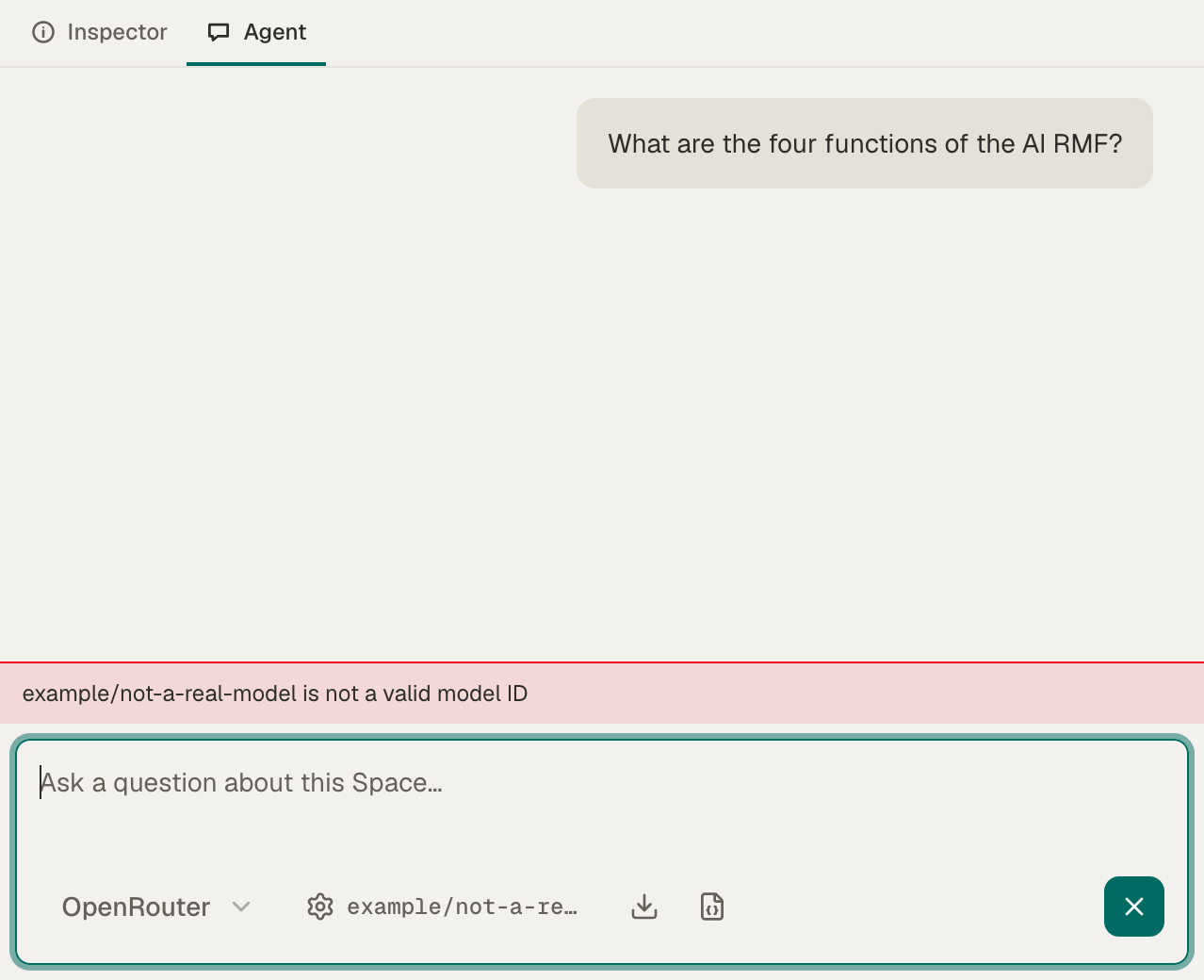
Section titled “An error shows above the chat box”A red bar above the chat box shows the error. Most errors come from your provider, and their exact words depend on it. Find the kind of message below.
| The message is about | What to do |
|---|---|
| The key: invalid, incorrect, unauthorized, or no credentials | Check that the provider menu names the company the key comes from. Then choose the gear button and paste the whole key into API key again. If the key was deleted or revoked, create a new one with your provider. |
| The model: not found, doesn’t exist, or not a valid model | Choose the gear button and check the name in Model. Vercel AI Gateway and OpenRouter name models as author/model, and suggest names as you type. Your provider account may also need access to the model. |
| Credit, quota, billing, or payment | Your provider account is out of credit or has reached a spending limit. Add credit with your provider. Your Mempipe plan doesn’t pay for model usage. |
| Too many requests, or a rate limit | Wait a minute and ask again. Free models often have lower limits. |
| Tools or tool use | The agent searches and reads your files by calling tools, so it needs a model that supports tool calling. Choose another model. |
{"error":"Missing model."} |
The Model field is empty. Choose the gear button and type a model name. This message comes from Mempipe, not your provider. |
A network error, such as Failed to fetch |
The request didn’t reach Mempipe. Check your internet connection, then ask again. |
To tell which provider a key comes from, look at how it starts. The empty API key field shows each provider’s start as a hint: sk-… for OpenAI, sk-ant-… for Anthropic, vck_… for Vercel AI Gateway, and sk-or-v1-… for OpenRouter. A key that starts with sk-ant- or sk-or-v1- belongs to Anthropic or OpenRouter, even though it also starts with sk-.
Never paste your API key into the chat, and never send it by email.
The agent stops or takes a long time
Section titled “The agent stops or takes a long time”While the agent works, the send button shows a spinner and then a square. Choosing it stops the agent. An answer that reads several files can take a minute or more.
- It’s taking too long. Choose the stop button, then ask a narrower question, or name the file to read.
- A step failed. The steps row above the answer, such as “3 steps”, shows a red mark when a step failed. Expand it to read the failed step’s error.
The agent can’t find your files
Section titled “The agent can’t find your files”The agent searches the same text as the Search panel, in the Space you have open.
- It says a file isn’t ready, or finds nothing in a new file. The file may still be processing. Wait until it shows Ready, or until Search units derived appears for it in Space Activity, then ask again.
- It finds nothing in a file that processed. Name the file in your question, and use words that appear in it. Search results are missing or out of date has more checks.
- The file failed processing. See A file is stuck processing or failed.
- It can’t save a file. Expand the steps row and read the
write_filestep’s error. If your organization reached a limit, see You reached a storage, file, or Space limit.
The conversation disappeared
Section titled “The conversation disappeared”The agent doesn’t save conversations. Reloading the page, following an ordinary Markdown link in a note, opening another Space, or leaving the Space clears it. Files the agent saved stay in the Space. To keep a conversation, choose the download button in the chat box, whose tooltip reads Download chat as Markdown, before you leave.
Still stuck
Section titled “Still stuck”Email hello@mempipe.ai with the provider, the model’s name, and the text of the error. Don’t include your API key.