Delete a Space, an organization, or your account
To delete a Space, open your organization’s page, select the delete icon beside the Space, type the Space’s slug, and select Delete space. To delete an organization, select Delete organization at the bottom of the same page and type the organization’s slug. There is no button to delete your account: email hello@mempipe.ai from the address you sign in with.
Deleting is permanent. Mempipe can’t restore a deleted Space or organization, or anything in it. To remove only some files, delete the files instead.
Before you start
Section titled “Before you start”- Only an organization’s owner can delete it or its Spaces. The person who creates an organization becomes its owner, and the app has no way to add other members.
- An organization on a paid plan can’t be deleted until it is back on Free. See Downgrade to Free.
Delete a Space
Section titled “Delete a Space”Deleting a Space deletes it and every file in it.
-
Open your organization’s page.
Select your organization’s short name at the top left of the app, or choose All spaces… in the Space switcher.
-
Select the delete icon beside the Space.
Point at the Space’s row to show the trash icon at its right end, then select it. On a touch screen, the icon is always shown.
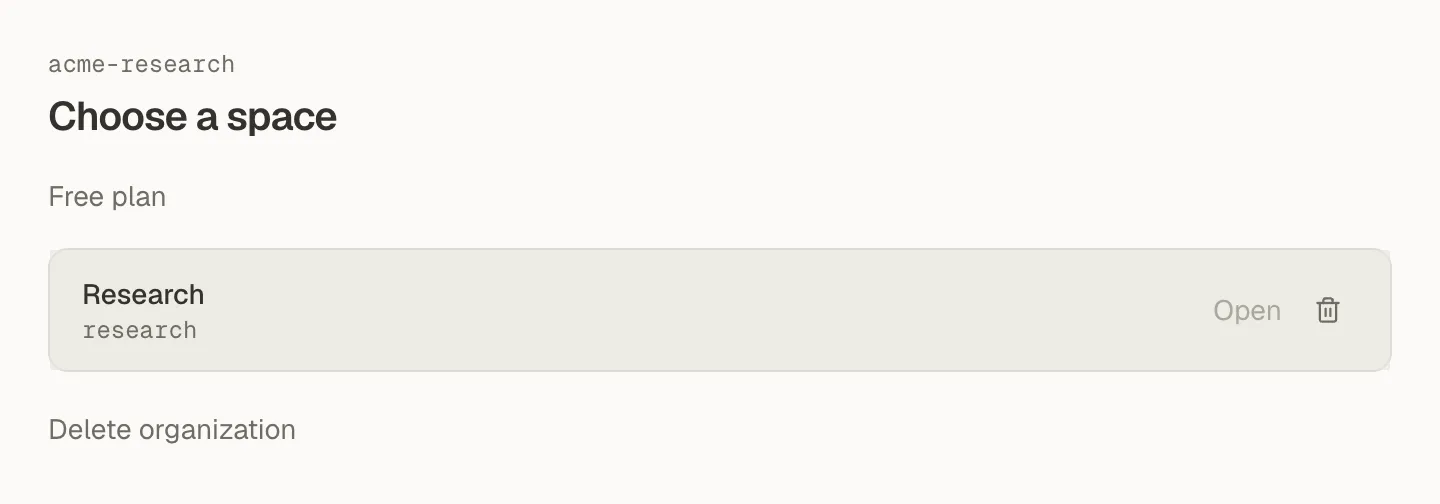
Point at a Space's row to show its delete icon. -
Type the Space’s slug.
The Delete space dialog asks you to type the slug, such as
research. Delete space stays unavailable until it matches exactly.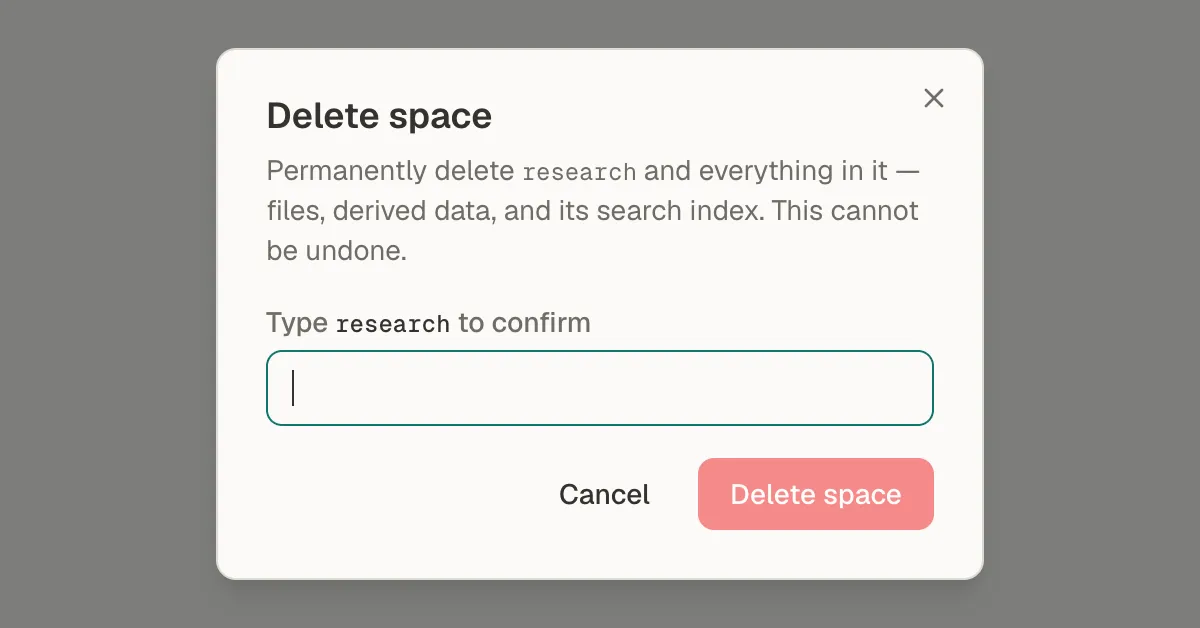
Type the Space's slug to confirm. -
Select Delete space.
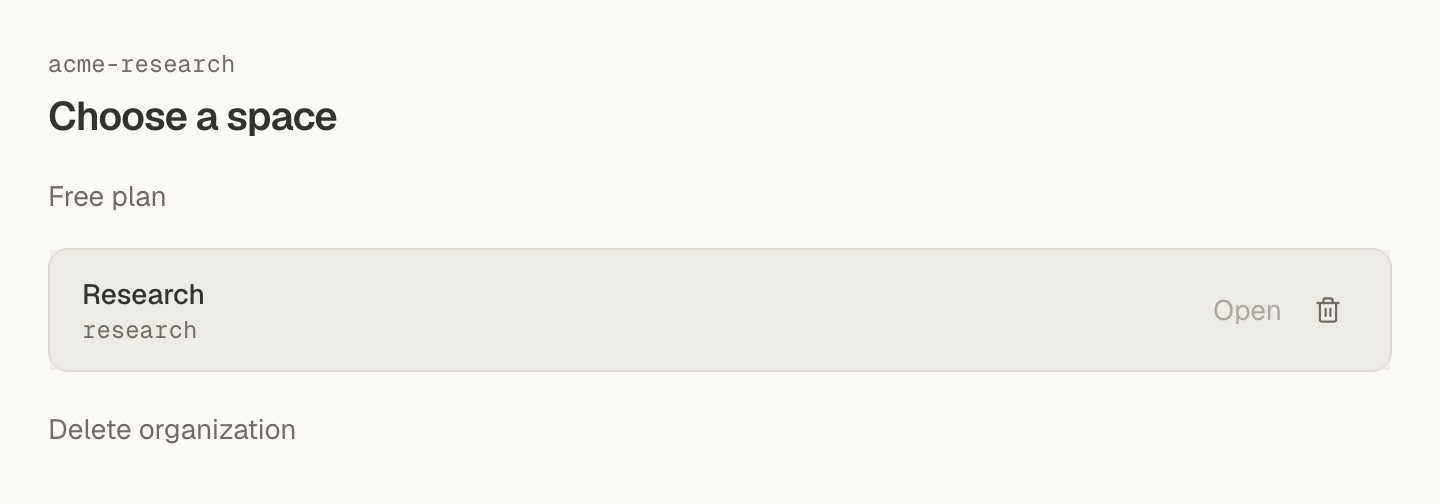
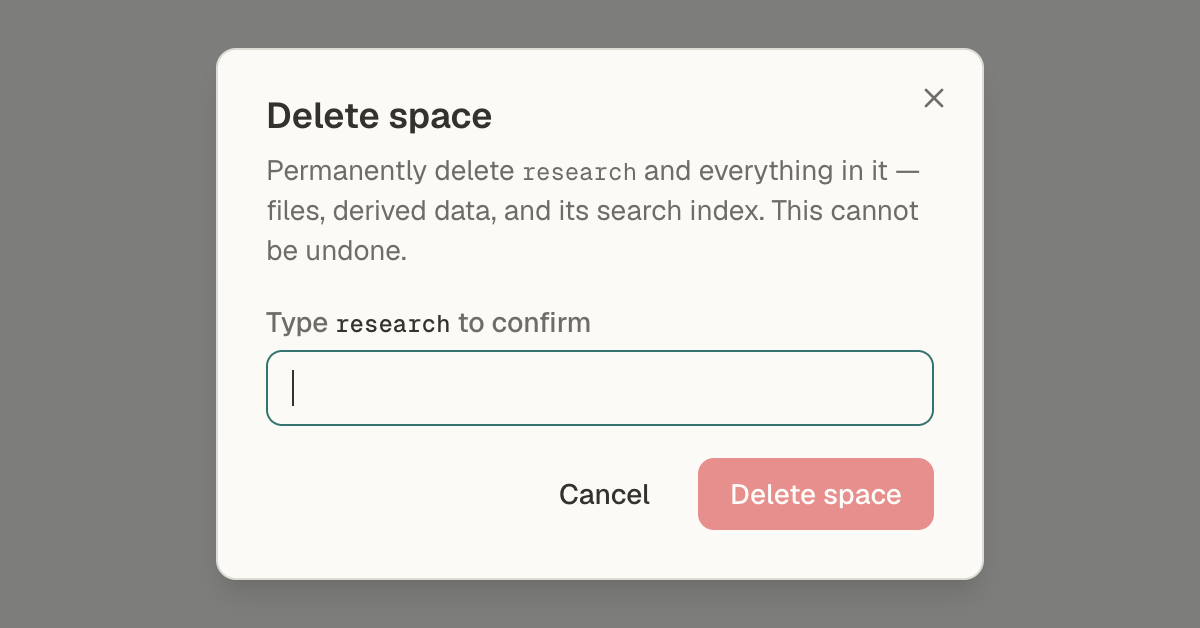
You return to the organization’s page, and the Space is gone from the list. If it was the last Space, the page says No spaces yet. The Space no longer counts toward your plan’s limits, though the usage count can take a moment to update.
An AI app you connected to the Space over MCP can no longer reach it. See what a connected AI can read and change.
Delete an organization
Section titled “Delete an organization”Deleting an organization deletes every Space in it, with all their files, and its billing record.
An organization on a paid plan must first move to Free. On Billing, select Downgrade to Free. Once the downgrade takes effect at the end of the billing period, you can delete the organization.
-
Open the organization’s page.
Select the organization’s short name at the top left of the app, or choose All spaces… in the Space switcher.
-
Select Delete organization.
It’s the link at the bottom of the page, below the list of Spaces.
-
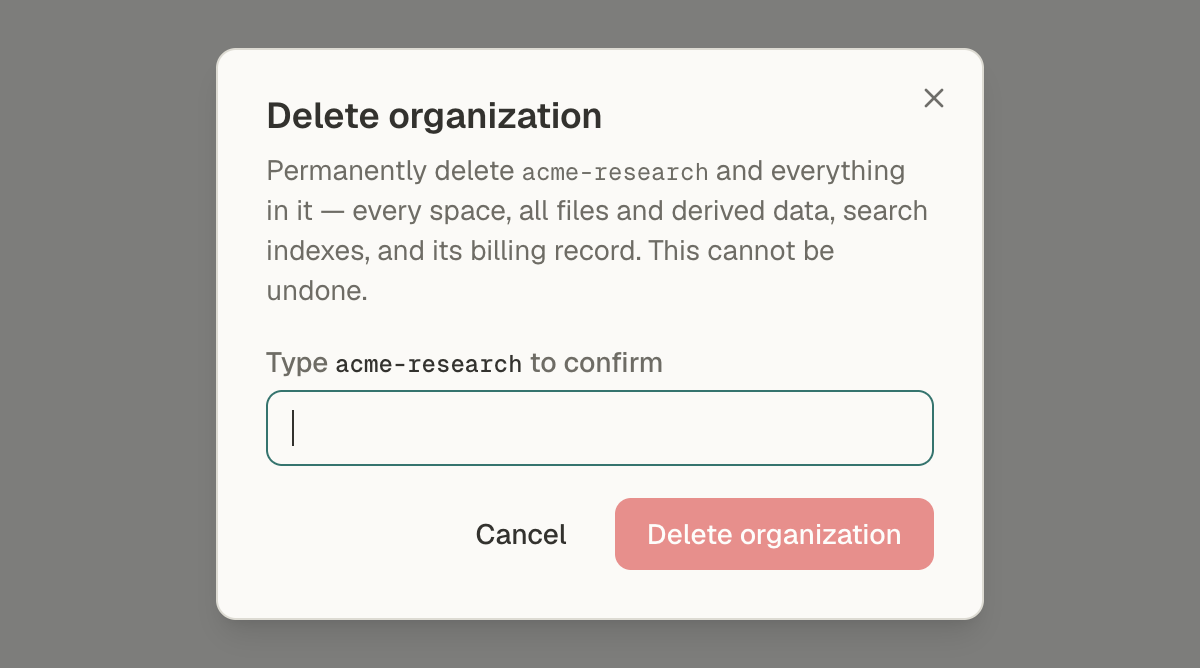
Type the organization’s slug.
The dialog asks you to type the slug, such as
acme-research. Delete organization stays unavailable until it matches exactly.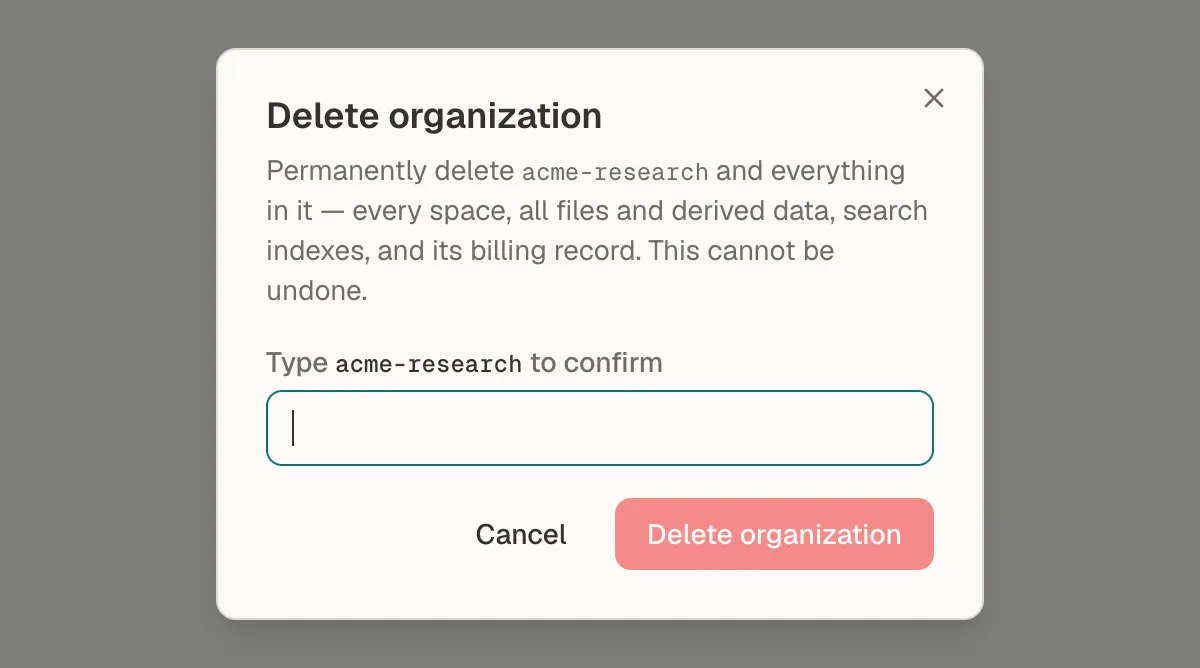
Type the organization's slug to confirm. -
Select Delete organization.
You return to Home, which lists your other organizations. If it was your only organization, Home says Create your workspace, and Start onboarding sets up a new one. Deleting an organization also frees one of the three organizations you can own.
Delete your account
Section titled “Delete your account”The app has no option to delete your Mempipe account. Email hello@mempipe.ai from the email address you sign in with, and ask for your account to be deleted.
If something goes wrong
Section titled “If something goes wrong”- You don’t see the delete icon or Delete organization. Only the organization’s owner sees them. Check that you are on the right organization’s page.
- “This organization still holds a paid plan.” Downgrade to Free on Billing, and delete the organization after the downgrade takes effect. Open billing goes there.
- “Billing setup for this organization never finished.” Select Open billing, select Set up billing, then delete again.
- “Deleting the Space’s stored data failed partway.” The Space is already hidden. Delete it again to finish.
- “Cleanup failed partway — the organization is still here.” Delete it again to finish. The dialog then says “A previous deletion attempt didn’t finish.”
- “The billing provider errored during deletion.” The organization is still here. Delete it again.
- A message ends “contact the operator”. The organization is still here, and deleting again won’t help. Email the message to hello@mempipe.ai.
Still stuck? Email hello@mempipe.ai with the organization’s slug and the message you saw.