Create a Mempipe account
To create a Mempipe account, go to app.mempipe.ai/sign-up, enter your name and email, and open the link Mempipe emails you. Then name your organization and your first Space. Signing up is free, and a new organization starts on the Free plan.
Not sure yet what Mempipe does? Read What is Mempipe? first.
Before you start
Section titled “Before you start”You need an email address you can open now, because the link expires 10 minutes after it is sent. You can also sign up with a Google account or a password.
While signing up, you create two things:
- An organization holds your Spaces and your plan.
- A Space holds a set of related files. What is a Space?
Sign up with an email link
Section titled “Sign up with an email link”-
Open the sign-up page.
Go to app.mempipe.ai/sign-up, or select Sign up at the top of mempipe.ai.
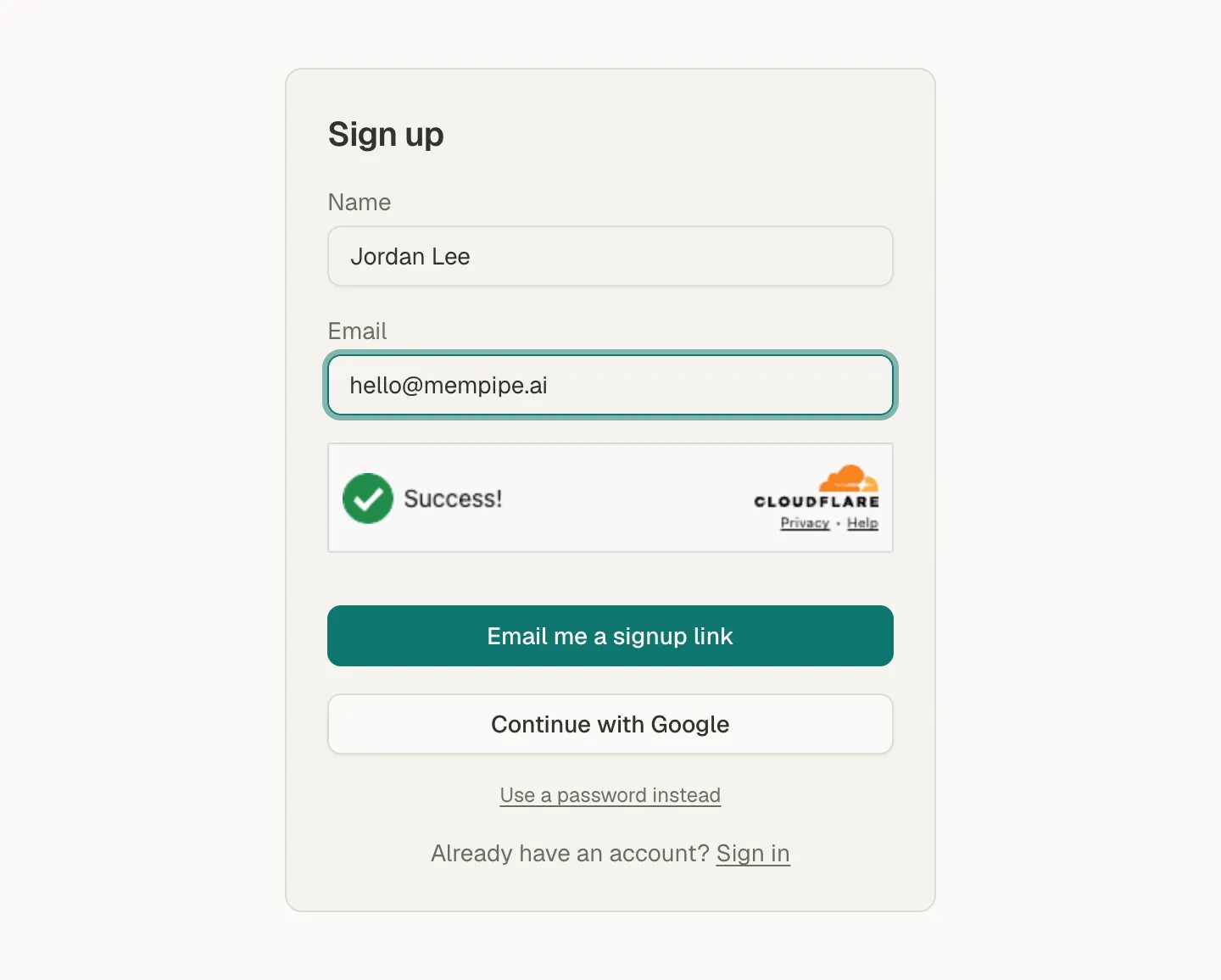
Enter your name and email, then ask for a sign-up link. -
Enter your name and email.
Fill in Name and Email. A short verification check runs under the form. If it asks, confirm that you are human.
-
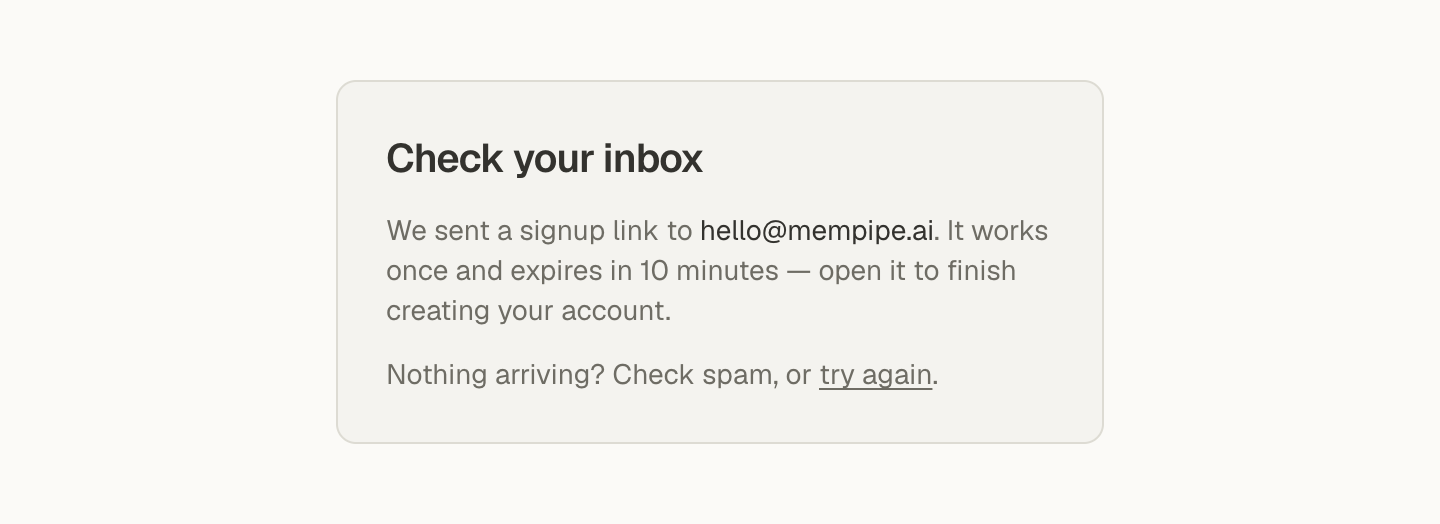
Select Email me a signup link.
The page changes to Check your inbox.
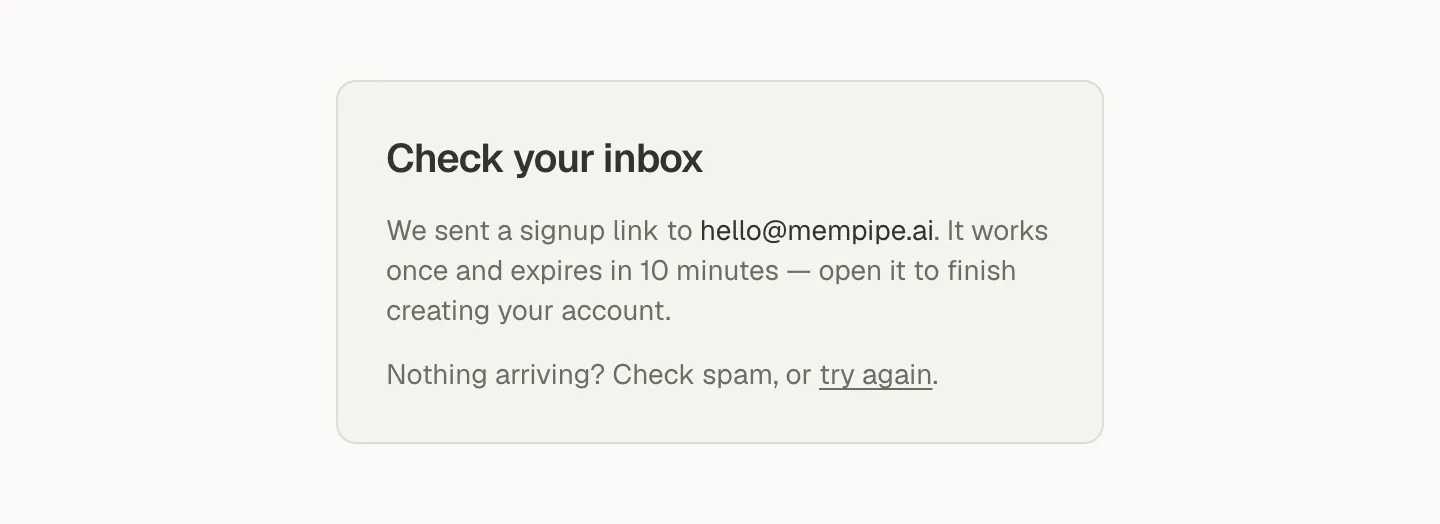
The link works once and expires in 10 minutes. -
Open the link in the email.
Look for an email from Mempipe with the subject “Your Mempipe sign-in link”, and select the link in it.
You arrive at Create your workspace. Select Start onboarding.

A new account starts here. Select Start onboarding. -
Name your organization and first Space.
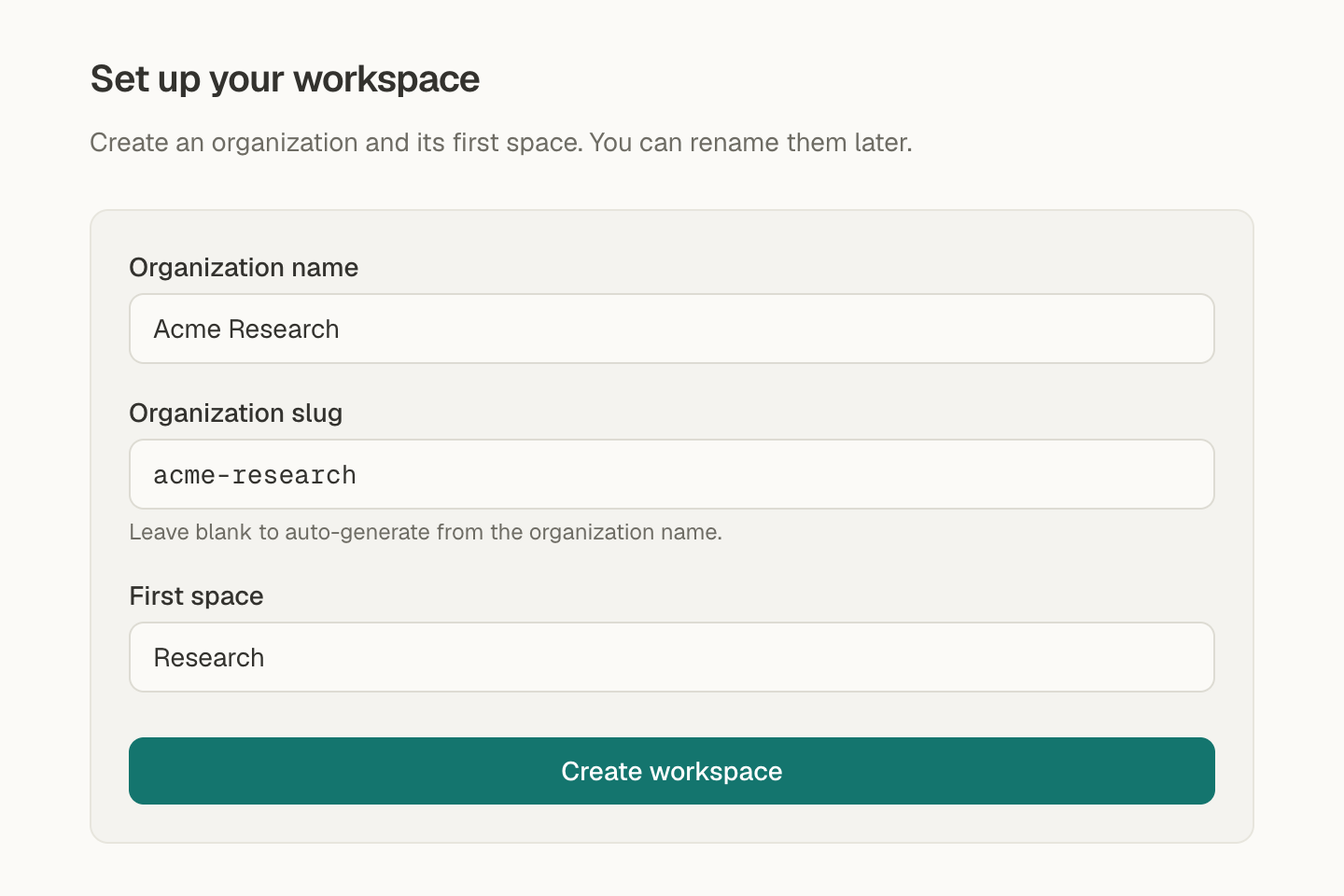
On Set up your workspace, fill in:
- Organization name: your name, team, or project. If you leave it blank, Mempipe names it after you, such as “Jordan Lee’s workspace”.
- Organization slug: the short name in your web address, such as
acme-researchinapp.mempipe.ai/@acme-research. Leave it blank to make one from the organization name. - First space: the name of your first Space. It starts as “Default”, and its web address is made from the name.
The app has no option to rename an organization or Space today, so choose names you are happy to keep.
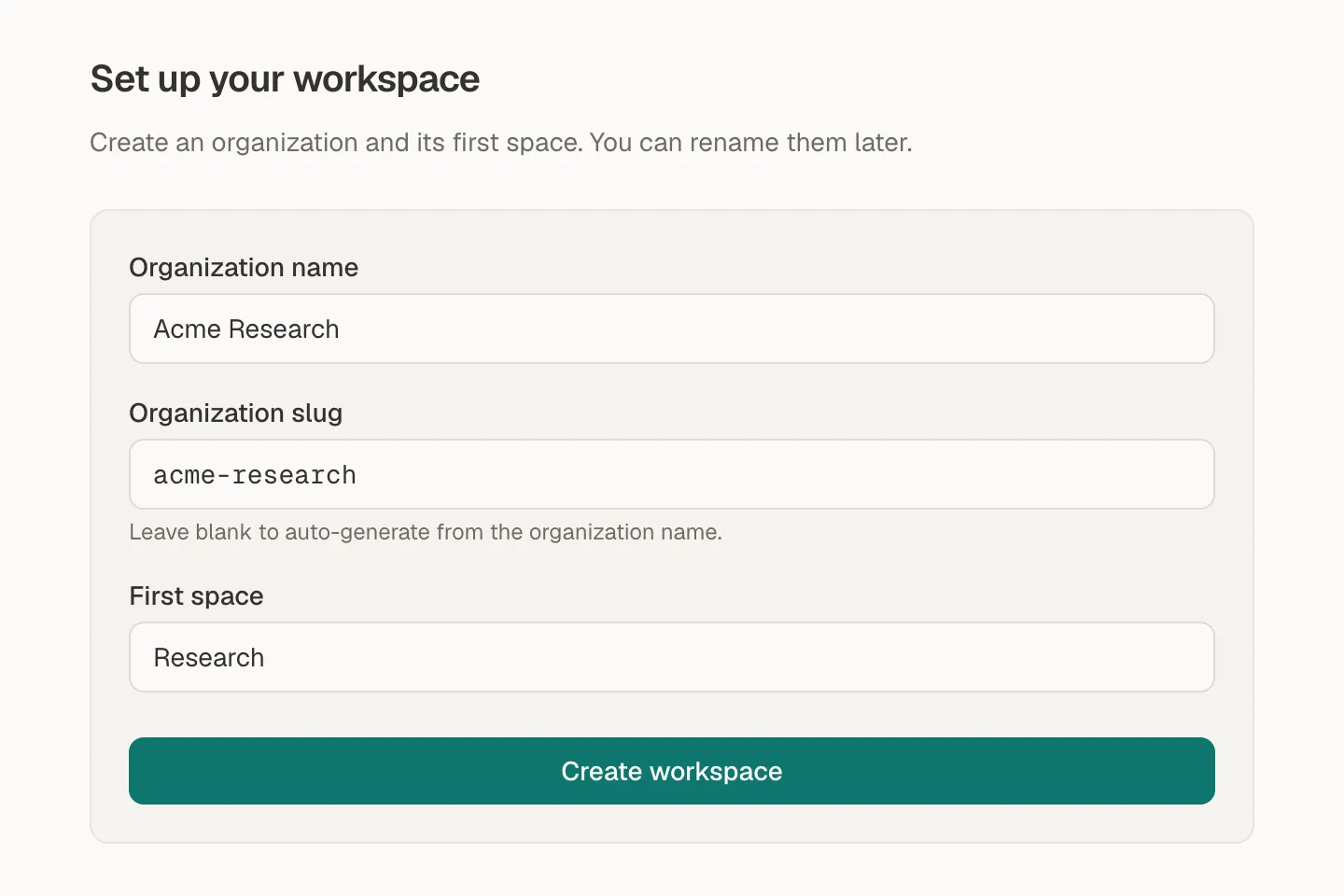
The organization slug becomes part of your web address. -
Select Create workspace.

When it worked
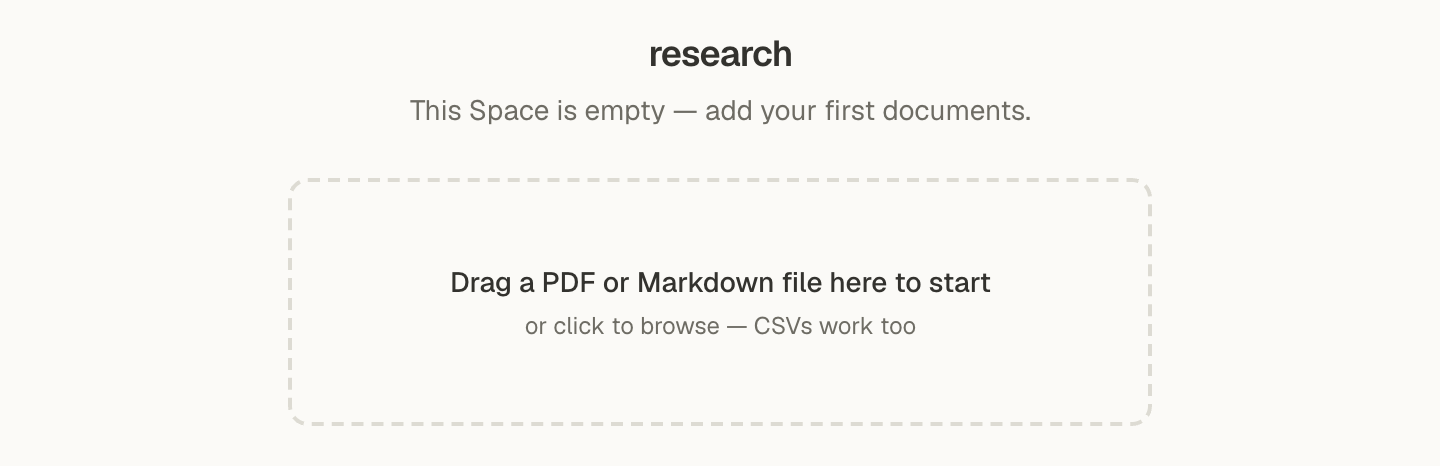
Section titled “When it worked”Mempipe opens your new Space. It is empty, and the middle says This Space is empty above an area where you can drop files. The top bar shows your organization and Space.
Other ways to sign up
Section titled “Other ways to sign up”- With Google. Select Continue with Google and choose your Google account. You then name your organization and Space, as in step 5.
- With a password. Select Use a password instead, enter a password of at least 8 characters, and select Sign up. You are signed in straight away, with no email to open.
- With an invitation. An invitation email has a subject such as “Jordan Lee invited you to Mempipe”. Open its link, or a link the person shared with you, and sign up with the email address the invitation was sent to. If you use the email link, Mempipe then emails a link with the subject “Finish creating your Mempipe account”. Open it to finish. With a password or Google, there is no second email.
If something goes wrong
Section titled “If something goes wrong”- No email arrives. Check your spam folder. On Check your inbox, select try again to go back to the form, then submit it again for a new link.
- “That signup link is no longer valid.” The link expired or was already used. Request a new one on the sign-up page.
- “An account with that email already exists.” You already have an account. Sign in instead, as Sign in to Mempipe describes.
- “That email address is not valid.” Check the address for a typo.
- “Password must be at least 8 characters.” or “Password is too long (max 128 characters).” Choose a password of 8 to 128 characters.
- “That email already has a Mempipe account. Sign in with an email link instead.” You signed up with a password and haven’t confirmed your email yet, so Google can’t sign you in. Sign in with an email link once, and Google sign-in works after that.
- “Google sign-up was cancelled.” You closed or backed out of Google’s page. Select Continue with Google again.
- “Too many attempts.” Wait a few minutes, then try again.
- “Verification expired or failed.” Complete the new verification check under the form, then try again.
- “That URL is taken - pick another.” Another organization already uses that slug. Enter a different Organization slug.
Still stuck? Email hello@mempipe.ai with the email address you signed up with and the message you saw.
Next step
Section titled “Next step”Find your way around a Space, or go straight to asking questions about a PDF.