Build an LLM wiki with Claude Code or Codex
To build an LLM wiki with Claude Code or Codex, connect it to your Mempipe Space over MCP and approve write access when you sign in. It can then search and read the PDFs in the Space, and create or replace Markdown pages in the wiki folder. Ask it to cite the passages it used; a valid citation opens the passage in Mempipe. Upload your sources in Mempipe first: a connection to one Space cannot add PDFs, change a PDF, or delete anything.
This page is for people who already work in Claude Code or Codex. To build a wiki inside Mempipe instead, see Build an LLM wiki from your PDFs.
Before you start
Section titled “Before you start”- Sources in the Space. Upload your PDFs to a
rawfolder and wait until each one is ready. Steps 1 and 2 of Build an LLM wiki from your PDFs show how. - Claude Code or Codex, installed on your computer.
- A Mempipe account that can open the Space. You sign in with it when you connect.
Connect with write access
Section titled “Connect with write access”-
Open the Space’s MCP Endpoint page.
In Mempipe, open the Space. Choose Pipeline in the left rail, then MCP Endpoint under Serving. Each Space has its own endpoint.
-
Copy the command for your agent.
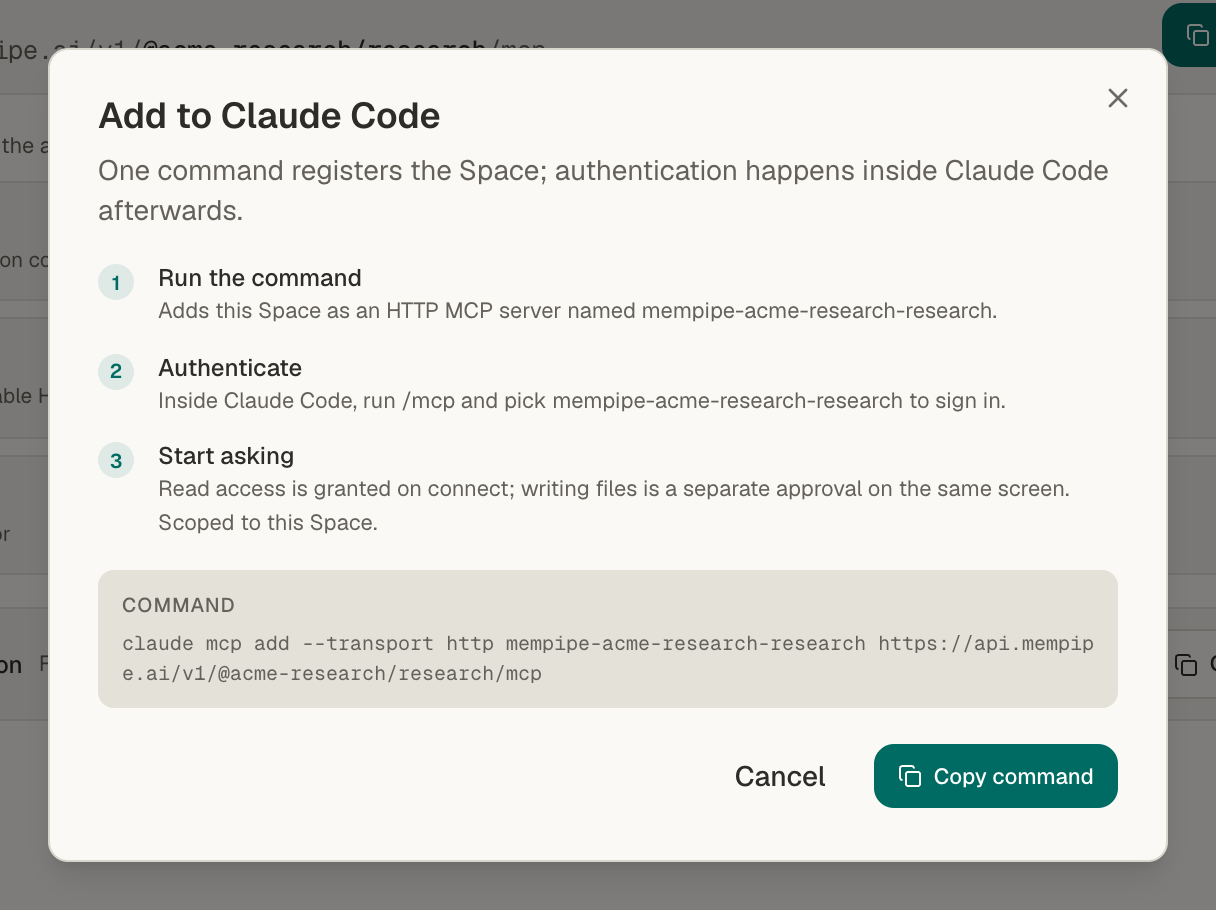
Under Connect a client, choose Add beside Claude Code or Codex, then Copy command. The command already holds this Space’s server name and URL. It looks like one of these:
Terminal window claude mcp add --transport http mempipe-<org>-<space> https://api.mempipe.ai/v1/@<org>/<space>/mcpTerminal window codex mcp add mempipe-<org>-<space> --url https://api.mempipe.ai/v1/@<org>/<space>/mcp<org>and<space>stand for your organization and Space, as they appear in the Space’s web address. Run the copied command in your terminal. -
Sign in.
- Claude Code: start Claude Code, run
/mcp, and choose the Mempipe server to sign in. - Codex: if your browser didn’t open when you added the server, run
codex mcp login mempipe-<org>-<space>, using the server name from your command.
Your browser opens to sign in to Mempipe.
- Claude Code: start Claude Code, run
-
Approve write access.
On Allow this client access to Mempipe?, tick Create and replace Markdown, SQL, and chart files in this Space, then choose Approve access. The box is unticked by default. Without it, the agent can search and read the Space but cannot save pages. What a connected AI can read and change lists both kinds of access.
For more on each client, see Connect Claude Code to Mempipe and Connect Codex to Mempipe.
Build the wiki
Section titled “Build the wiki”Claude Code and Codex read instruction files from your computer, not from the Space. Ask them to read the Space’s AGENTS.md at the start of each session, or add that request to the instruction file in your own project.
Copy this prompt and replace the server name, file name, and topic with your own:
Use the mempipe-<org>-<space> MCP server. If AGENTS.md exists at thetop level of the Space, read it and follow it.Search and read raw/my-document.pdf. Check for existing wiki/ pages andread them before making changes.Save the key points about [topic] in wiki/overview.md. Cite each claimwith a citation link returned by the Mempipe tools, copied exactly.Create or update wiki/index.md with links to the pages and sources.Write each link as a wiki link, such as [[overview]].Append a short entry to wiki/log.md without inventing a date.Keep raw/ unchanged. Make uncertainty and conflicting evidence clear.Pages the agent saves go straight to the Space. To give the wiki standing rules, ask it to save the rules from Build an LLM wiki from your PDFs in AGENTS.md. The in-app agent reads the same file before every message.
Review the pages in Mempipe
Section titled “Review the pages in Mempipe”Open the Space in Mempipe. If it was already open, reload the page to see the new pages in Files. Open wiki/index.md and follow its links.
Citations written by Claude Code or Codex are full links to Mempipe, such as https://app.mempipe.ai/@org/space/files/raw/…. Opening one opens Mempipe in a new browser tab. Pages saved by the in-app agent show their citations as highlighted labels instead. A valid citation of either kind opens the same passage. If the cited file is later moved or renamed, a full link no longer finds it, and unlike a label it is not shown in red.
To keep the wiki current and correct, use the same prompts as Update your LLM wiki when you add sources and Check an AI-written wiki against its sources. Start each one by naming the Mempipe server.
If something goes wrong
Section titled “If something goes wrong”- The agent says it cannot write, or has no tool to save files. The connection was approved for reading only. Remove the Mempipe server in your agent, add it again, and tick write access when you sign in.
- The consent page does not offer write access. Your agent did not ask for it, so the connection can only read the Space. Save pages with the in-app agent instead.
- The agent cannot find the server or its tools. Check that the command ran without an error and that you finished signing in. In Claude Code,
/mcpshows whether the server is connected. - Sign-in is refused. Sign in with the Mempipe account that can open this Space.
- Search is not ready. A file is still being processed. Wait until it is ready in Mempipe, then ask again.
- A save is refused because the page changed. Someone edited the page after the agent read it. Ask the agent to read the page again and redo its change.
Still stuck? Email hello@mempipe.ai with the name of your agent and the error it showed.