Set up the in-app agent with your own API key
Mempipe’s in-app agent answers questions about the files in a Space, using a model from a provider you choose. To set it up, open the Agent tab in the Space’s right panel, choose a provider, and paste an API key from that provider. Model usage is separate from your Mempipe plan: the provider bills your account for it.
Before you start
Section titled “Before you start”You need a Space to work in, as described in Find your way around a Space, and an API key from one of these providers:
| Provider | Where to create a key |
|---|---|
| OpenAI | platform.openai.com |
| Anthropic | console.anthropic.com |
| Vercel AI Gateway | vercel.com, under AI Gateway |
| OpenRouter | openrouter.ai, under Keys |
A chat subscription such as ChatGPT Plus or Claude Pro does not include an API key. Vercel AI Gateway and OpenRouter are routers: one key reaches models from many companies.
Set up the agent
Section titled “Set up the agent”-
Open the Agent tab.
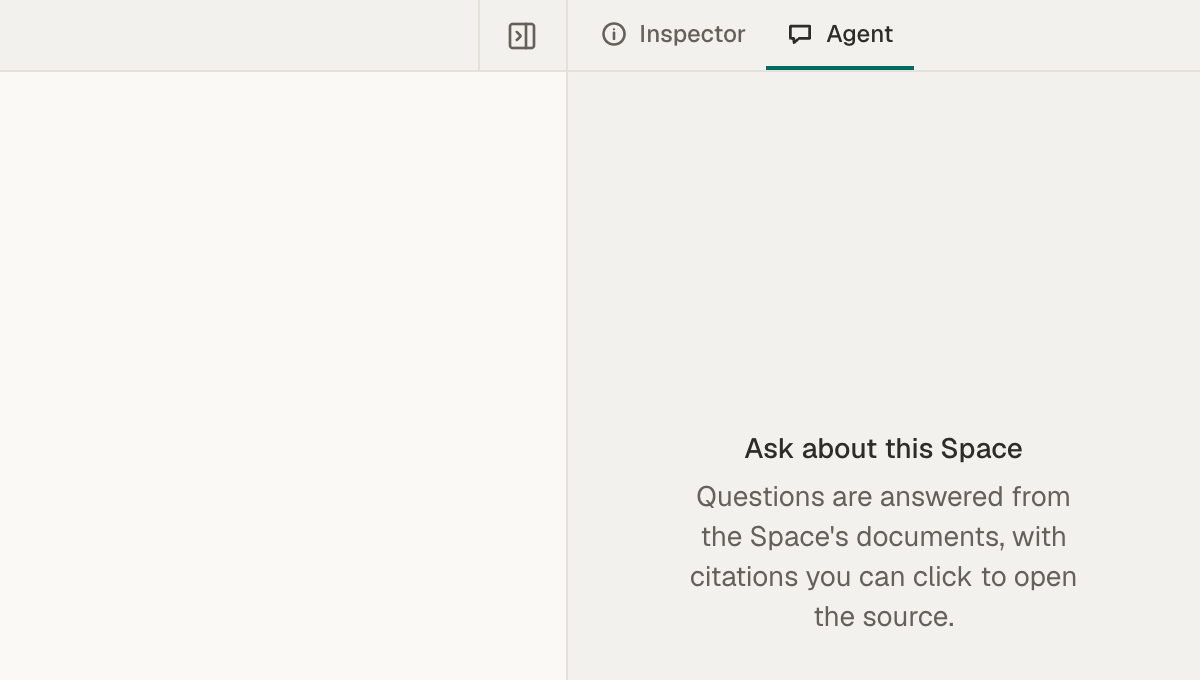
In your Space, choose Agent at the top of the right panel, next to Inspector. If the panel is hidden, choose the panel button at the far right of the tab bar, or press ⌘⇧\ (Ctrl+Shift+\ on Windows and Linux).
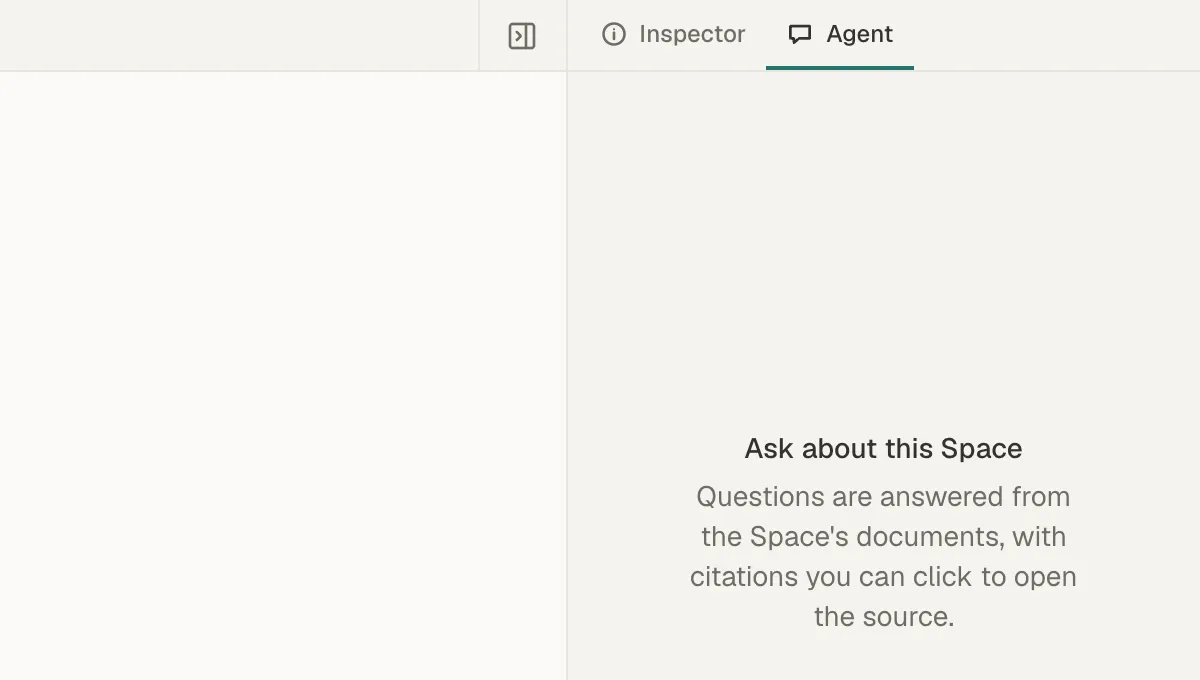
The Agent tab sits next to Inspector, at the top of the right panel. -
Choose a provider.
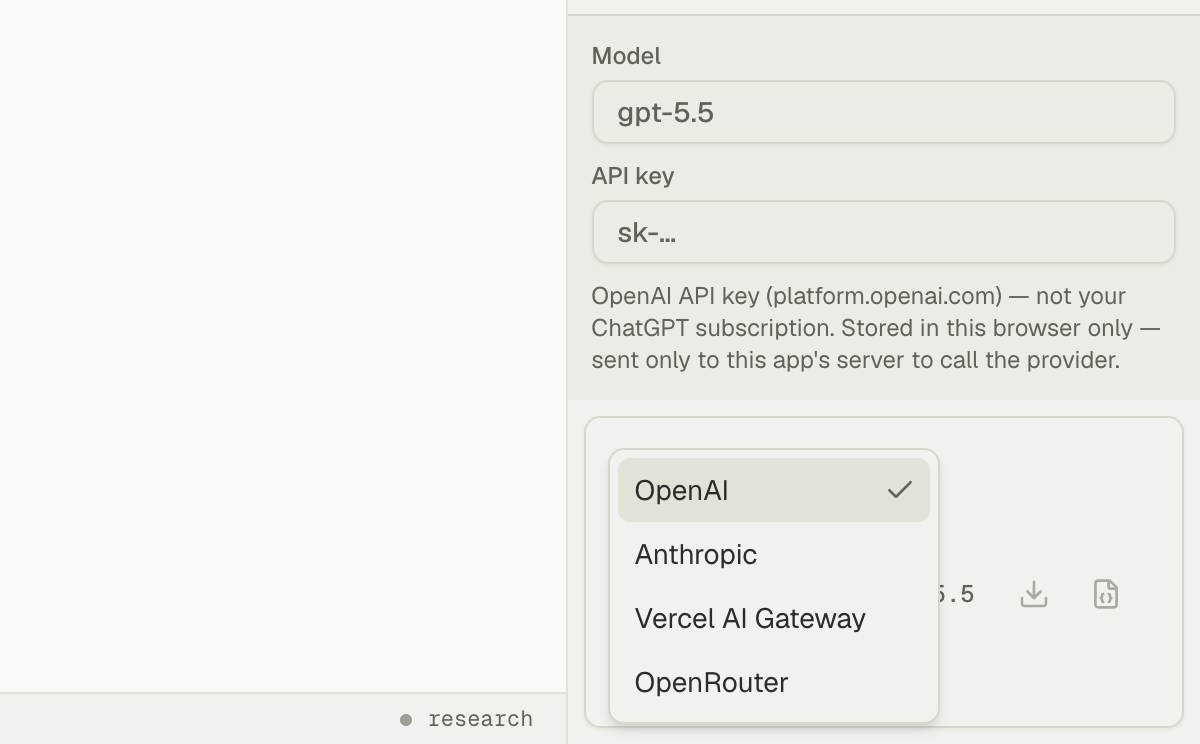
Open the menu at the bottom left of the chat box. It starts on OpenAI. Choose the provider your key comes from.
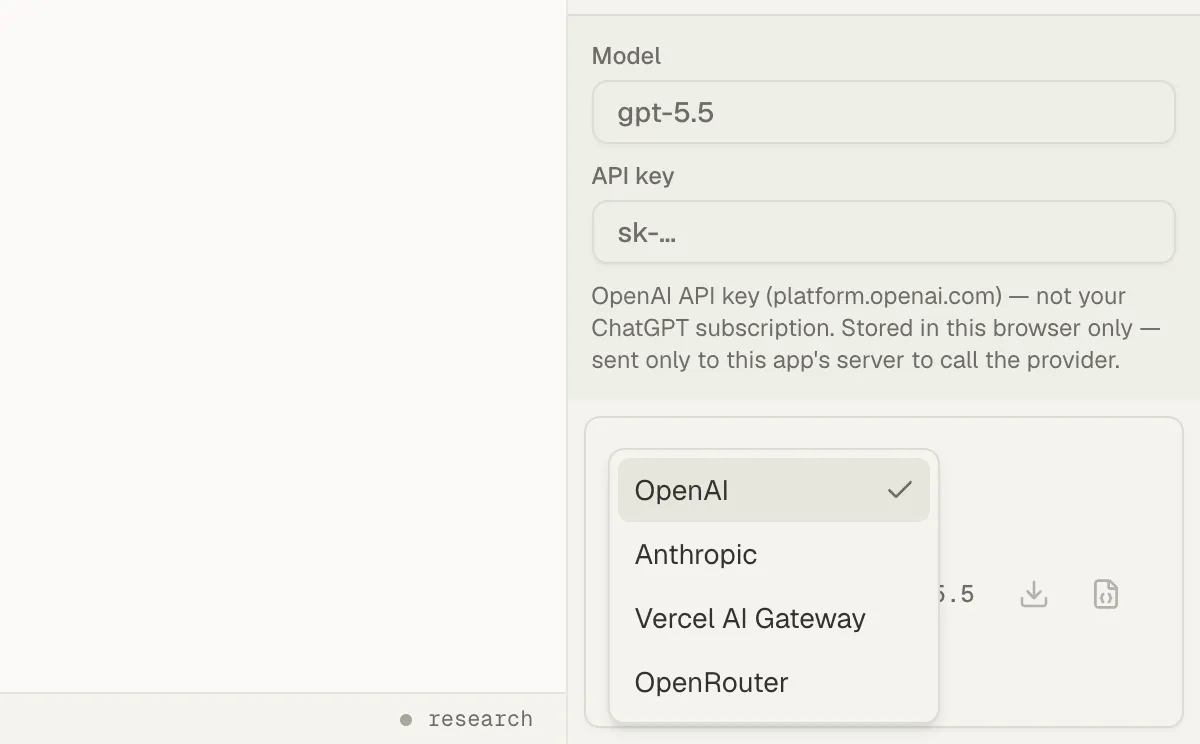
Choose the provider your key comes from. -
Paste your API key.
While the chosen provider has no saved key, the Model and API key fields show above the chat box. Paste your key into API key. The fields close as soon as a key is entered.
-
Check the model.
The model’s name shows on the gear button in the chat box. Each provider starts with a default model. To use another, choose the gear button, whose tooltip reads Model & API key, and type the model’s name in Model. Vercel AI Gateway and OpenRouter suggest models as you type and name them as
author/model.
The chat box now reads “Ask a question about this Space…”. You’re ready to ask your first question.
Where your key and questions go
Section titled “Where your key and questions go”- Your key stays in this browser. It is saved separately for each provider, not in your Mempipe account. Enter it again in another browser or on another device. Anyone who uses this browser profile can use the saved key.
- Each message sends the key to Mempipe’s app server, which uses it to call your provider.
- Your provider receives what the agent works with: your questions, the conversation so far, the Space’s
AGENTS.mdinstructions, and the text the agent reads from your files. The provider’s own terms decide what it keeps. - Your provider bills you for the model usage. With Vercel AI Gateway or OpenRouter, your router account is billed, and your router settings decide which company serves each request. OpenRouter’s free models may log or train on requests, depending on the company that serves them.
Change or remove your key
Section titled “Change or remove your key”Choose the gear button to show the fields again. Paste a new key over the old one, or clear API key to remove the saved key from this browser.
When you reload the page, the provider menu goes back to OpenAI and its default model. Your saved keys stay, so choose your provider again before you ask.
If something gets in the way
Section titled “If something gets in the way”- The provider rejects the key or the model: the provider’s error shows above the chat box. Check that the key comes from the provider chosen in the menu, and that your provider account can use the model. See The agent won’t answer or shows a key error.
- The fields closed before you finished typing the key: choose the gear button and paste the whole key.
- You pasted a key into the wrong provider: switch to that provider, choose the gear button, and clear API key.
Never paste your API key into the chat or into an email.
Ask the agent about your files, or give it standing instructions with AGENTS.md.