Connect an AI assistant to all your Spaces
To connect an AI assistant to all your Mempipe Spaces at once, add Mempipe’s account MCP server, https://api.mempipe.ai/v1/mcp, to your AI app. Sign in to Mempipe and approve access. The assistant can then search and read every Space in every organization you belong to. If you also tick write access when you approve, it can add, replace, and delete files in those Spaces.
One Space or all your Spaces
Section titled “One Space or all your Spaces”- One Space. Each Space has its own address, on its MCP Endpoint page. The assistant sees only that Space. If you allow it when you connect, it can create and replace Markdown, SQL, and chart files there.
- All your Spaces. One address for everyone:
https://api.mempipe.ai/v1/mcp. The assistant can search and read every Space you belong to, including Spaces you create later, one Space at a time. If you allow it when you connect, it can also add files, replace text files, and delete single files, in any of those Spaces.
Use one Space when the assistant should see only that Space’s files. Use all your Spaces to ask about any of them without adding a connection for each. Mempipe Notebook, the Mempipe app in ChatGPT, uses the all-Spaces connection. You can have both kinds.
Before you start
Section titled “Before you start”- A Mempipe account. If you don’t have one yet, create an account and a Space with some files first.
- An AI app that can add a remote MCP server, such as Claude, Claude Code, ChatGPT Desktop, Codex, Cursor, or VS Code.
Connect
Section titled “Connect”-
Add the address to your AI app.
Follow your app’s usual steps for a Mempipe Space, with
https://api.mempipe.ai/v1/mcpas the address andmempipeas the name:-
Claude: in Customize, then Connectors, choose +, then Add custom connector, and paste the address. See Connect Claude.
-
Claude Code: run this, then run
/mcpin Claude Code to sign in. See Connect Claude Code.Terminal window claude mcp add --transport http mempipe https://api.mempipe.ai/v1/mcp -
Codex: run this, then run
codex mcp login mempipeif Codex didn’t open your browser to sign in on its own. See Connect Codex.Terminal window codex mcp add mempipe --url https://api.mempipe.ai/v1/mcp -
ChatGPT Desktop: add a Streamable HTTP server under Settings, then MCP servers. See Connect ChatGPT.
-
Cursor or VS Code: add an HTTP server with this address. See Connect Cursor or VS Code.
-
-
Sign in to Mempipe.
Your AI app opens a browser window to sign in to Mempipe. If the page offers an emailed sign-in link, Google, or Sign in with a password instead, choose the method you use for your Mempipe account. If you need an account, choose Sign up; your connection request stays with you.
If your existing session satisfies the connection request, OAuth goes directly to the approval step. If the sign-in or signup page shows your current account, choose Continue as that account, or Sign out to use another account. A connection that requires a fresh sign-in asks you to sign out first.
If you see a password-only page and normally sign in by email link or Google, choose Sign in on the Mempipe app, sign in there in the same browser, then connect again from your AI app.
-
Approve access.
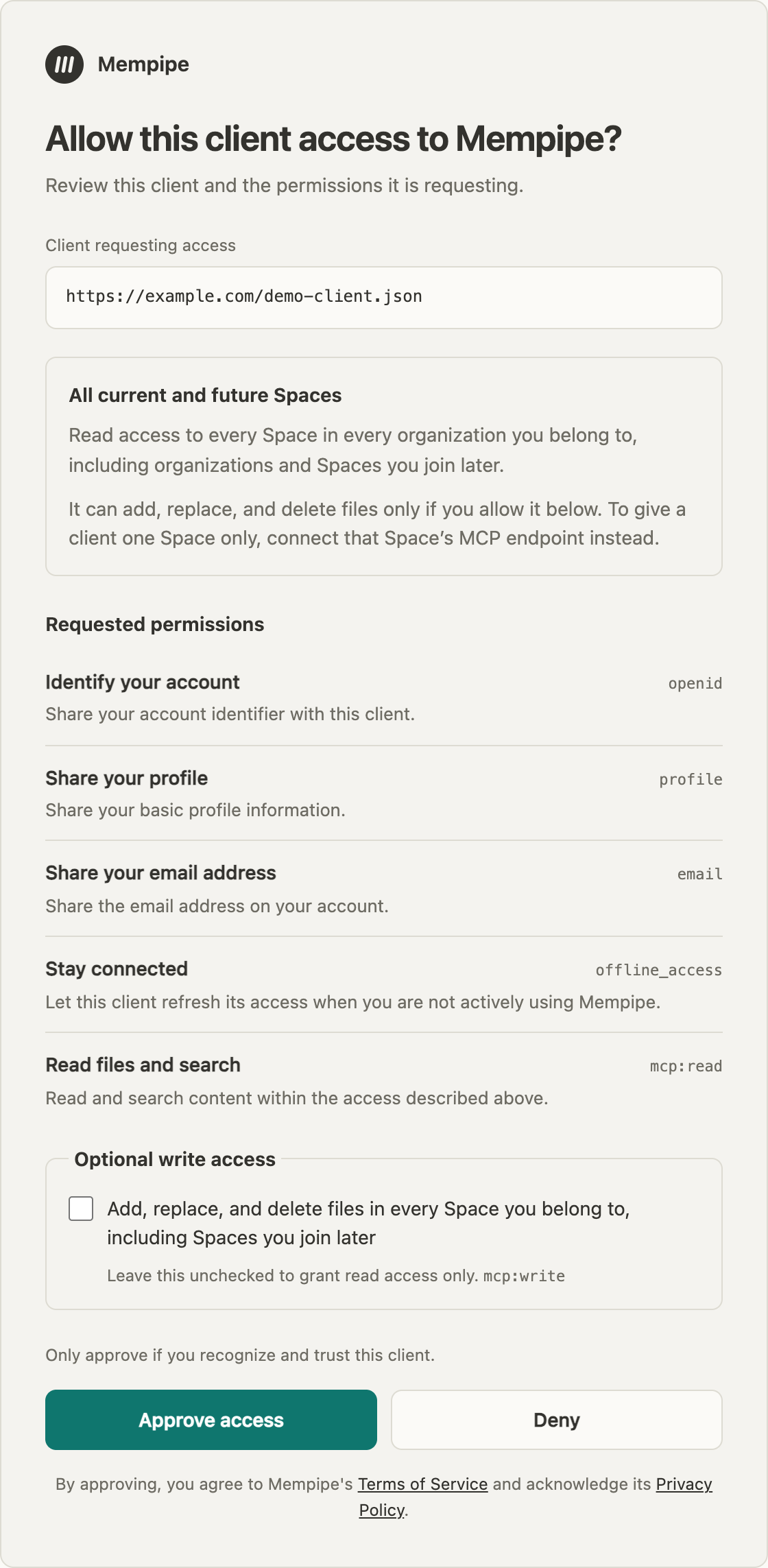
Allow this client access to Mempipe? says the app is asking for read access to every Space in every organization you belong to, including organizations and Spaces you join later.
If the app asks to save files, the page also shows an unticked box: Add, replace, and delete files in every Space you belong to, including Spaces you join later. Leave it unticked, and the app can only read. Tick it to let the app save and delete files. What a connected AI can read and change lists exactly what it can do. Then choose Approve access.
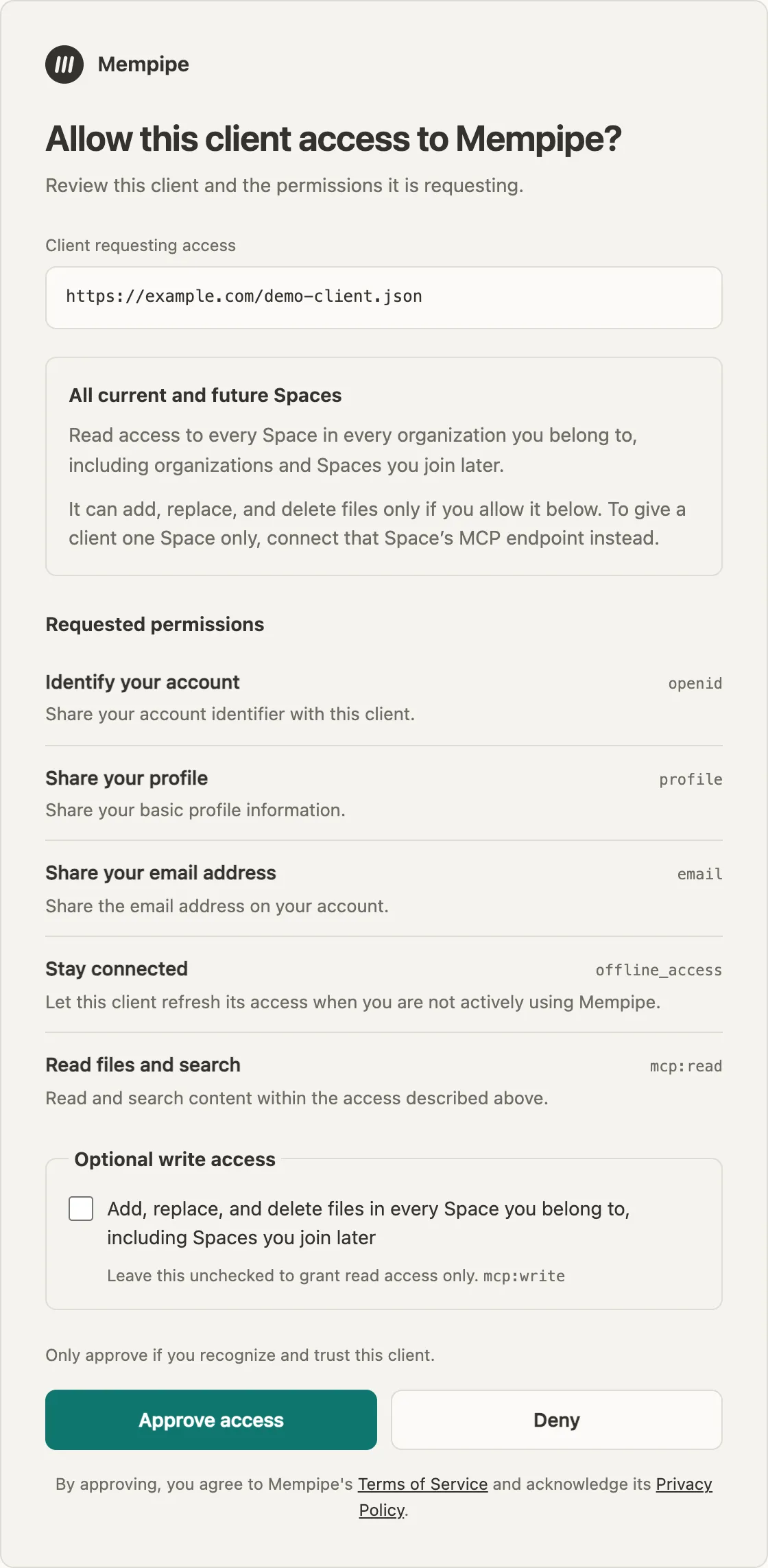
The all-Spaces consent screen. Write access is a separate box, unticked until you tick it. -
Ask about a Space.
Name the Space in your question. The assistant can list your Spaces, then search the one you name:
Use the mempipe server. List my Spaces, then search the Research Space for what it says about [topic]. Answer with the citation links it returns.
The assistant now answers from any of your Spaces. Its answers link to the passages it used, and each link opens the passage in Mempipe. Open a citation and check its source shows what to check.
How the assistant chooses a Space
Section titled “How the assistant chooses a Space”Each request the assistant makes names one organization and one Space, using the short names from the Space’s web address. For the Space at app.mempipe.ai/@acme-research/research, those are acme-research and research. The assistant gets them by listing your Spaces, so you can simply name the Space in your question.
A search looks in one Space at a time. To ask across several Spaces, name them, and the assistant searches each one.
Access follows your account
Section titled “Access follows your account”Mempipe checks your access on every request. A Space you create later is included without connecting again. A Space that is deleted, or that you can no longer open, stops working on the assistant’s next request.
If you have no Spaces yet, listing them returns a message pointing to app.mempipe.ai, where you can create one.
If something goes wrong
Section titled “If something goes wrong”- The assistant says it can’t save files. You approved read access only, or you connected before write access was offered on 10 October 2026. A connection keeps the access you approved. To add write access, remove Mempipe from your AI app, add it again, and tick the write box when you approve. In ChatGPT, if the save tools still don’t appear, open the Mempipe connection at chatgpt.com/plugins, choose Refresh, and start a new chat. See Change or remove access.
- Claude says it can’t save a PDF. Claude can save Markdown, SQL, and chart files, but not PDFs or CSV files yet. Upload those in Mempipe instead.
- The assistant says a Space was not found. It used a name that doesn’t match. Ask it to list your Spaces first and use the names exactly as listed.
- You don’t have a password. Request an emailed sign-in link or choose Google when offered. If you see a password-only page, choose Sign in on the Mempipe app, sign in there in the same browser, then connect again from your AI app.
- The connection request is no longer valid. Go back to your AI app and connect again to start a fresh request. Signing in or creating an account does not extend a connection request’s expiry.
- The assistant says search is not ready or not available. That Space has no search index yet. Check its files in Space Activity. If a file is still being processed, wait until Search units derived appears, then ask again a moment later. If a step failed, see If processing fails. Meanwhile, the assistant can still find that Space’s files by name and read them. See Search results are missing or out of date.
Still stuck? Email hello@mempipe.ai with the name of your AI app and the message it showed.