Open a CSV file as a table
Mempipe opens every CSV or TSV file you upload as a table. Select the file in Files and it opens in its tables view, where you can sort and filter the rows. Choose schema in the View switcher to see each column’s type, how many different values it holds, and its most common values. To group rows or add totals, query the file with SQL. Nothing you do in these views changes the file.
Before you start
Section titled “Before you start”Upload the CSV or TSV file. Mempipe takes a few seconds to read it into a table. Until it’s ready, the view shows Deriving… and opens the table on its own when it is.
Mempipe works out the file’s layout for you: the separator between values, the header row, and each column’s type. If the file has a title or notes above or below the table, they are usually left out. Save CSV files as UTF-8, which most spreadsheet apps offer when you export.
Open a CSV
Section titled “Open a CSV”-
Select the file in Files.
It opens in the tables view.
-
Read the summary line.
The line above the table gives the number of rows and columns, and how many columns have each type, such as 19 rows · 4 cols · 3 category · 1 integer.
-
Check each column’s type.
The type is under the column’s name:
- integer and double are numbers. A double can have decimals.
- date and timestamp are dates, and dates with times.
- category is text with 50 or fewer different values, such as a status or a region.
- string is any other text.
- boolean is true or false.
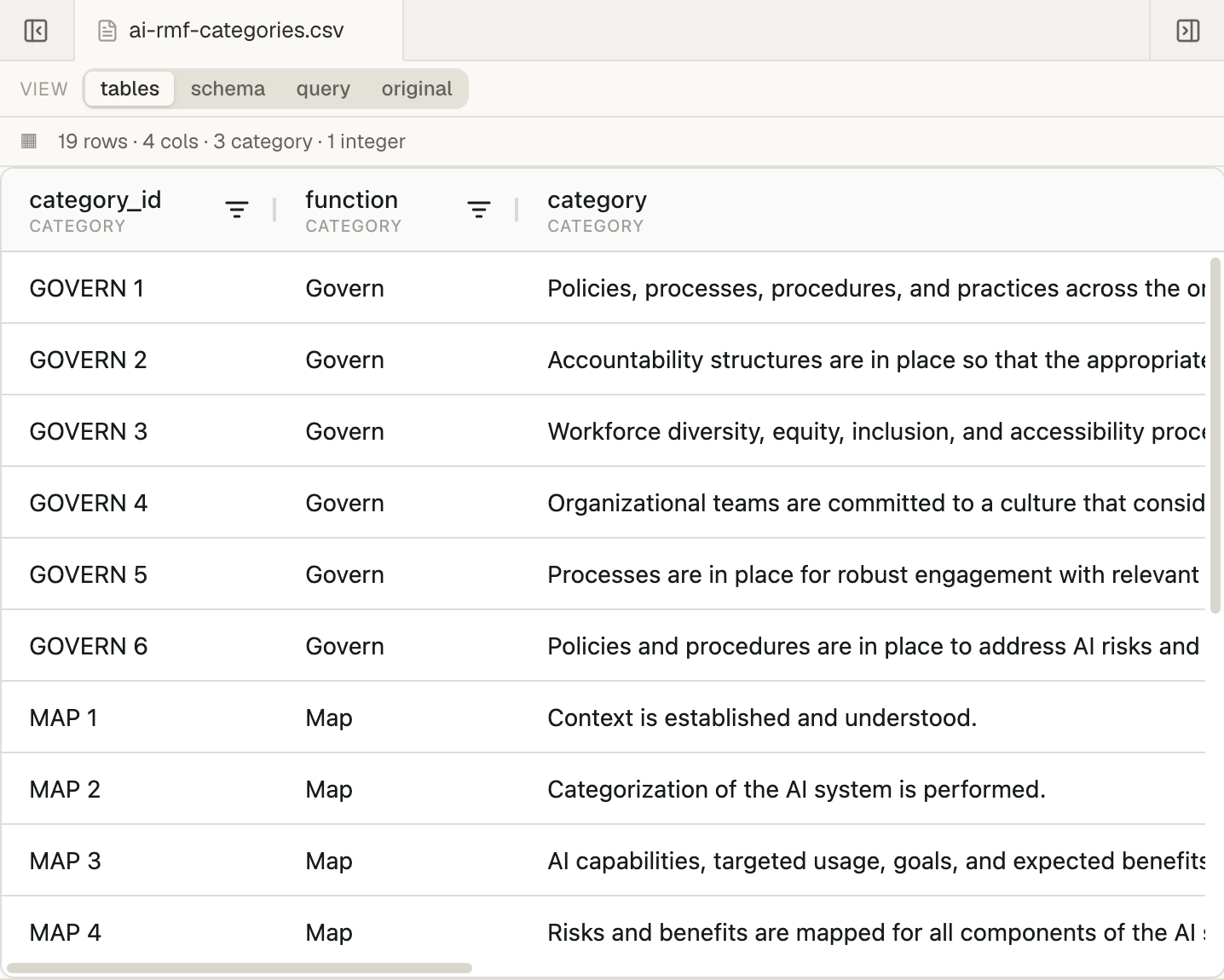
To widen a column, drag the edge of its header. To move a column, drag its header sideways.
Sort rows
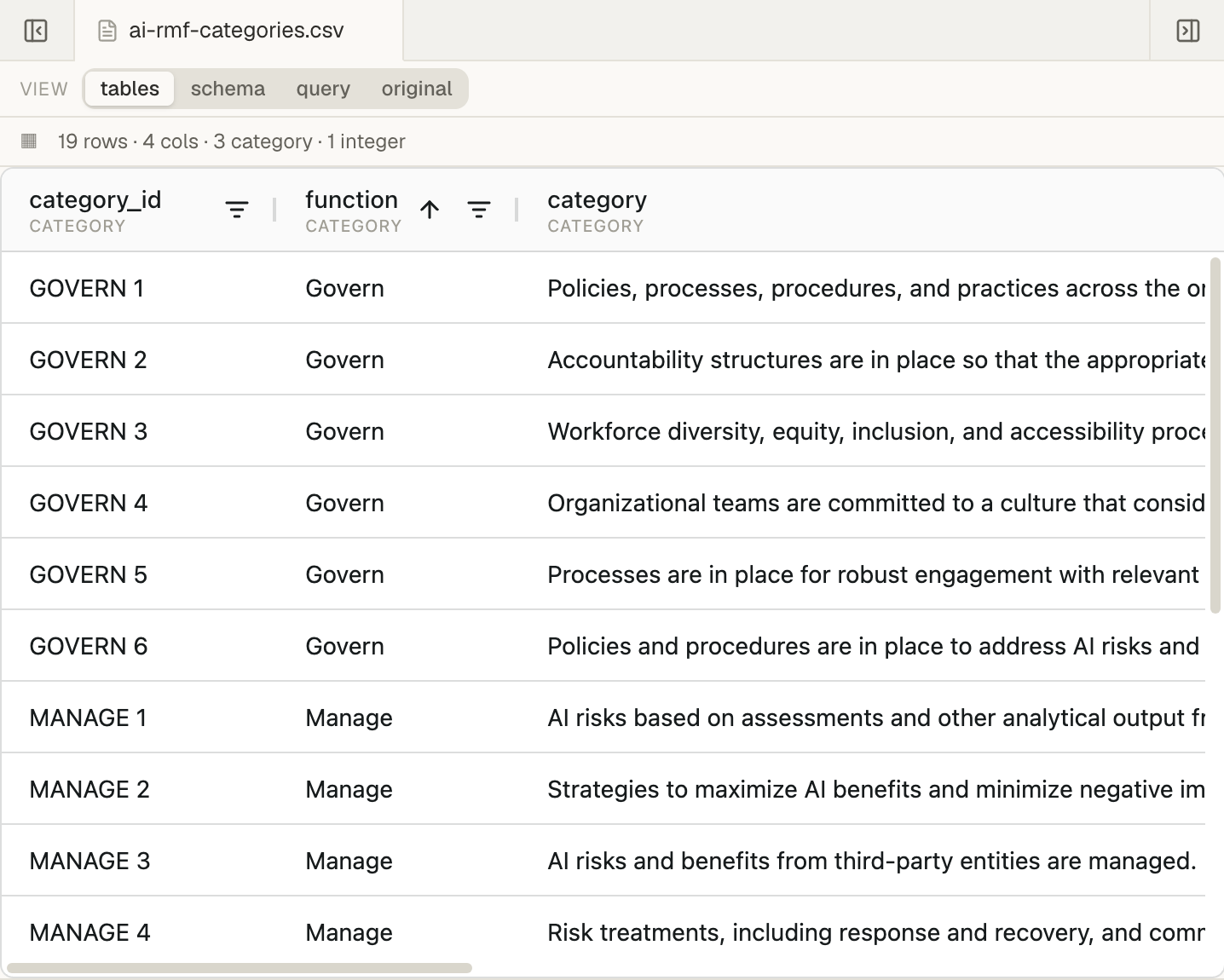
Section titled “Sort rows”Click a column’s header to sort the table by that column, A to Z or smallest first. Click it again for the reverse order, and a third time to go back to the file’s order. An arrow beside the column’s name shows the order.
To sort by a second column as well, hold Shift and click its header.
Filter rows
Section titled “Filter rows”-
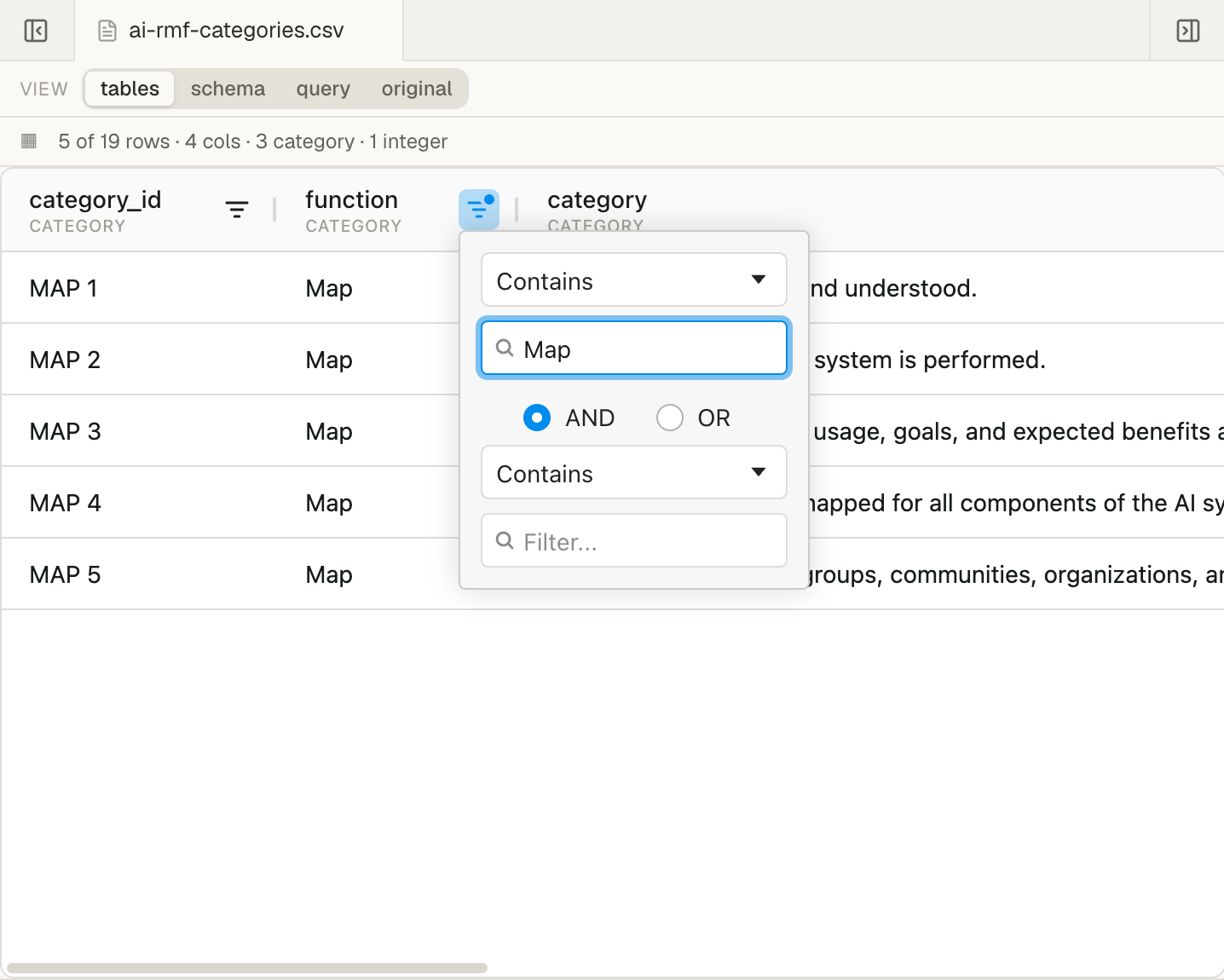
Open the column’s filter.
Choose the filter button, three short lines, beside the column’s name.
-
Choose a condition.
For text, the conditions include Contains, Equals, and Begins with. For numbers, they include Equals, Greater than, Less than, and Between. Dates have Before, After, and Between.
-
Type the value.
The table updates as you type. To add a second condition, fill in the second box and choose AND or OR.
The table shows only the matching rows, and the summary line counts them, such as 5 of 19 rows. The filter button of a filtered column is marked with a dot. To remove a filter, clear its box.
Sorting and filters last only while the table is on screen. Switching to another view or tab, or closing the file’s tab, clears them. They never change the file.
Group rows and add totals
Section titled “Group rows and add totals”The table view shows the rows as they are. To group them and add totals, query the file with SQL. For example, this counts the categories and totals the subcategories for each function:
SELECT function, COUNT(*) AS categories, SUM(subcategory_count) AS subcategoriesFROM mp_table('data/ai-rmf-categories.csv')GROUP BY functionA query also covers every row of the file, not just the 10,000 rows the table view shows.
Copy values
Section titled “Copy values”To copy values, drag across the text in the table to select it, then press ⌘C on a Mac or Ctrl+C on Windows. Each value is copied on its own line, so this suits a few values rather than whole rows. To work with the rows in a spreadsheet, open your own copy of the CSV file there.
The table is for reading. You can’t type into its cells, and it has no export or download. Take files out of Mempipe shows how to copy the file’s text instead.
Check each column in the schema view
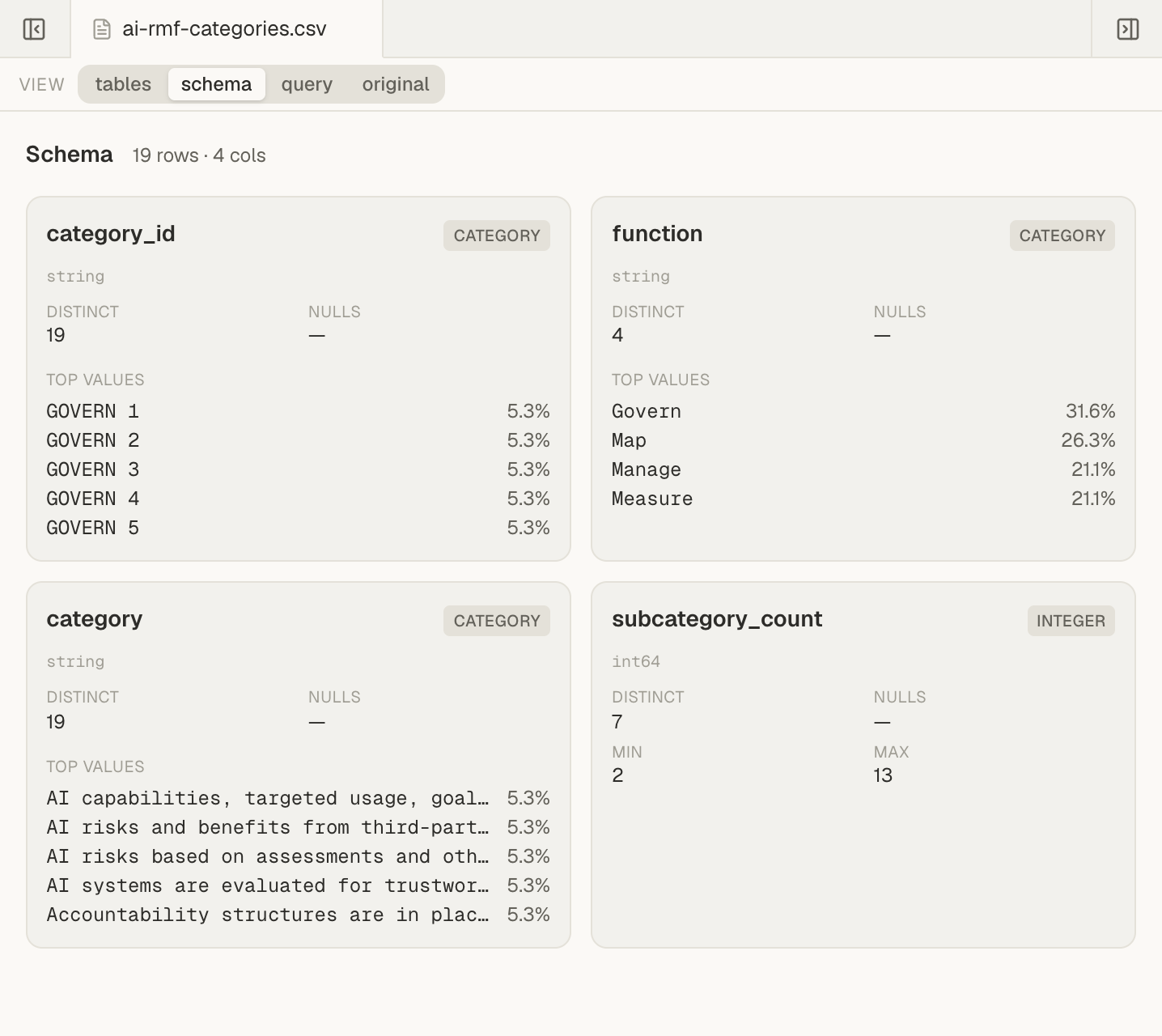
Section titled “Check each column in the schema view”Choose schema in the View switcher. Each column gets a card that shows:
- its type, and the type Mempipe stored it as, such as
int64orstring; - Distinct, the number of different values;
- Nulls, the number of empty cells, or — if there are none;
- Min and Max, for numbers and dates;
- Top values, for a text or true-or-false column with 50 or fewer different values: up to five of the most common values, with the share of rows each one fills. A column with long values may not show them.
The schema view counts every row in the file, even when the table shows only part of it. If it can read only part of the file, its heading says so, as in first 10,000 rows.
Change the data
Section titled “Change the data”To change the file’s data, choose original in the View switcher. It shows the file as text. Edit it, then press ⌘S on a Mac or Ctrl+S on Windows to save. The table updates once Mempipe has read the new version. Meanwhile it shows the previous version with stale — re-deriving above it.
For larger changes, edit the file in a spreadsheet app, export it as CSV, and upload it again, choosing Replace.
Show the table in a note
Section titled “Show the table in a note”To show a table inside a Markdown note, add an embed on a line of its own. It shows the current data each time the note opens.
![[ai-rmf-categories.csv]]shows the table.![[ai-rmf-categories.csv#schema]]shows the schema view.![[ai-rmf-categories.csv#query]]shows the query view, starting from its default query. You can edit and run a query there, but it isn’t saved with the note.
Write and edit Markdown notes explains how embeds find a file.
Large files
Section titled “Large files”The tables view shows up to 10,000 rows. For a longer file it says Showing the first 10,000 rows. above the table, and sorting and filters cover those rows only. The schema view still counts every row, unless its heading says first 10,000 rows.
To work with every row, query the file with SQL. A query reads the whole file, and only its results are limited to 10,000 rows.
The largest file you can upload depends on your plan: 32 MB on Free and 64 MB on Starter. See supported file types and size limits and plans, usage limits, and upgrading.
If something goes wrong
Section titled “If something goes wrong”- Deriving… stays on screen. A large file takes longer to read. If it hasn’t finished after a few minutes, check the file in Space Activity, as If a file seems stuck describes.
- Derivation failed. Mempipe couldn’t read the file as a table. The message below says why. Check that the file opens as a table in a spreadsheet app, save it again as CSV, and upload it again. Fix a CSV or TSV file lists the usual causes.
- Not queryable. The file’s content isn’t a table any more, for example after it was replaced with a different kind of file.
- Could not load the table. Switch to another view and back, or open the file again.
- Query unavailable, Could not analyse the file, Could not check query status, or Could not prepare query. Mempipe couldn’t get the file’s table ready. The message under the heading says why. Open the file again, or reload the page.
- stale — re-deriving above the table. The file changed, and the table shows the previous version until Mempipe has read the new one.
- stale above the table. The table shows an earlier version of the file. Open the file again later for the latest data.
- last derivation failed — showing previous above the table. Mempipe couldn’t read the newest version, so the table shows the one before it. Fix the file and upload it again.
- A column has the wrong type. A number column with some text in it, such as
n/a, is read as text. Clean the column in the file and upload it again, or convert it in SQL withCAST.