Invite someone to Mempipe
Anyone can create a Mempipe account at app.mempipe.ai/sign-up, so the simplest way to bring someone to Mempipe is to share that link. If your account has invitations, you can also send a personal invitation from Invite friends in the account menu.
An invitation lets one person create their own Mempipe account. It doesn’t add them to your organization or give them access to your Spaces. There is no way yet to share a Space or an organization with someone else.
Before you start
Section titled “Before you start”- Your account needs invitations left. See who has invitations.
- You need the email address the person will sign up with. Each invitation works for that one address only.
Who has invitations
Section titled “Who has invitations”An account created from an invitation gets three invitations of its own. Most other accounts have none, and their Invite friends page says “Invitations aren’t available on your account yet.” You can still share the sign-up link.
Send an invitation
Section titled “Send an invitation”-
Open Invite friends.
Select the round button at the top right of the app, which shows two letters from your email address. Then select Invite friends.
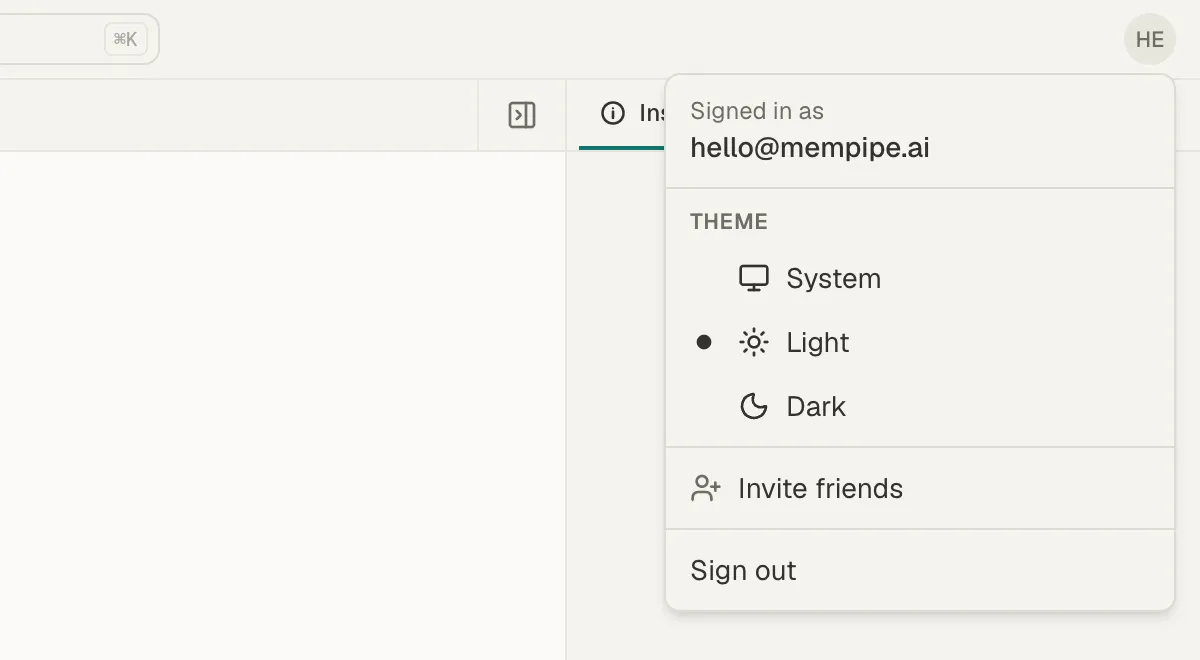
Invite friends is in the account menu. The page shows how many invitations you have left, such as “3 of 3 invites remaining”.
-
Enter their email address.
Type the email address they will sign up with. Each invitation works for that one address only.
-
Select Send invite.
The page says Invitation emailed to the address. Mempipe emails them a link, with a subject such as “Jordan Lee invited you to Mempipe”.
-
Copy the link, if you want to send it yourself.
Below the message, select Copy link to copy the invitation link, and send it however you like. The page shows the link only this once.
The invitation appears in your list as Pending, with the date it expires. It expires 14 days after you send it.
Track or revoke an invitation
Section titled “Track or revoke an invitation”Your list shows each invitation’s email address and status:
- Pending: sent, and not used yet. It shows the date it expires.
- Accepted: the person created their account.
- Expired: 14 days passed without it being used.
- Revoked: you revoked it.
To cancel a pending invitation, select Revoke beside it. Its link stops working. A revoked or expired invitation gives you that invitation back to send again. A pending or accepted one uses it up.
What the person you invite does
Section titled “What the person you invite does”They open the link and sign up with the email address you invited, as Create a Mempipe account describes. They then set up their own organization and first Space.
If something goes wrong
Section titled “If something goes wrong”- “Invitation for … created — the email could not be sent” The invitation exists, but the email failed. Select Copy link and send the link yourself before you leave the page.
- “No invites remaining on this account.” All your invitations are pending or accepted. Revoke a pending one to send it to someone else.
- “You cannot invite yourself.” Enter the other person’s email address.
- They see “This invitation is not valid for that email address.” They signed up with a different email. Ask them to use the address you invited, or send a new invitation to the address they want to use. They can also sign up without an invitation.
- They see “An account with this email already exists — sign in instead.” They already have an account, and can sign in.
Still stuck? Email hello@mempipe.ai.