Read a Space with S3 tools
Read or copy a Space’s original files with AWS CLI, rclone, or Mountpoint for S3 on Linux. Open Pipeline → S3 Access to create a temporary, read-only credential and copy the setup for your tool.
Use S3 access for scripts, local file tools, and agent sandboxes that need the files themselves. For document search and source citations, connect an assistant with MCP.
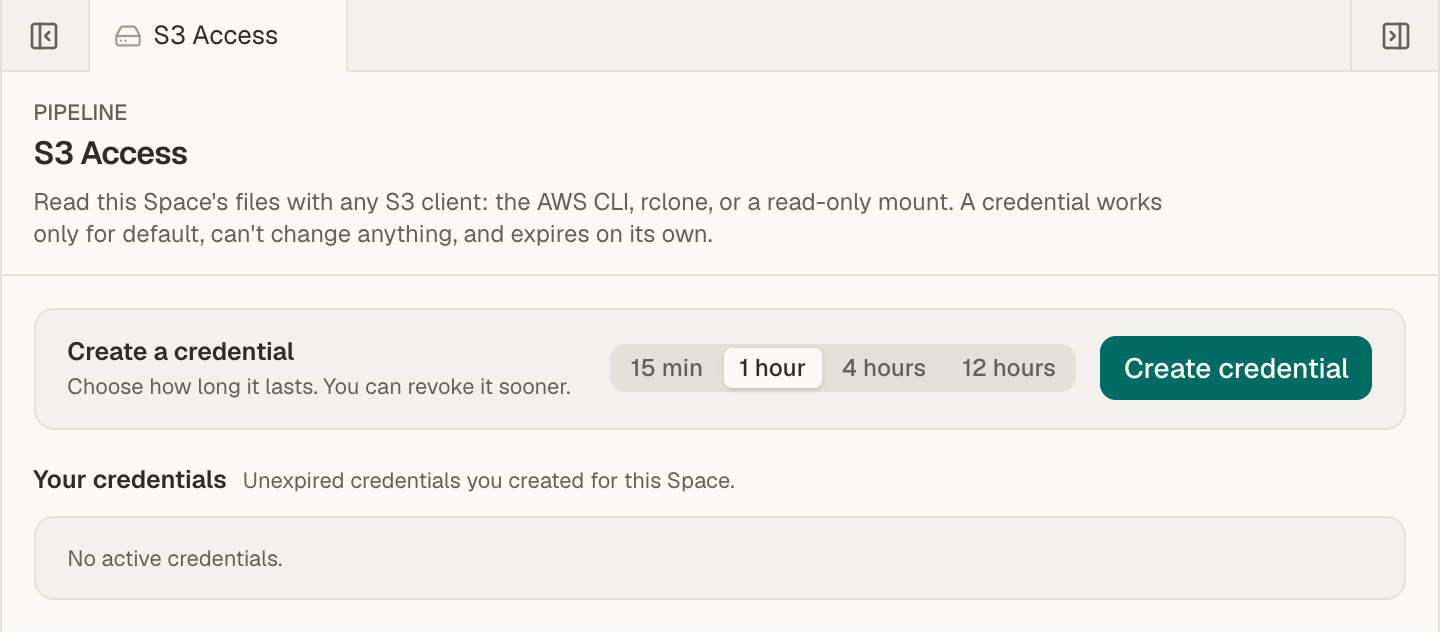
Before you start
Section titled “Before you start”- Open the Space you want to read.
- Install AWS CLI, rclone, or Mountpoint for S3. The Mountpoint setup requires Linux.
- Use a private terminal. The setup includes credentials and may save them in your client’s configuration and shell history. Don’t paste it into a chat, repository, or shared log.
Connect a client
Section titled “Connect a client”-
Open S3 Access.
Open Pipeline in the left rail, then S3 Access under Serving. You can also reach it from Space settings → General.
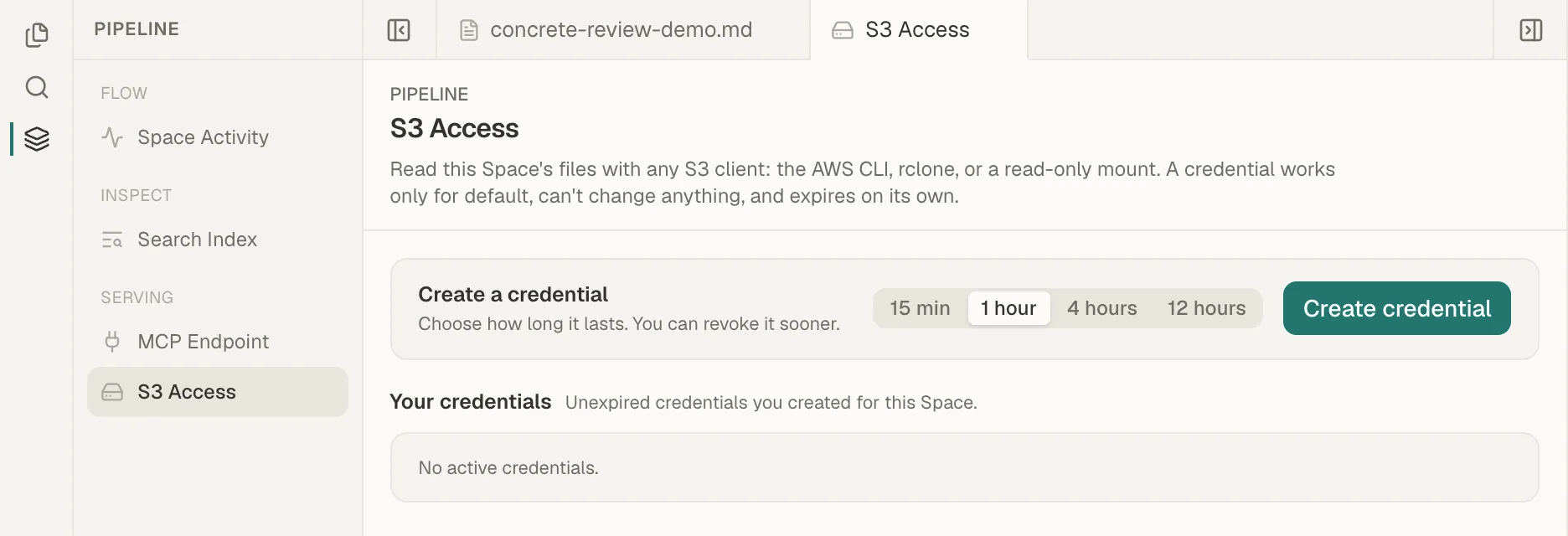
S3 Access is under Serving in the Pipeline sidebar. -
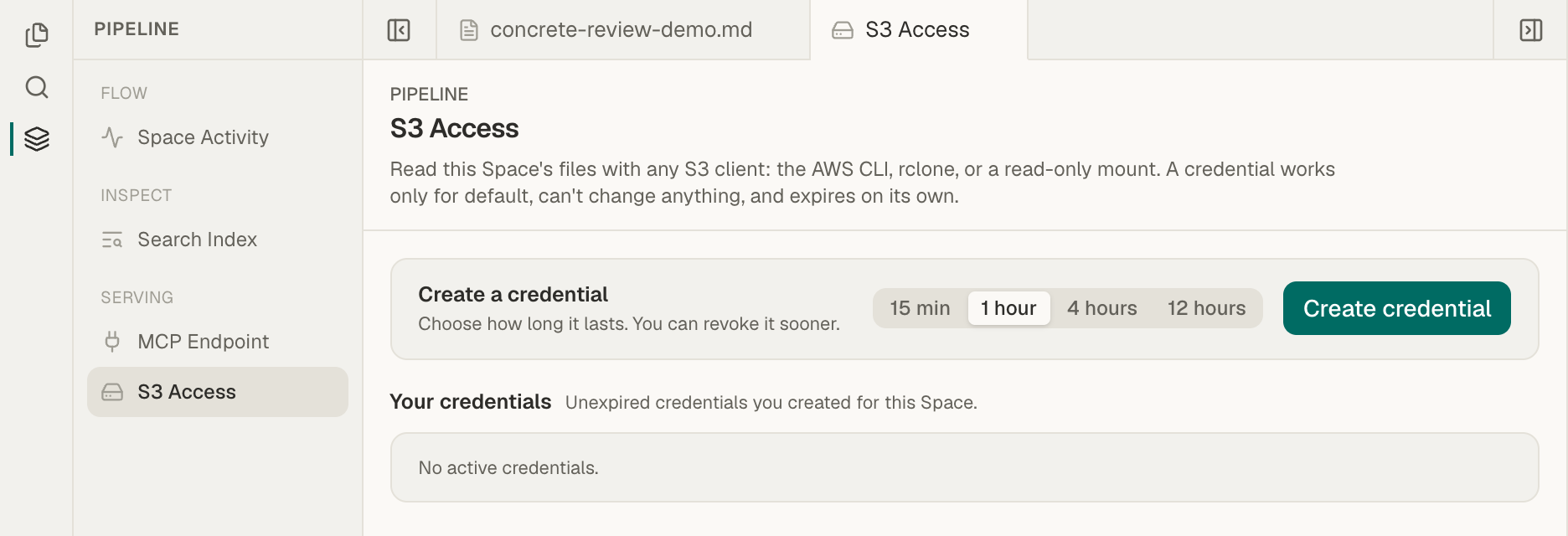
Choose a lifetime.
Choose 15 min, 1 hour, 4 hours, or 12 hours. The default is one hour. Allow enough time for your task; you can revoke access sooner.
-
Create the credential.
Choose Create credential. The page shows Copy your credential now, including the endpoint, bucket, region, access key ID, secret access key, and session token.
-
Copy the setup for your client.
Select AWS CLI, rclone, or Mountpoint for S3. Read the note above the commands, choose Copy, and run the setup in your terminal. The AWS CLI and rclone examples save a profile or remote, then list the Space.
-
Check the result.
Confirm that the listed paths match those in Files. If you mounted the Space, open the mounted folder and read a file. Choose Done in Mempipe after copying the credential and setup.
The secret is shown only once. Leaving the page or choosing Done hides it. If you lose it, create a new credential and revoke the old one if it is still active.
What the client can read
Section titled “What the client can read”Each Space appears as one bucket. Files keep their paths, such as raw/report.pdf and wiki/overview.md. Copy the bucket name from Mempipe rather than using the Space’s display name.
S3 serves the original files: a PDF downloads as a PDF, and a wiki page downloads as Markdown. Extracted document views and search records are not available as separate S3 files.
S3 access is read-only. Make changes in Mempipe, or ask an assistant with approved write access to save updated notes. Changes to downloaded files do not sync back to the Space.
End access or renew it
Section titled “End access or renew it”The credential stops working when it expires. To continue, create another credential and update your client’s configuration.
To stop it sooner, open S3 Access, find it in the credential list, and choose Revoke. You can also open the account menu, choose Settings → S3 credentials, and review credentials you created across your Spaces. A revoked credential remains marked Revoked until its original expiry.
Signing out of Mempipe leaves S3 credentials active until they expire or you revoke them. Revoking access does not remove files a client already downloaded.
If something goes wrong
Section titled “If something goes wrong”- The client says access expired or was denied. Check the credential’s expiry and revoked state. Confirm the endpoint and bucket belong to the same Space, and that you copied the session token as well as the access key and secret.
- The connection fails with a hostname or signature error. Start from the complete setup Mempipe provides. It uses path-style addressing. The rclone setup also disables signing the Accept-Encoding header; keep those options.
- A write, rename, or delete fails. S3 access is read-only. Make the change through Mempipe.
- The credential disappeared from the list. Expired credentials no longer appear. Create another if needed.
- S3 access is not available on this server. Credential creation is not configured on that server. Contact hello@mempipe.ai.