Create folders and rename, move, or delete files
You organize a Mempipe Space in the Files panel. Choose New folder at the top of Files to add a folder. Point at any file or folder to show its Rename and Delete buttons. Drag a file or folder onto another folder to move it there.
Before you start
Section titled “Before you start”Open the Space and choose Files in the narrow rail on the left. If the Space is empty, upload some files first.
Create a folder
Section titled “Create a folder”-
Choose where the folder goes.
Select a folder in the list to create the new folder inside it. With nothing selected, the folder goes at the top level of the Space.
-
Choose New folder.
Choose New folder, the folder button with a plus sign at the top of Files. You can also point at a folder in the list and choose the New folder button on its row.
-
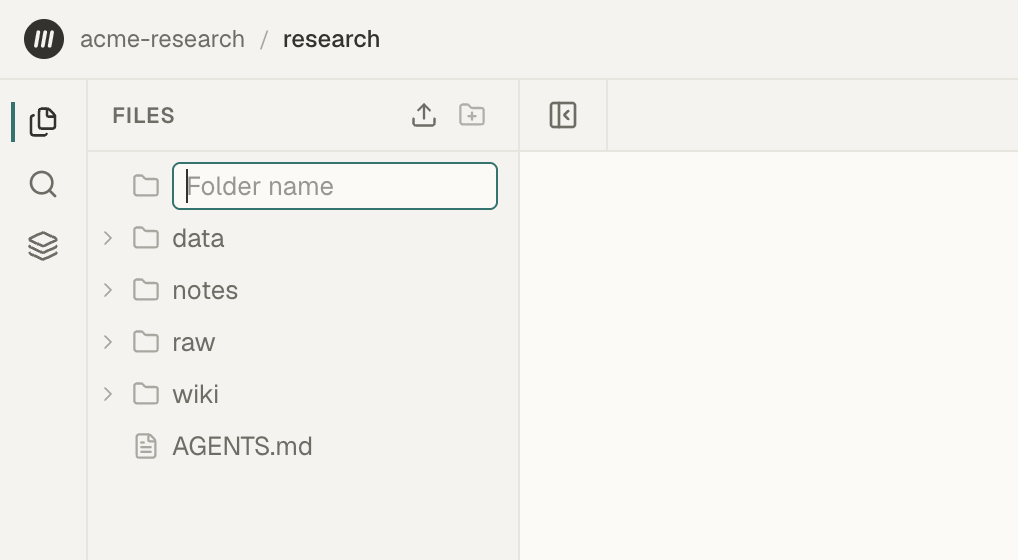
Name it.
Type a name in the Folder name box and press Enter. Press Esc, or click elsewhere, to cancel.
The new folder appears in the list. If a folder with that name already exists in the same place, Mempipe adds a number to the new one, such as raw 2.
Rename a file or folder
Section titled “Rename a file or folder”-
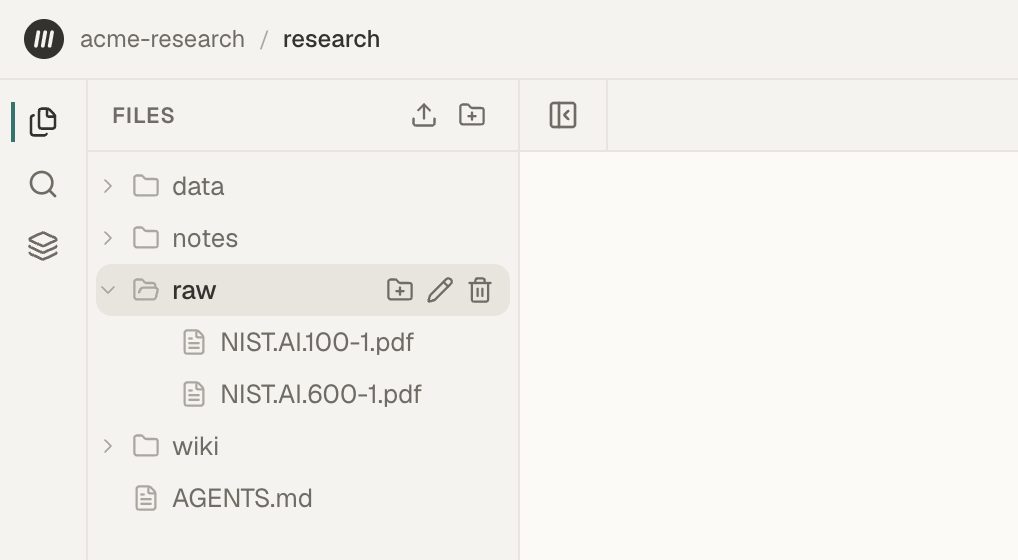
Point at it.
Point at the file or folder in Files. Its buttons appear at the right end of the row.
-
Choose Rename.
Choose Rename, the pencil button. The name becomes editable, with everything before the extension selected, so typing replaces the name and keeps
.pdfor.md. -
Save the name.
Press Enter to save the new name, or Esc to keep the old one.
Move a file or folder
Section titled “Move a file or folder”Drag the file or folder onto the folder you want to move it into. To reach a folder inside another, hold the item over the closed folder until it opens. To move an item back to the top level of the Space, drag it out of its folder and drop it among the top-level items.
- You move one item at a time. Moving a folder moves everything inside it.
- You can’t move a folder into itself or into one of its own subfolders.
- If the target folder already has an item with the same name, Mempipe doesn’t move it. Rename one of them first.
A renamed or moved file keeps its content and its reading view. Search shows its new name and location after a short wait. A link in a note that names the file by its old path, such as [[wiki/overview]], no longer finds it. Update the link, or link by name instead.
Delete a file or folder
Section titled “Delete a file or folder”-
Point at it and choose Delete.
Point at the file or folder in Files and choose Delete, the trash can button.
-
Confirm.
Your browser asks you to confirm, with a question such as Delete “notes.md”? For a folder, it asks Delete folder “raw” and everything inside it? Choose OK to delete.
Deleting can’t be undone. Mempipe has no trash or undo, so keep your own copy of anything you may need again. Tabs showing a deleted file close. To delete a whole Space, see Delete a Space, an organization, or your account.
A deleted file stops counting toward your plan’s storage and file limits. The count can take a moment to update.
- A name can’t be empty and can’t contain
/. - Two items in the same folder can’t have the same name. Renaming an item to a name already used there fails.
- Keep the extension, such as
.pdf,.md, or.csv. Mempipe uses it to decide how to open the file.
If something goes wrong
Section titled “If something goes wrong”- A message appears at the top of Files. It explains why the action didn’t happen, such as Cannot move a folder into one of its own subfolders. Fix the cause and try again.
- Mempipe asks you to wait for an item to finish its current operation. The item is still being uploaded, saved, renamed, or moved. While Mempipe works on an item, its row shows Creating…, Uploading…, Renaming…, or Deleting…. Try again once that goes away.
- A new folder shows Failed. Mempipe didn’t create it. Choose Retry to try again, or Delete to remove the row. If your plan’s files and folders limit is full, Retry fails too. See You reached a storage, file, or Space limit.
- A renamed or moved item shows Failed. It is back at its old name or place. The Retry and Delete buttons beside it don’t work for a failed rename or move. Reload the page, then try again, for example with a different name.