Read a PDF as Markdown and check the original page
Mempipe turns each PDF you upload into Markdown text you can read, search, and quote, and keeps the original PDF beside it. Open the PDF and choose markdown in the View switcher to read the text. Point at a section and choose its page chip, such as p.12, to open the original PDF at that page with the passage marked.
Before you start
Section titled “Before you start”Upload the PDF and wait for it to be processed, which usually takes under a minute. Right after an upload, Files shows Deriving… beside the PDF until it is done. Later, you can tell by opening it: the markdown view says Docmap view is still deriving until the text is ready. What happens after you upload a file explains more.
Read the text of a PDF
Section titled “Read the text of a PDF”-
Open the PDF.
Select the PDF in Files. It opens in its original view, which shows the PDF’s pages.
-
Switch to the markdown view.
Choose markdown in the View switcher above the document.
-
Read.
Headings, lists, and tables follow the layout of the PDF. Text that repeats on every page, such as a running header, a footer, or a page number, can appear among the paragraphs. Figures that the extractor could take out of the PDF appear as images. To see anything exactly as printed, switch back to original.
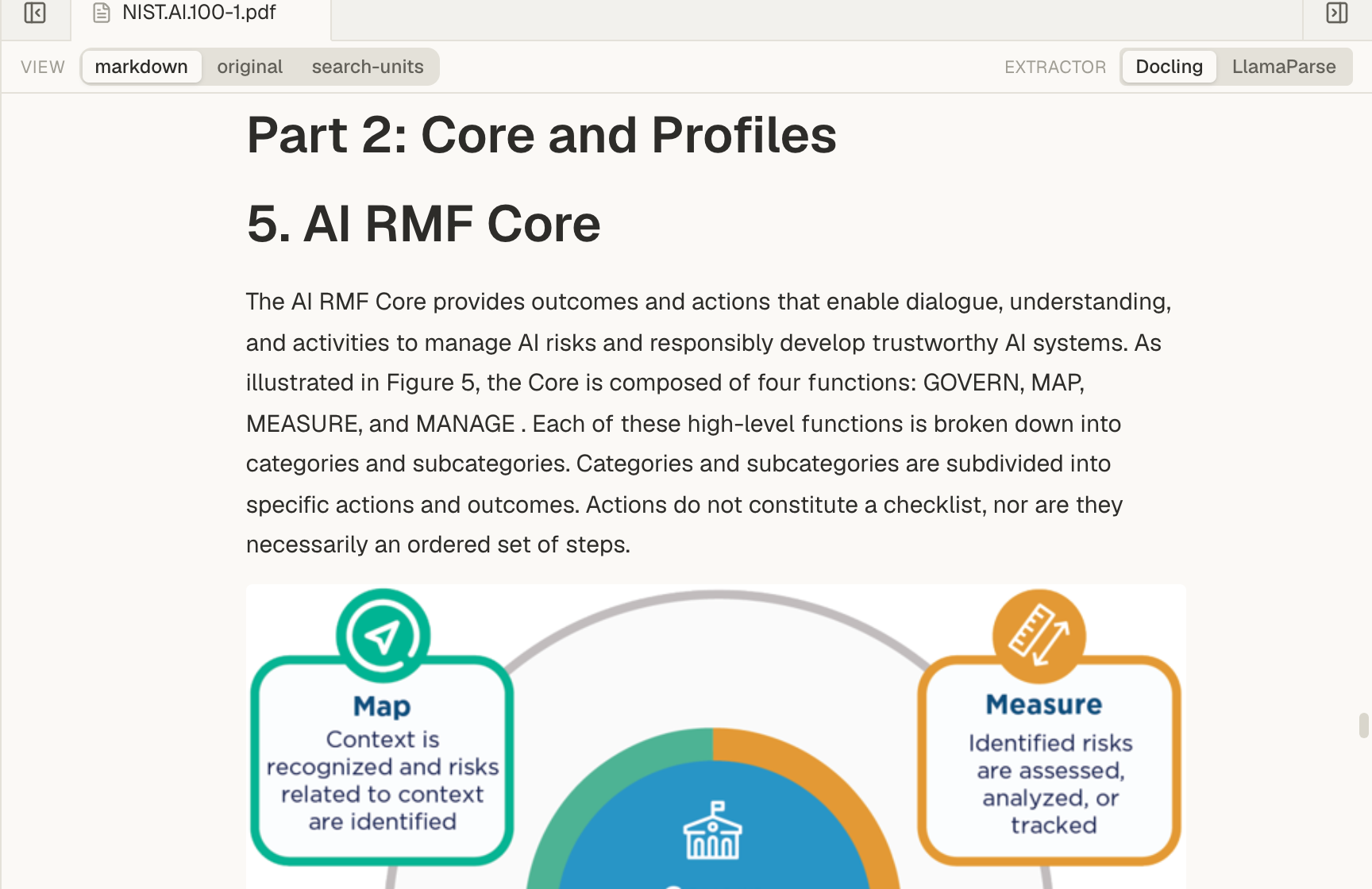
Once the PDF is processed, the View switcher also shows search-units. It lists the passages of the PDF prepared for search.
Check a passage on the original page
Section titled “Check a passage on the original page”-
Point at a section.
In the markdown view, point at a paragraph, heading, or table. A page chip, such as p.12, appears at its top left.
-
Choose the page chip.
The original PDF opens beside the text, scrolled to that page, with the passage marked. The same passage is highlighted in the text.
-
Compare, then close.
Check the text against the page. Drag the line between them to give either side more room. When you’re done, choose Close ✕ in the top corner of the PDF.
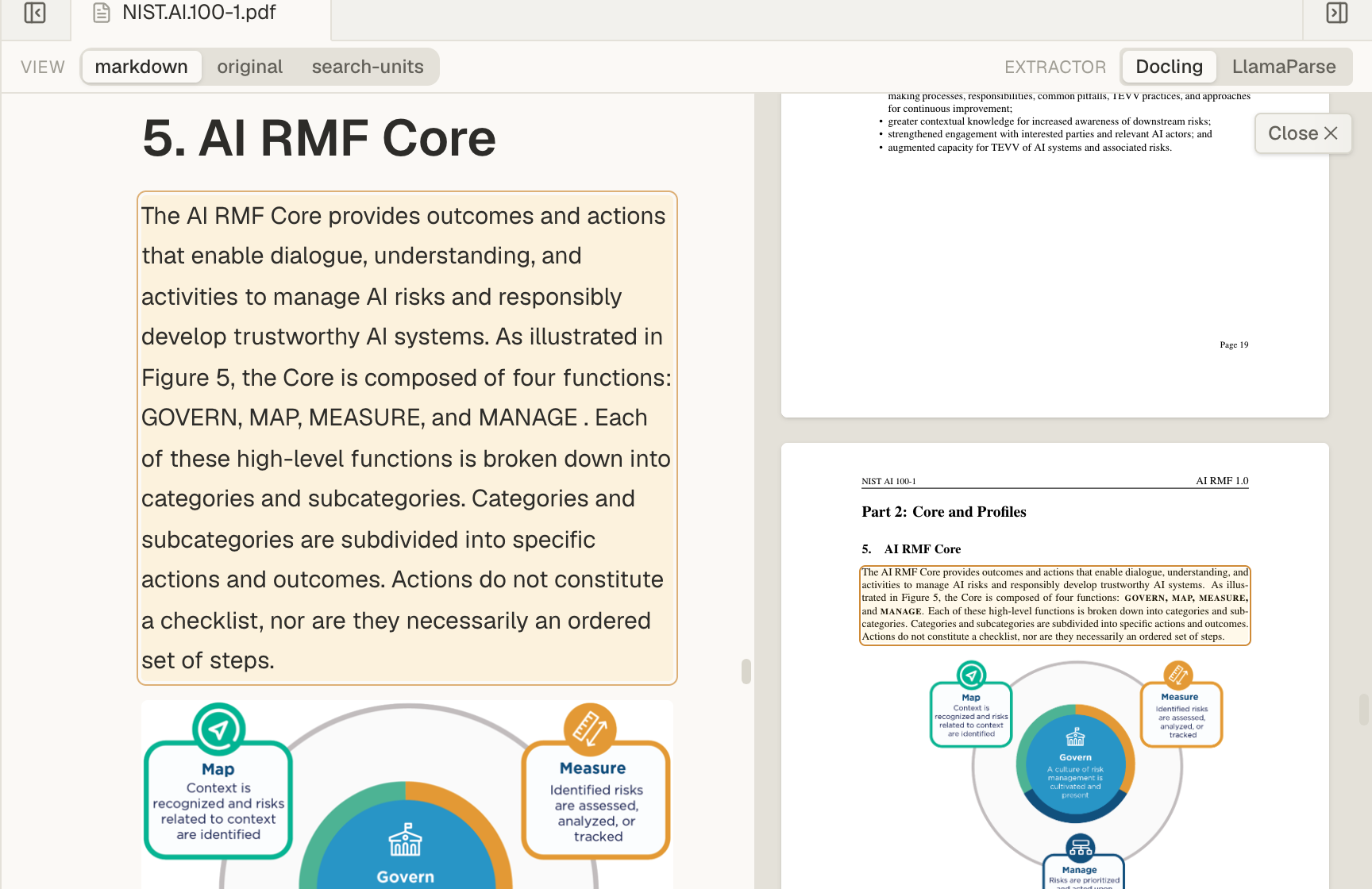
The page chip counts the PDF’s pages from the first, so p.12 can differ from the number printed on that page.
In a narrow window, the PDF opens below the text instead of beside it. To open the page in your browser’s own PDF viewer instead, hold ⌘ on a Mac, or Ctrl on Windows, while you choose the chip.
A section with no page chip couldn’t be placed on a page. Find it in the original view instead.
Opening a citation to a PDF shows this same view, with the cited passage marked. The address in your browser points to the passage, so you can bookmark it and come back to it.
Choose an extractor
Section titled “Choose an extractor”Mempipe offers two extractors for the text of a PDF, so you can see how well each one reads your file and keep the better result:
- Docling is the default. Mempipe runs it on its own server.
- LlamaParse is a cloud extraction service. Mempipe provides it through its own LlamaParse account, so you don’t need one. Choosing it sends the PDF to LlamaParse to be extracted.
If the text comes out wrong, switch that PDF to the other extractor. Try it when a table’s columns are jumbled, text is missing, or the reading order is off.
-
Open the PDF.
Select the PDF in Files. The Extractor buttons sit to the right of the View switcher.
-
Choose the other extractor.
Choose LlamaParse, or Docling to switch back.
-
Wait for the new text.
Re-deriving… shows while the new extraction runs. You can keep reading the previous text. It is replaced when the new text is ready.
Your choice applies to that PDF only. It stays with the PDF when you upload a new version of it.
Switching the extractor changes the text, so:
- Search results for the PDF update to the new text once it is processed.
- A citation made from the previous text may not find its passage any more. Opening one shows This citation does not resolve in the version shown here.
If the new extraction fails, Extraction failed appears next to the buttons. Switch back to the other extractor. While the text on screen still comes from the other extractor, a note such as Serving Docling says which one produced it.
If something goes wrong
Section titled “If something goes wrong”- Docmap view is still deriving. The text isn’t ready yet. The view shows it on its own when it is, or choose Retry to check sooner.
- Could not load the PDF. Choose Retry PDF.
- Could not switch extractor. The change didn’t go through, so the PDF keeps its extractor. Choose the extractor again.
- Could not load the derived Markdown view. Reload the page, then open the PDF again.
- The text is wrong or missing. Switch the extractor, then compare the new text with the original view.
- Both extractors fail. Check Why it failed in Space Activity, then see A file is stuck processing or failed.