You reached a storage, file, or Space limit
Each Mempipe organization has limits set by its plan: total storage, the number of files and folders, the number of Spaces, and the size of each file. When an upload, a new folder, a save, or a new Space would go over one, Mempipe refuses it and says which limit it reached. Nothing you already stored is removed. To make room, delete what you no longer need, or upgrade the organization to Starter. Then try again.
The limits on each plan
Section titled “The limits on each plan”| Limit | Free | Starter |
|---|---|---|
| Storage, shared by all Spaces | 200 MB | 1 GB |
| Files and folders, across all Spaces | 100 | 500 |
| Spaces | 2 | 10 |
| Size of one file | 32 MB | 64 MB |
Your organization’s own limits, which can be higher than these, are on its Billing page under Organization usage. To open it, go to your organization’s list of Spaces and choose the plan name, such as Free plan. Plans, usage limits, and upgrading explains the page and how to upgrade. Pricing compares the plans.
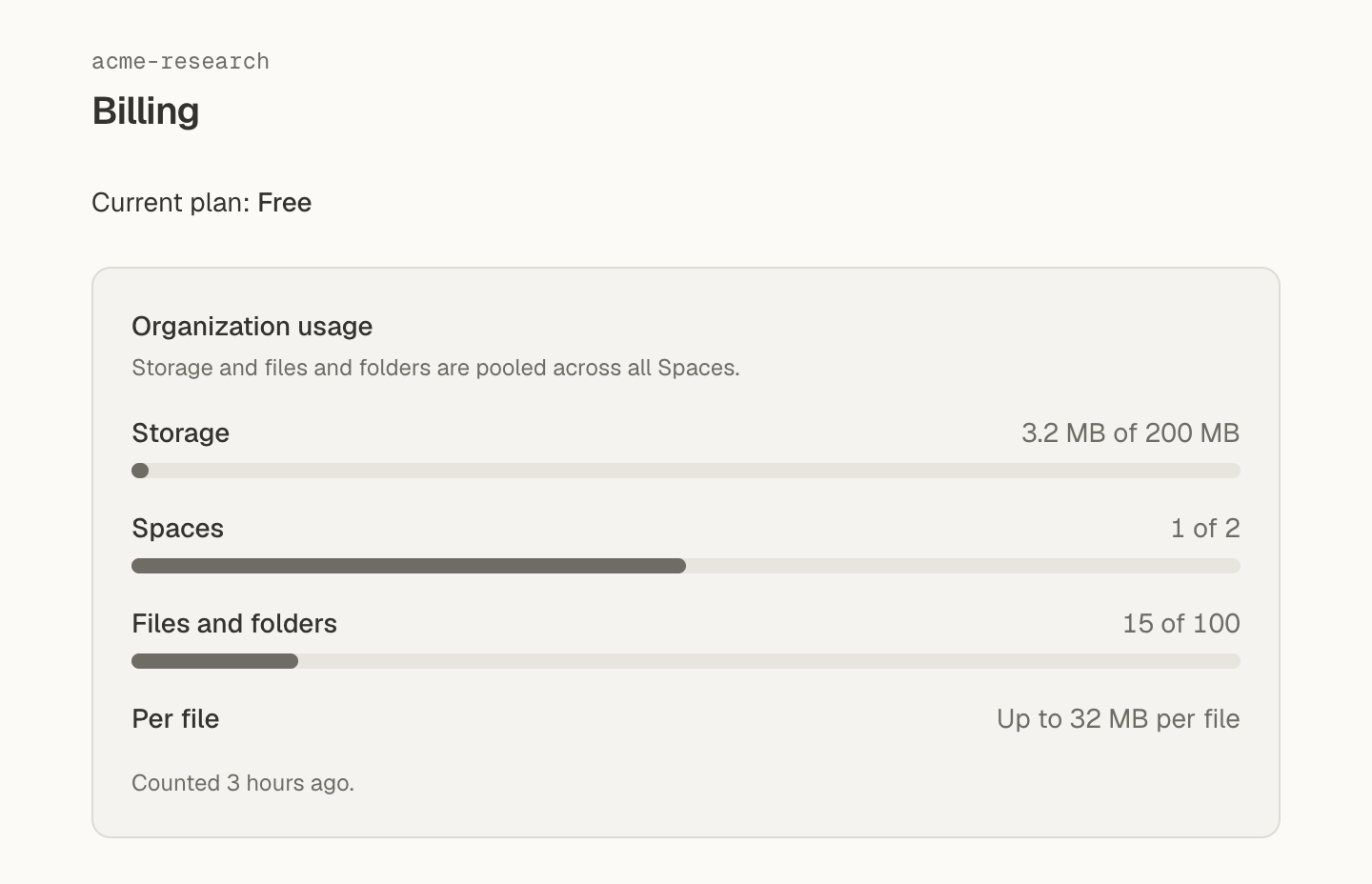
Only the files you upload or save count toward storage. The text Mempipe extracts, search indexes, earlier versions of a file you replaced, and deleted files don’t count.
What each message means
Section titled “What each message means”Each message names the limit. The storage, files and folders, and Space messages also say how much is used and how much more the action needed, such as “195 MB of 200 MB used; 12 MB more requested.” The per-file message gives the file’s size and the limit instead.
Not enough storage
Section titled “Not enough storage”Not enough storage in the upload panel, or Storage limit reached, means the organization’s files would take more storage than its plan allows. Storage is shared by every Space in the organization.
- Delete large files you no longer need, in any Space of the organization. Free up space opens the Space you’re in.
- Or choose See plans and upgrade.
You’ve reached the files and folders limit
Section titled “You’ve reached the files and folders limit”The organization has as many files and folders as its plan allows. Every folder counts, including the folders a folder upload creates.
- Delete files or folders you no longer need, in any Space of the organization. Deleting a folder deletes everything in it. Manage files and folders opens the Space you’re in.
- Or choose See plans and upgrade.
You’ve reached the Space limit
Section titled “You’ve reached the Space limit”This shows when you create a Space and the organization already has as many as its plan allows.
- Delete a Space you no longer need. Only an organization owner can delete a Space. Manage Spaces opens the organization’s list of Spaces. Delete a Space, an organization, or your account explains how.
- Or choose See plans and upgrade.
File too large for this plan
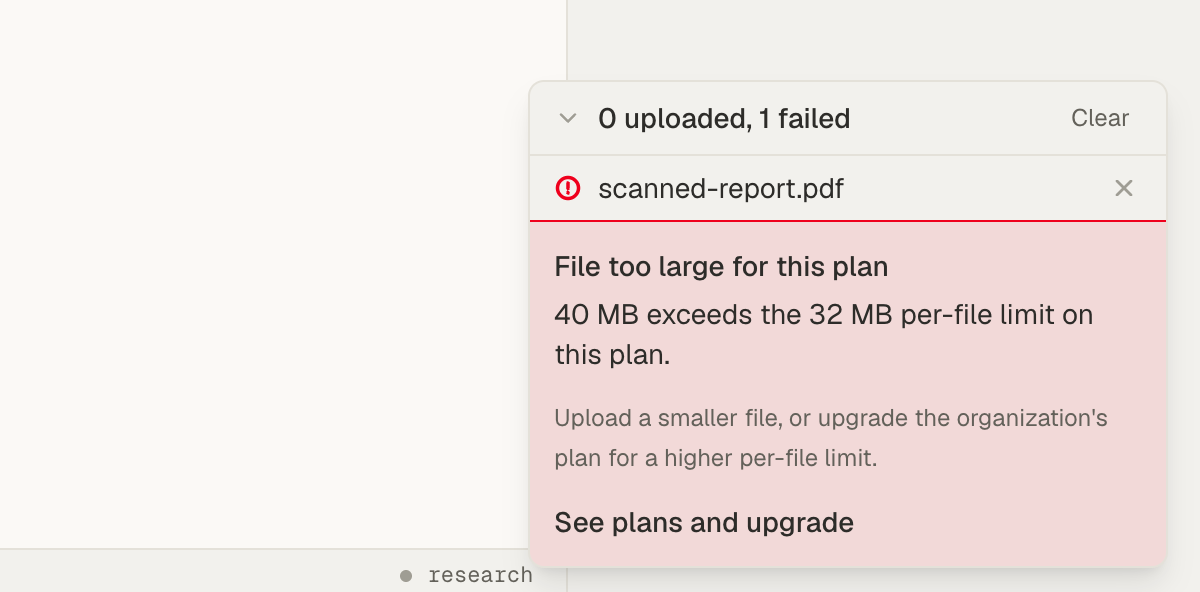
Section titled “File too large for this plan”The file is bigger than the plan’s per-file limit, for example “40 MB exceeds the 32 MB per-file limit on this plan.” Deleting other files doesn’t help.
- Upload a smaller file. For a PDF, split it into parts, or save a compressed copy.
- Or upgrade. Starter allows files up to 64 MB.
A message ending the maximum upload size is 128.0 MiB means the file is over the largest size any plan accepts. Split or compress it first.
Your account has reached its organization limit
Section titled “Your account has reached its organization limit”This shows when you create an organization. Each account can own three organizations. Work in one of the organizations you already have, or delete one you no longer need.
Where the messages appear
Section titled “Where the messages appear”- Uploads. A notice at the bottom of the upload panel explains the limit, with a link to upgrade. For storage and files and folders, it also links to where you can free up room. If an upload fails covers the cases where the reason shows under the file’s name instead.
- New Space. The notice shows in the New space form.
- Saving a file. The message shows at the top of Files, and your changes stay in the editor, unsaved.
- New folder. The folder shows Failed beside its name, without a reason. If you’re near the files and folders limit, that is the likely cause. Choose Delete on the row to remove it.
- The in-app agent or a connected AI. A file it tries to save is refused, and it reports the error. In the in-app agent, expand the steps row to read the
write_filestep’s error.
Try again after you delete
Section titled “Try again after you delete”Mempipe recounts usage a moment after you delete something. Until then, a message can still count the files you deleted. When it does, it says so, for example “Files you already deleted may not be reflected yet. Try this upload again in a moment.” Wait a moment, then try again.
Still stuck
Section titled “Still stuck”If a message says you’re over a limit that you think you’re under, email hello@mempipe.ai with the organization’s name and the message’s text.