Write and edit Markdown notes
Notes in Mempipe are Markdown (.md) files. A Markdown file opens in its reading view, which shows it formatted. To edit it, choose original in the View switcher above the note, change the text, and press ⌘S on a Mac or Ctrl+S on Windows to save. Your notes are ordinary files, so you and your agents can read, search, and cite them like any other document.
Start a new note
Section titled “Start a new note”Files has no button for creating a new file. To start a note, do one of these:
- Write it in any text editor on your computer, save it with a
.mdextension, and upload it. - Ask the in-app agent to write it, for example: “Save the four functions we discussed and their citations in
notes/ai-rmf-functions.md.” - Ask an AI assistant you connected with write access to save it.
Edit a note
Section titled “Edit a note”-
Open the note.
Select the note in Files. It opens in its reading view.
-
Switch to the editor.
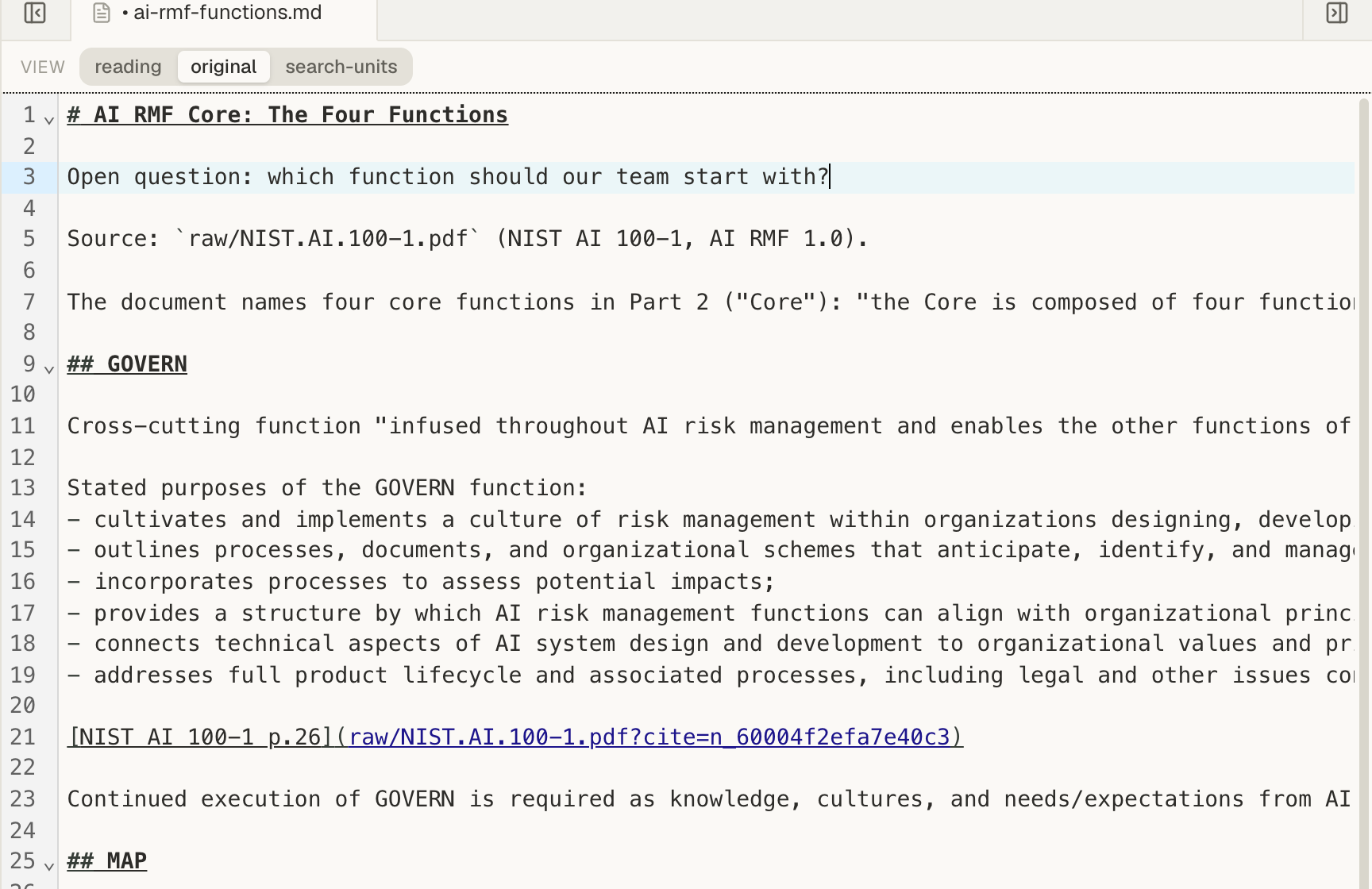
Choose original in the View switcher above the note. The Markdown text opens in an editor.
-
Edit the text.
While you have unsaved changes, the note’s tab shows a dot before its name, such as • ai-rmf-functions.md.
-
Save.
Press ⌘S on a Mac, or Ctrl+S on Windows. The dot disappears once the note is saved.
-
Check the result.
Choose reading in the View switcher. For a few seconds after a save, the reading view shows the previous version with stale — re-deriving in its corner, then updates.
Unsaved changes stay while you switch to another tab or view. They are lost if you close the note’s tab or reload the page, and Mempipe doesn’t ask first. Save before you close.
Saving a note updates its reading view and search. It keeps the note’s place in Files, so links to it keep working.
Once the note is processed, the View switcher also shows search-units. It lists the passages of the note prepared for search.
If the note changed while you were editing
Section titled “If the note changed while you were editing”If someone saved the same note after you opened it, for example an agent or another browser tab, saving shows a dialog titled with the note’s name, such as “ai-rmf-functions.md” changed since you opened it. Choose one:
- Overwrite replaces the other version with yours.
- Save a copy keeps both. Yours is saved beside the note as a new file, such as
ai-rmf-functions (conflict).md, and opens in a new tab. The note you were editing switches to the other version. - Reload discards your unsaved changes and shows the other version.
- Cancel closes the dialog without saving, so you can keep editing.
Link to other notes
Section titled “Link to other notes”Write a wiki link in double square brackets. In the reading view, it becomes a link that opens the note.
[[overview]]findsoverview.mdby name, anywhere in the Space. Capital letters don’t matter. If several files have that name, the one nearest the top level of the Space is used. If more than one is equally near, a file in the note’s own folder, or in a folder inside it, comes first.[[wiki/overview]]names the path from the top level of the Space.[[./overview]]names the path from the note’s own folder.[[#Scope]]jumps to the heading Scope in the same note.[[overview|the overview page]]shows the text after the|as the link.
Leave out .md, and Mempipe adds it. If the note’s name has a dot in it, such as v1.2-notes.md, include the .md. For any other file, include its extension, such as [[NIST.AI.100-1.pdf]].
A link to a file Mempipe can’t find shows in red with a dotted underline. Point at it to see which file it looked for. A link by name still finds the file after it moves to another folder, as long as no other file with the same name is as near the top level or nearer. A link by path needs updating when you move or rename the file.
Show a table, chart, or another note inside a note
Section titled “Show a table, chart, or another note inside a note”Add ! before a wiki link, on a line of its own, to show the file inside the note:
![[ai-rmf-categories.csv]]shows a CSV file as a table.![[categories-by-function.sql]]shows the result of a saved SQL query.![[categories-by-function.vl.json]]shows a chart.![[overview]]shows another note.
Other kinds of files, such as PDFs, don’t show inside a note. The note shows the file’s path and says to open the file to view it. To point at a passage in a PDF, use a citation instead.
If something goes wrong
Section titled “If something goes wrong”- You can’t type in the note. It is open in its reading view. Choose original to edit it.
- Reading view is still deriving. Mempipe is processing the note. The view shows it on its own when it is ready, or choose Retry to check sooner. You can edit it in original meanwhile.
- The text editor failed to load. Reload the page.
- A link shows in red. Check the file name or path in the link, or link by name instead.
- An embed shows a message instead of the file. Unresolved embed means no file matches the name, so check it. Embed still deriving means Mempipe is still processing the file, which shows once it’s ready. Embed cycle means two notes embed each other. Could not load embed or Could not evaluate the query means the file itself has a problem: open it to see the error.
- You can’t tick a checkbox. Task-list checkboxes can’t be changed in the reading view. In original, change
[ ]to[x], or back, and save.