Search results are missing or out of date
Search finds text only in PDF and Markdown files that have finished processing, and only in the Space you’re searching. If a file you expect is missing, first check that it’s one of those files, in this Space, and finished. If it is, the text search reads may differ from what you see on the page. Search for a shorter phrase taken from the file’s markdown view.
Check that search can see the file
Section titled “Check that search can see the file”-
Check the file type.
Search covers PDF and Markdown (
.md,.markdown) files. It doesn’t look inside CSV or TSV files, which you query with SQL instead, or inside other files, such as.txtfiles. -
Check the Space.
Search, the agent, and a connected AI search one Space at a time. Make sure the file is in the Space you’re searching.
-
Check that the file is in search.
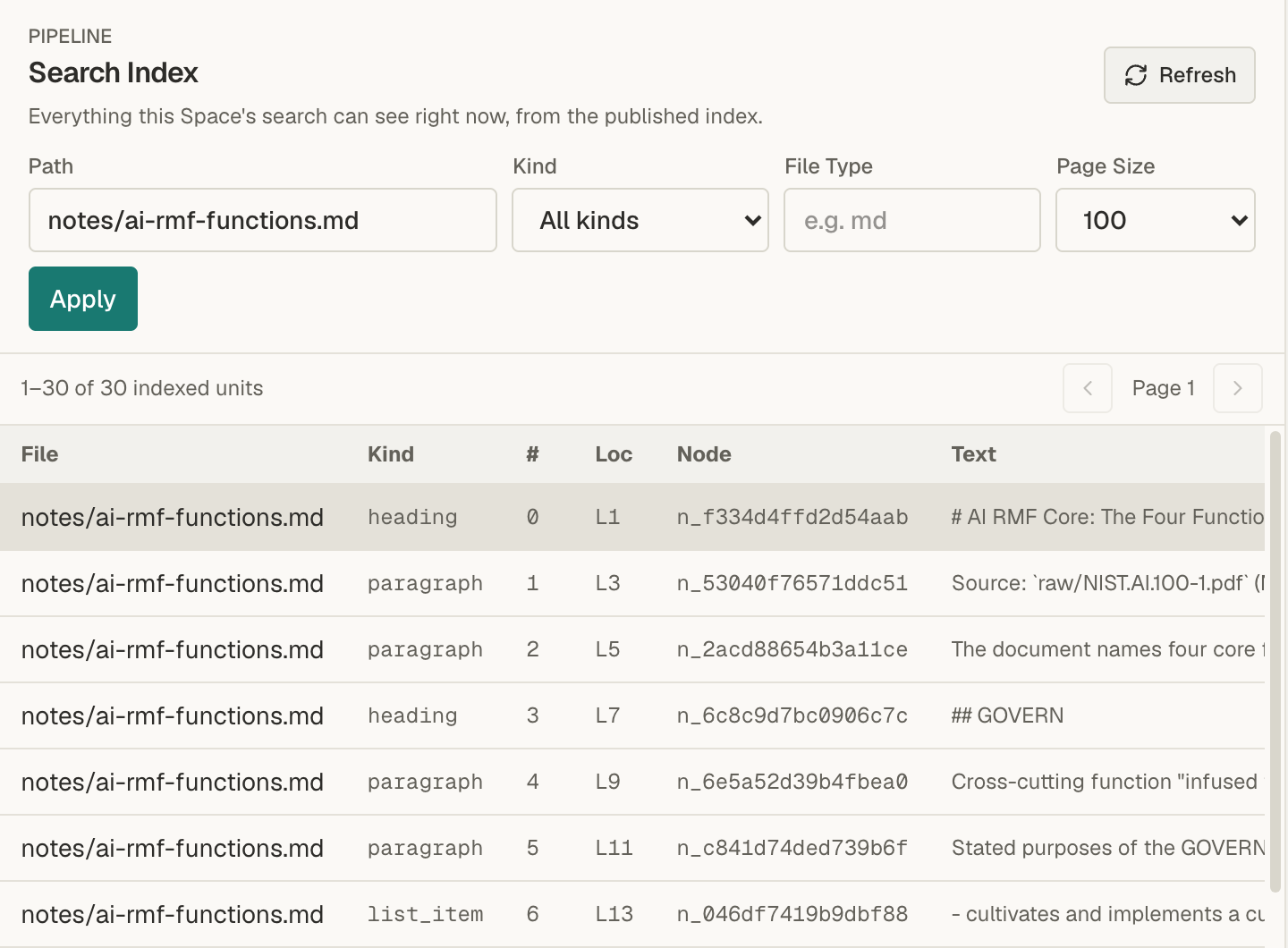
In the narrow rail on the left, choose Pipeline, then Search Index. Enter the file’s full path in Path, such as
notes/ai-rmf-functions.md, and choose Apply. Each row is a passage search can find. If rows appear, the file is in search.You can also start from the file. Open it, choose search-units in the View switcher, and choose Find in Search Index at the bottom of the list.
-
If the file has no rows, check its processing.
Open the file and look in the View switcher for search-units, the passages prepared for search:
- There’s no search-units view. The passages aren’t prepared yet, so the file may still be processing. Look for it in Pipeline > Space Activity. The view appears once Search units derived appears for the file.
- It lists passages. Search adds them a moment after they’re prepared. Wait a minute, then choose Refresh on the Search Index page.
- It says the file produced no searchable units. Mempipe found no text in the file to search. For a PDF, open its markdown view to see the text Mempipe extracted.
-
Check for a failure.
If the file shows Derive failed or Search failed, or Space Activity shows Derivation failed for it, processing failed. If an earlier version of the file reached search, search keeps that version’s passages, marked refresh failed. Otherwise the file isn’t in search. See A file is stuck processing or failed.
See everything search can find explains the Search Index page.
If the file is ready but search misses the text
Section titled “If the file is ready but search misses the text”Search reads the text Mempipe extracted from the file, the same text the file’s markdown view shows. That text can differ from what you see on the PDF’s page.
- Look for the passage in the markdown view. Open the PDF, choose markdown in the View switcher, and find the passage. Search for a few words exactly as they appear there.
- Search for a shorter phrase. Extraction can drop the hyphen from a word split across two lines, so
third-partymay becomethirdparty. It can also break a word with a space. A shorter phrase, or a single distinctive word, still finds the passage. - Use the document’s words. BM25 matches the words you type, not their meaning. If the document says “risk tolerance”, a search for “risk appetite” can miss it.
- Turn off Regex for exact text. In Grep, Regex starts on, so characters such as
.,(, and?are part of a pattern rather than text to find. Clear Regex to search for text as typed. - Check the filters. Under Filters, clear Path and File type. In Grep, also clear Glob filter, and set Case to Smart or Insensitive.
- Check the extracted text. Scanned pages are read with text recognition, which can misread words, and a page that fails to extract is left out. If the markdown view is missing the text, switch the PDF to the other extractor.
No results doesn’t prove the text is absent. It means no passage in the searchable text matched. Find an exact phrase in your documents has more on Grep. The syntax of each mode is in Search, grep, and glob syntax.
If results are out of date
Section titled “If results are out of date”Search catches up with changes a moment after they happen. Until it does, a result can show a label:
- stale means the file changed after search last read it, so the passage shown may be out of date. It also shows on results from a file you renamed or moved, until search catches up.
- stale — re-deriving means Mempipe is processing the new version now. Search again in a minute.
- refresh failed means processing the new version failed. Point at the label to see why, and see A file is stuck processing or failed.
Results from a file you deleted, or from files in a folder you deleted, no longer appear in Grep or BM25. Finding files by name with Glob is always up to date.
If Search shows a message
Section titled “If Search shows a message”- Preparing recent uploads for search. Results may be incomplete. A file you uploaded is still processing. Wait a minute, then choose Run again.
- A message that says search coverage could not be verified. The Space has PDF or Markdown files, but none of them has reached search yet. Wait a minute and search again. If it persists, check the files as described above.
- This Space’s search index is being rebuilt. Wait a minute, then choose Run again.
Search inside your PDFs and Markdown files lists the other messages.
When the agent or a connected AI can’t find it
Section titled “When the agent or a connected AI can’t find it”The in-app agent and a connected AI search the same text as the Search panel, so the checks above apply to them too.
- It says search is not ready or not available. No file in the Space has reached search yet. It can still find files by name and read them. Ask it to read the file by name.
- It finds nothing. Name the file in your question, and use words that appear in it. Finding nothing doesn’t prove the file lacks the answer.
- A connected AI is set up for another Space. Each MCP connection reaches one Space, unless you connected all your Spaces. Check its address on the Space’s MCP Endpoint page.
Still stuck
Section titled “Still stuck”Email hello@mempipe.ai with the name of the Space and the file, the words you searched for, and the search mode you used.