Plans, usage limits, and upgrading
Mempipe has two plans today, Free and Starter. Each organization has its own plan. Free includes 2 Spaces, 100 files and folders, 200 MB of storage, and files up to 32 MB. Starter includes 10 Spaces, 500 files and folders, 1 GB of storage, and files up to 64 MB, for $9.99 a month billed yearly or $12 billed monthly. You see your usage and change your plan on your organization’s Billing page.
Before you start
Section titled “Before you start”- Only an organization’s owner can change its plan. The person who creates an organization becomes its owner, and the app has no way to add other members.
- Each organization has its own plan, so open the organization you want to change.
- Upgrading may ask for payment details on a checkout page. Downgrading doesn’t.
Compare the plans
Section titled “Compare the plans”| Free | Starter | |
|---|---|---|
| Price | $0 | $9.99 a month, billed yearly ($119.88), or $12 billed monthly |
| Spaces | 2 | 10 |
| Files and folders | 100 | 500 |
| Storage | 200 MB | 1 GB |
| Largest file | 32 MB | 64 MB |
Prices are in US dollars, per organization. Pro and Business are coming soon, and can’t be chosen yet. The pricing page has the same plans and answers common questions.
Your Mempipe plan doesn’t include AI model usage. The in-app agent uses your own API key, and that provider bills you for what it uses. See set up the in-app agent with your own API key.
What counts toward the limits
Section titled “What counts toward the limits”- Storage counts the content of your files. Text Mempipe extracts from them, search indexes, and previews don’t count. For storage, 1 MB is 1,000,000 bytes.
- Files and folders counts each file and each folder, including empty files.
- Spaces counts the Spaces in the organization.
- Largest file applies to each upload, and to each new version of a file.
Storage and files and folders are shared by every Space in the organization. Files you delete stop counting. The files an agent saves count too. Supported file types and size limits also lists the limits that apply on every plan, such as the rows a query returns.
See your usage
Section titled “See your usage”-
Open your organization’s page.
Select your organization’s short name at the top left of the app, or choose All spaces… in the Space switcher.
-
Select your plan’s name.
Under Choose a space, select the plan, such as Free plan. Billing opens.
Billing opens over the page. If you open its link directly, or reload, it opens as a page of its own instead. That page ends with Skip for now — back to workspace, which goes back to your organization’s page and changes nothing.
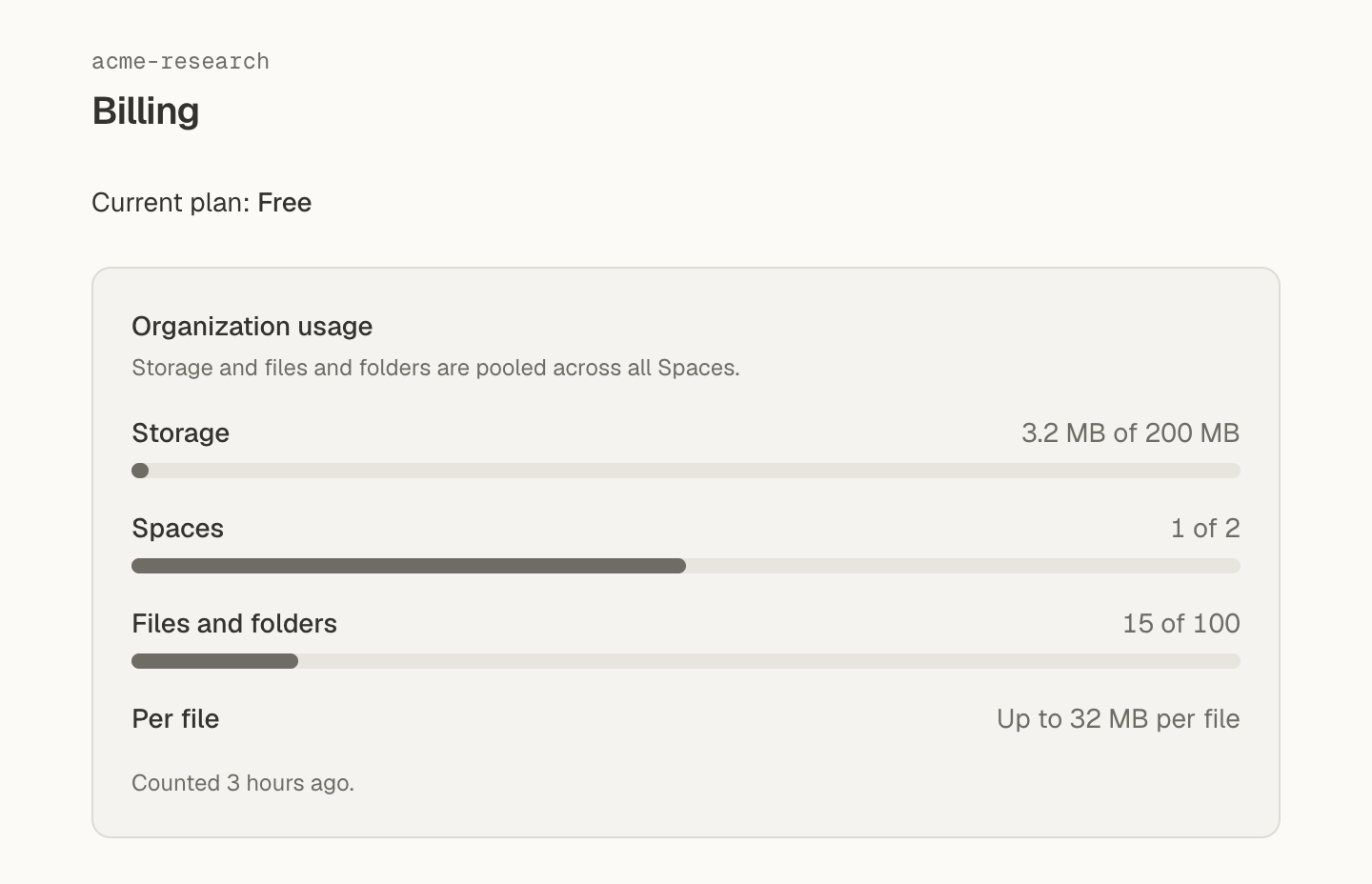
Organization usage shows how much of each limit you use, such as “3.2 MB of 200 MB”, and the largest file your plan allows. The line under it says when usage was last counted, such as “Counted 3 hours ago.” Recent changes can take a moment to show, and Recounting appears while they are counted.
Upgrade to Starter
Section titled “Upgrade to Starter”-
Open Billing.
Follow the steps in See your usage. A limit notice’s See plans and upgrade link opens the same page.
-
Choose how often to pay.
On the Starter card, select Yearly or Monthly.
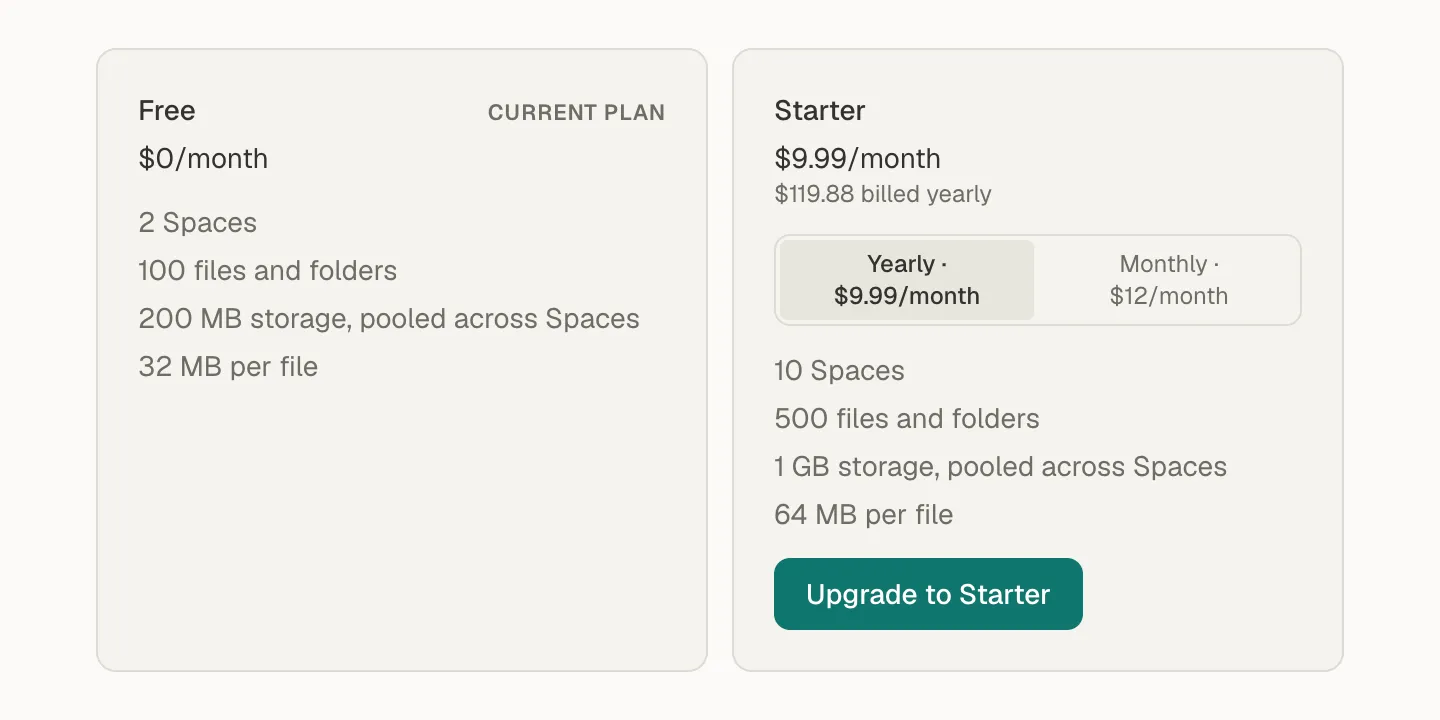
Pick yearly or monthly billing on the Starter card, then upgrade. -
Select Upgrade to Starter.
Mempipe opens a Stripe checkout page. Enter your payment details there and complete the payment. If a card is already saved from an earlier payment, Mempipe may charge it without showing that page.
-
Wait for the plan to confirm.
You return to Billing, which shows Confirming your new plan… until Starter is active. If it says Still confirming your new plan, it’s safe to leave the page and check again in a few minutes.
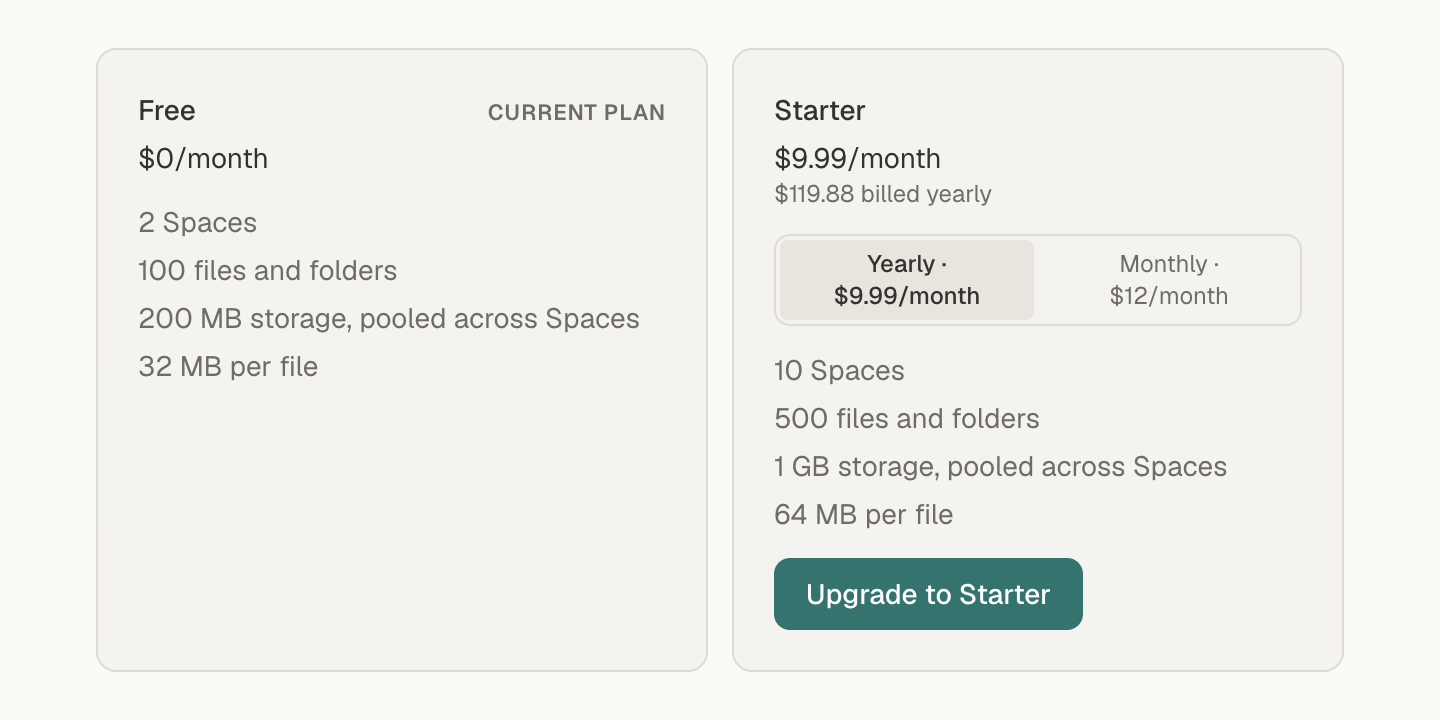
When it worked, Billing shows Current plan: Starter, or Starter (yearly), and the higher limits apply to every Space in the organization.
To switch between yearly and monthly billing, downgrade to Free, then upgrade again on the other cycle once the downgrade takes effect.
Downgrade to Free
Section titled “Downgrade to Free”On Billing, select Downgrade to Free on the Free card. The card says “Scheduled — takes effect at the end of the billing period.” Starter stays active until then, and the current plan line shows the date it ends. To cancel the downgrade before then, select Keep Starter, or Keep Starter (yearly) on the yearly plan.
After the downgrade, nothing is deleted:
- Your files, folders, and Spaces stay, and you can still open, read, and delete them.
- If you are over one of Free’s limits, actions that add to it are blocked until you are back under the limit or upgrade again. Billing says which limit you are over.
- A file bigger than 32 MB stays readable, but a new version of it must fit Free’s 32 MB limit.
When you reach a limit
Section titled “When you reach a limit”An upload or a new Space that would pass a limit stops with a notice naming the limit, such as Not enough storage. The notice links to See plans and upgrade, and for a storage, Space, or files-and-folders limit, to the page where you can free up room. A save by an agent that would pass a limit fails too. You reached a storage, file, or Space limit explains each message and how to make room.
If something goes wrong
Section titled “If something goes wrong”- “Billing isn’t set up for this organization yet.” Select Set up billing, then Set up billing on the Billing page. It starts the organization on Free and needs no payment method.
- “Could not start checkout.” or “The billing provider had a temporary problem. Try again.” Reload Billing and try again.
- “Billing isn’t available right now.” Your workspace keeps working, and your plan is unchanged. Try again later.
- You paid, but the plan still shows Free. Wait a few minutes, then reload Billing. Don’t pay again.
The app has no page for invoices or for changing your card. For those, or anything else about billing, email hello@mempipe.ai with your organization’s slug.