Find your way around a Space
A Space opens in a workspace with five parts. The top bar shows where you are and switches Spaces. The left panel holds Files, Search, and Pipeline. Files you open appear as tabs in the middle. The right panel holds the Inspector and the Agent. A status bar along the bottom names the open file.
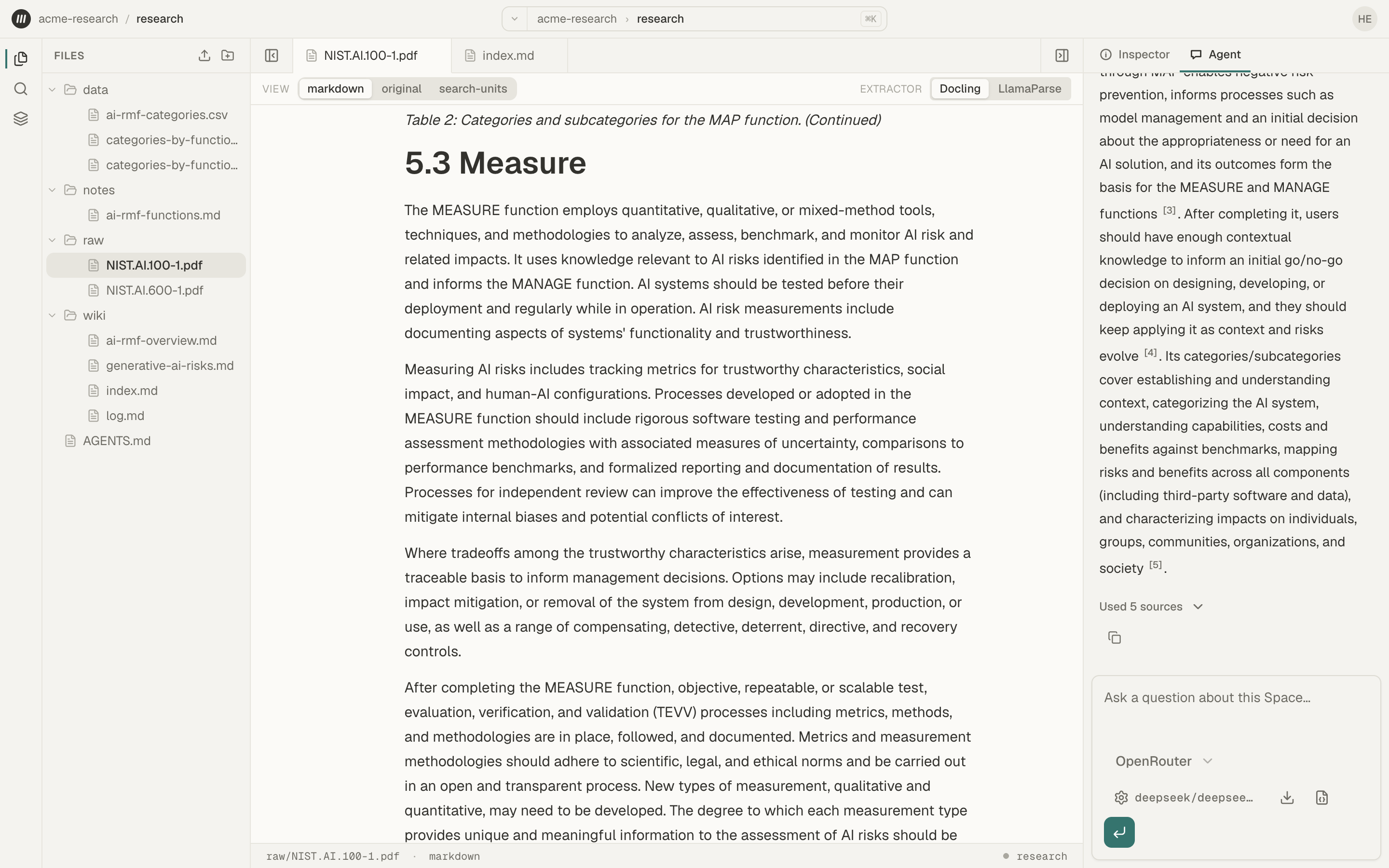
The top bar
Section titled “The top bar”From left to right:
- The Mempipe logo opens a menu with Home, which lists your organizations, and links to the Mempipe website and changelog.
- Your organization and Space, shown by the short names in their web address, such as
acme-research / research. Select either one to go to it. On a narrow window, they move into the logo menu. - The command center, in the middle, shows your organization and Space with ⌘K. Select it to open the command palette. The arrow at its left edge opens the Space switcher.
- The round button at the right shows two letters from your email address and opens the account menu. The menu shows the email you signed in with, and has Theme (System, Light, or Dark, saved for this browser only), Invite friends, and Sign out.
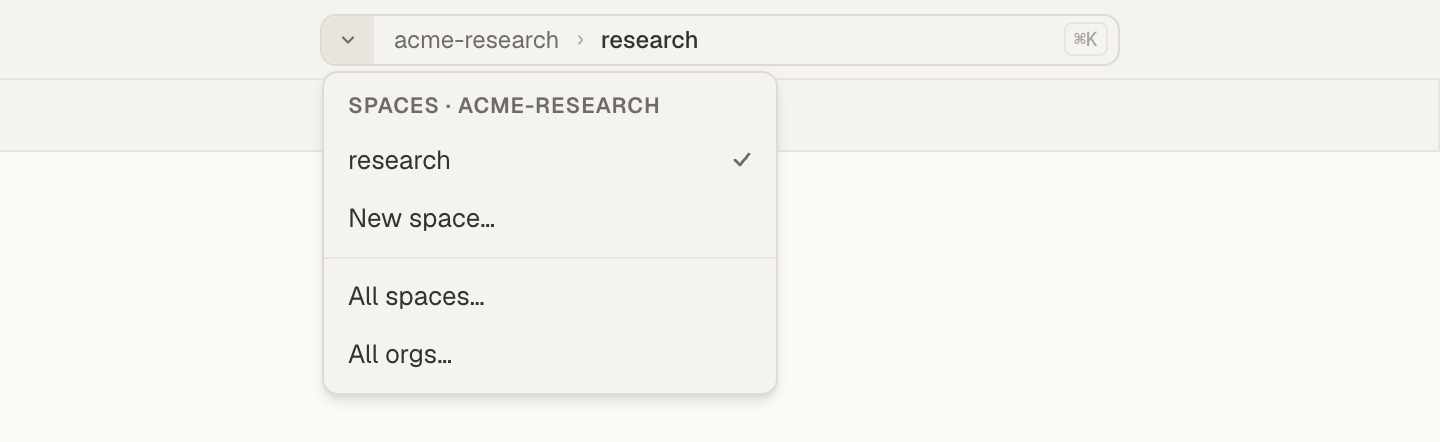
Switch Spaces
Section titled “Switch Spaces”Select the arrow at the left edge of the command center. The menu lists the Spaces in this organization, with a check beside the one you are in. Select a Space to open it.
The same menu has:
- New space… to create a Space in this organization.
- All spaces… to see every Space in the organization.
- All orgs… to choose another organization.
Create and switch organizations and Spaces covers each of these.
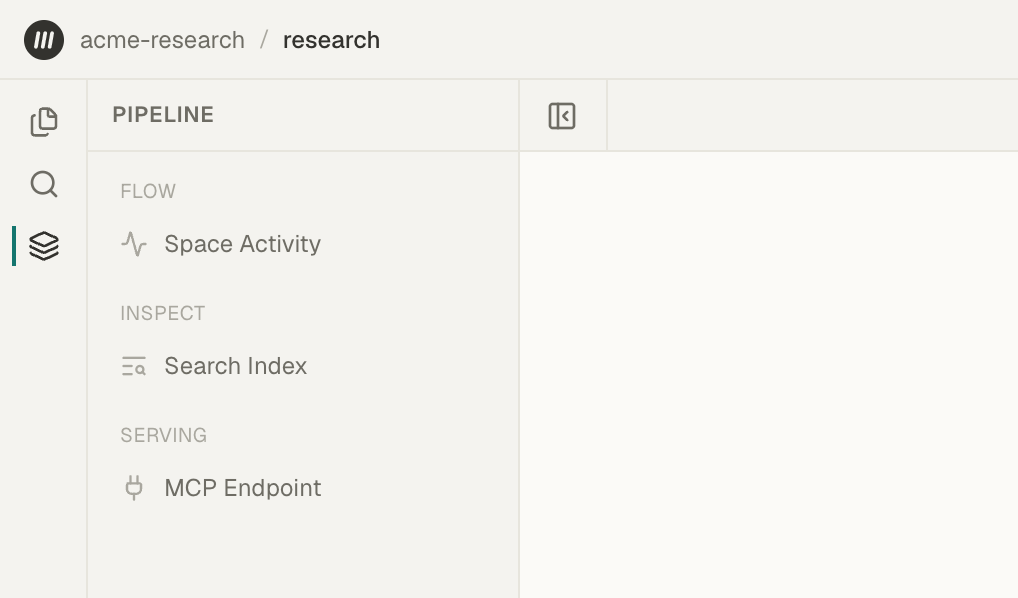
The left panel: Files, Search, and Pipeline
Section titled “The left panel: Files, Search, and Pipeline”Three icons down the left edge switch the panel. Select the icon that is already active to hide the panel.
- Files lists the Space’s files and folders. The icons at the top of the list are Upload file and New folder. Point at an icon to see its name. See upload files and organize files.
- Search finds text inside the Space’s files, or finds files by name.
- Pipeline opens three pages in the middle:
- Space Activity lists what happened in the Space, such as uploads and processing, and shows why a file failed to process.
- Search Index lists the passages that search can find.
- MCP Endpoint has the address and steps to connect an AI assistant.
Open files and tabs
Section titled “Open files and tabs”Select a file in Files to open it. Each open file gets a tab above the middle area. Select a tab to switch to that file, or select its close button to close it.
Some files have more than one view. A PDF opens as the original PDF, and you can switch to its Markdown. A citation opens the Markdown view at the cited passage. The View switcher at the top of the file changes between them.
The status bar at the bottom shows the open file’s path and view, and the Space name at the right.
The right panel: Inspector and Agent
Section titled “The right panel: Inspector and Agent”Select Inspector or Agent at the top of the right panel.
- Inspector shows details of the open file, such as its path, type, size, and version.
- Agent is the in-app agent. Ask it questions about the files in this Space. It needs a model API key the first time.
The command palette
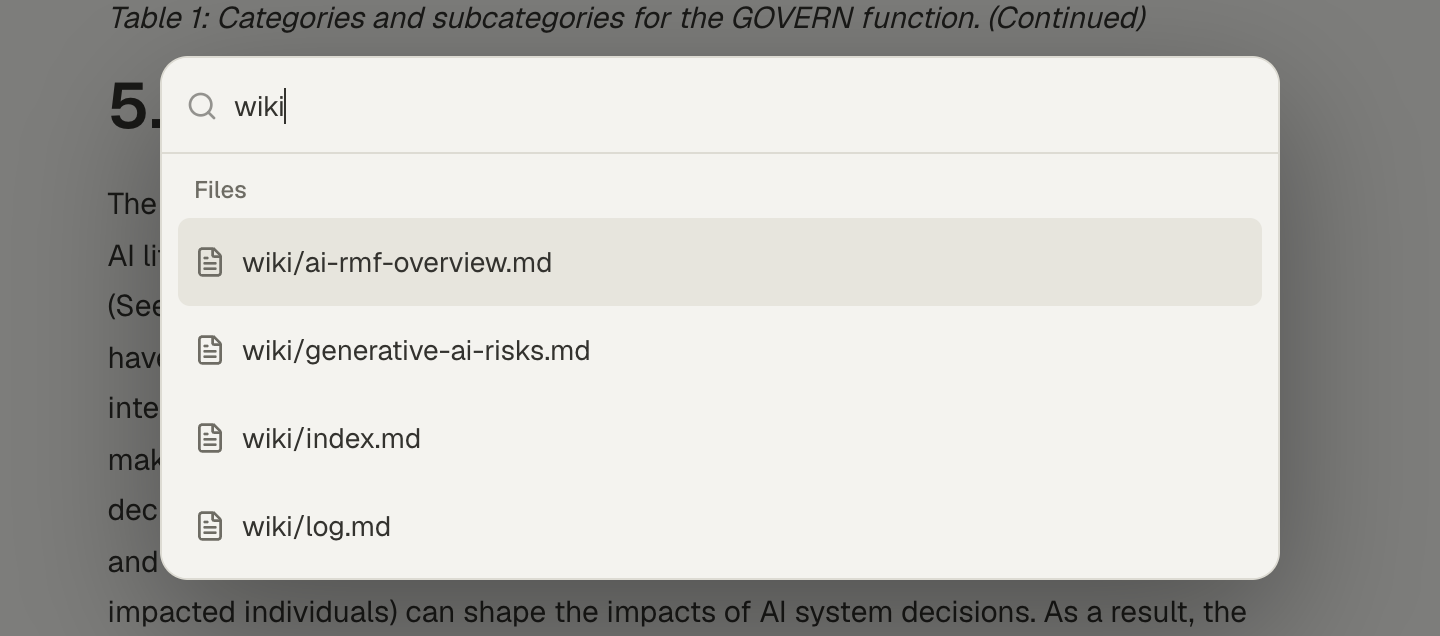
Section titled “The command palette”Press ⌘K on a Mac, or Ctrl+K on Windows and Linux. You can also select the command center in the top bar.
Type part of a file’s path and select it to open the file. The palette also runs commands:
- Toggle left sidebar and Toggle right sidebar.
- Space Activity, Search Index, and MCP Endpoint.
The palette lists the Space’s first 200 files. To reach a file beyond those, use Files, or find it by name with Glob in Search.
Show and hide the side panels
Section titled “Show and hide the side panels”- ⌘\ (Ctrl+\) shows or hides the left panel.
- ⌘⇧\ (Ctrl+Shift+\) shows or hides the right panel.
- The buttons at the top corners of the workspace do the same. While a panel is hidden, point at its button to peek at the panel.
- Drag the line between a side panel and your files to make the panel wider or narrower, up to 40% of the window. Drag it all the way to the edge to hide the panel. A reload sets the panels back to their usual widths.
On a narrow window, a panel opens over the page, one at a time. Keyboard shortcuts lists every shortcut.
An empty Space
Section titled “An empty Space”A new Space says This Space is empty and shows an area for your first files. Drag a PDF, Markdown, or CSV file onto it, or select it to choose files from your computer. See Upload into an empty Space. Once the Space has files, the middle says “Open a file from the explorer to get started.”