A file is stuck processing or failed
Mempipe processes most files within a minute, and a long PDF within several minutes. When processing fails, the file stays stored and Mempipe doesn’t try again on its own. To fix it, read Why it failed in Space Activity. Then switch a PDF to the other extractor, or upload a corrected copy of the file and choose Replace.
What a failed file shows depends on whether an earlier version of it processed successfully:
- It did. Mempipe keeps serving the earlier version wherever the new one failed. When only search fails, for example, the reading view shows the new text while search keeps the earlier passages.
- It didn’t. The file goes without what failed. A PDF or Markdown file whose text wasn’t extracted has no reading view and isn’t in search. A CSV or TSV file has no table view.
Processing applies to PDF, Markdown, CSV, and TSV files. What happens after you upload a file explains what it does for each.
Signs that processing failed
Section titled “Signs that processing failed”| Where | What you see | What it means |
|---|---|---|
| Files, beside the file’s name | Derive failed | Processing failed. If an earlier version of the file processed successfully, that version keeps showing. Otherwise the file’s reading or table view isn’t available, and a PDF or Markdown file isn’t in search. |
| Files, beside the file’s name | Search failed | You can read the file. If an earlier version of it reached search, search keeps that version’s passages, marked refresh failed. Otherwise search won’t include the file. |
| A PDF, next to the Extractor buttons | Extraction failed | The last extraction of this PDF failed. |
| A PDF’s markdown view | Could not load the derived Markdown view. | The PDF has no extracted text to show. If Extraction failed shows next to the Extractor buttons, processing failed. Otherwise, reload the page to rule out a network problem. |
| A Markdown file’s reading view | Could not load the reading view. Try reopening it from the explorer. | The same, for a Markdown file. |
| A CSV or TSV file’s tables view | Derivation failed, with the reason and Fix the file and re-upload it to derive again. | The file couldn’t be read as a table. The reason below the heading says why. |
| The top of a document, a query result, or a chart | last derivation failed — showing previous | A new version of the file failed. You’re seeing the version before it. |
The Derive failed and Search failed labels show only for files you uploaded or saved in the current browser tab. After a reload, open the file or look in Space Activity instead.
Read why it failed
Section titled “Read why it failed”Space Activity records each processing step, and keeps the reason a step failed.
-
Open Space Activity.
In the narrow rail on the left, choose Pipeline, then Space Activity.
-
Show the failures.
Under Event Type, choose Derivation failed. The list shows only failed steps. To find one file, type part of its name in Search and choose Apply.
-
Read the reason.
Select the row. The Inspector on the right shows Why it failed.
For a CSV or TSV file, the file’s tables view shows the same reason under Derivation failed.
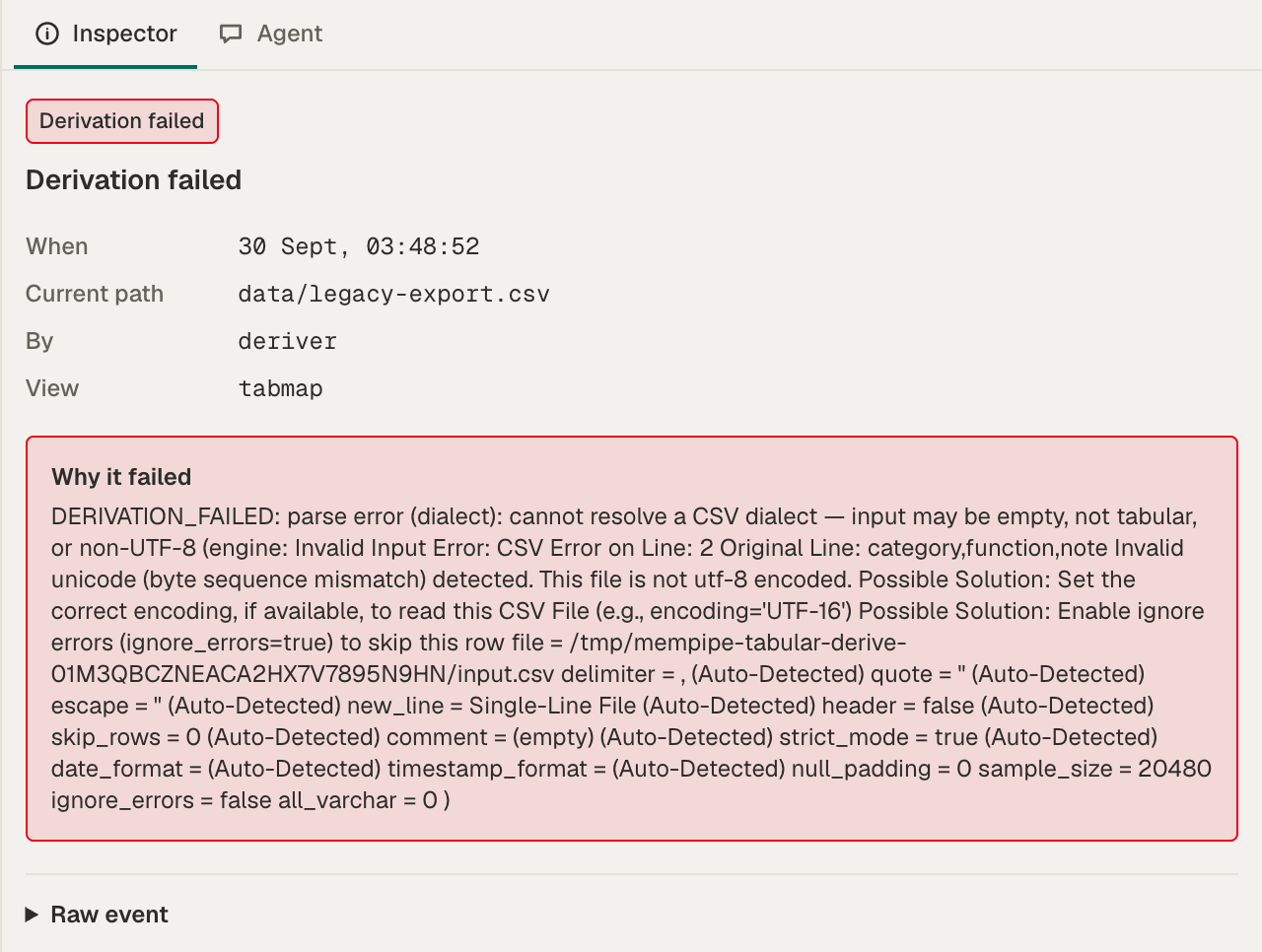
The reason is technical text from the step that processed the file. It starts with DERIVATION_FAILED. Some reasons point to a fix:
- It says the conversion exceeded its budget. The PDF took longer than 30 minutes to extract. Try the other extractor, or split the PDF into smaller files and upload those.
- It mentions
docling. The Docling extractor couldn’t read this PDF. Switch it to LlamaParse. - It mentions
llamaparse. Switch the PDF back to Docling. - It mentions
parse errororcsv:. A CSV or TSV file couldn’t be read as a table. See Fix a CSV or TSV file.
If the list shows no failed step for the file, it may still be processing. See If a file seems stuck.
Switch a PDF to the other extractor
Section titled “Switch a PDF to the other extractor”Mempipe can read a PDF’s text with two extractors, Docling and LlamaParse. When one fails, the other often succeeds.
-
Open the PDF.
Select it in Files. The Extractor buttons sit to the right of the View switcher.
-
Choose the other extractor.
If Docling is selected, choose LlamaParse, and the other way round. Choosing the extractor that just failed does nothing, so switch to the other one.
-
Wait for the new text.
Re-deriving… shows while it runs. When it finishes, the markdown view shows the new text, and search picks it up a moment later.
Choosing LlamaParse sends the PDF to LlamaParse, a cloud extraction service. Choose an extractor says where each one runs.
If both extractors fail, check the PDF itself. Make sure it opens in another PDF reader and isn’t password-protected. If it opens, save a new copy from that reader, then upload the copy and choose Replace.
Fix a CSV or TSV file
Section titled “Fix a CSV or TSV file”Mempipe reads each CSV or TSV file as a table. Reading fails when:
- the file isn’t saved as UTF-8 text. In Excel, choose CSV UTF-8 as the format when you save it;
- its lines end with a carriage return alone, as Excel’s CSV (Macintosh) format saves them. Save it as CSV UTF-8 instead;
- the file is empty;
- the file isn’t text separated by commas or tabs, such as an
.xlsxworkbook renamed to.csv.
Fix the file on your computer, then upload it again and choose Replace. Open a CSV file as a table explains what a processed file shows.
Process a file again
Section titled “Process a file again”Uploading a file again, even the same file, makes Mempipe process it from the start. Use this when Search failed shows, when a Markdown file failed, or when you’ve fixed a file.
-
Select the file’s folder.
In Files, select the folder the file is in.
-
Upload the file.
Choose Upload file and pick the file, or drag it onto that folder.
-
Choose Replace.
Mempipe says the file already exists. Choose Replace.
The file keeps its place and name. It shows Deriving… while it’s processed again. Upload files to a Space describes the dialog.
Replacing a PDF runs the extractor it already uses. If that extractor failed, switch extractors instead.
If a file seems stuck
Section titled “If a file seems stuck”A file is still processing when it shows Deriving… in Files, or when its view says Docmap view is still deriving, Reading view is still deriving, or Deriving…. The view shows the result on its own when processing finishes.
How long to wait:
- Markdown, CSV, and TSV files usually take a few seconds.
- PDFs usually take under a minute. A long or scanned PDF can take several minutes.
The Deriving… label in Files disappears after about five minutes, even if processing continues. To check on a file after that, open it, or find it in Space Activity and choose Refresh to load new rows:
- Derivation queued means a step is waiting or running.
- Text extracted, Search units derived, or Tables derived means a step finished. A PDF or Markdown file is done when Search units derived appears.
- Derivation failed means a step stopped. Read why it failed.
If a file’s newest row has been Derivation queued for 30 minutes, upload it again and choose Replace. If that doesn’t help, email us.
Still stuck
Section titled “Still stuck”Email hello@mempipe.ai with:
- the name of the Space and the file;
- the file’s type and size;
- the text of Why it failed, if Space Activity shows one.
Related
Section titled “Related”- What happens after you upload a file
- Read a PDF as Markdown and check the original page
- Search results are missing or out of date, for files that finished processing but don’t show up in search