Find a file by name
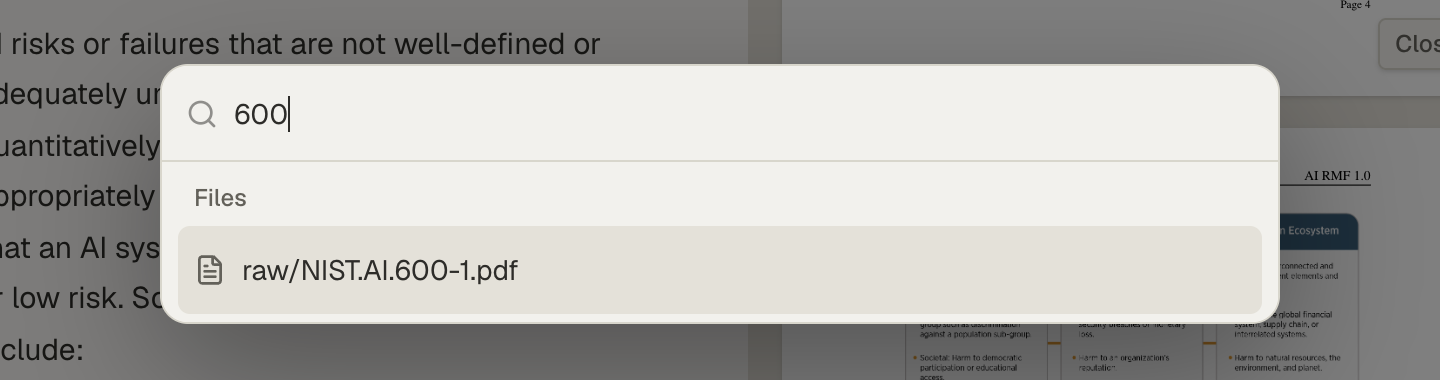
To find a file by name, press ⌘K in a Space (Ctrl+K on Windows and Linux), type part of the file’s name, and choose it from the list. To list every file that matches a pattern, such as all the PDFs in a folder, open Search, choose Glob, and enter a pattern like raw/*.pdf.
Both look at file names and folders, not at what’s inside the files. They work for every file type, and they find a file as soon as it’s uploaded, before processing finishes. To search inside your files, see Search inside your PDFs and Markdown files.
Jump to a file with ⌘K
Section titled “Jump to a file with ⌘K”-
Open the command palette.
In a Space, press ⌘K, or choose the Space name in the top bar. A box opens that reads “Jump to a file or run a command…”.
-
Type part of the name.
Type part of the file’s name or folder, such as
600. The Files list narrows as you type. -
Open the file.
Choose the file, or move to it with the arrow keys and press Enter. It opens in the main area.
Press Esc to close the palette without opening anything.
The palette lists up to 200 files. In a larger Space, the list heading reads Files — first 200 resources, and a file beyond those may not appear. Use Glob, or browse in Files, to reach it. If the palette says Files unavailable right now, close it and open it again.
Below the files, the palette also lists commands: Toggle left sidebar, Toggle right sidebar, Space Activity, Search Index, and MCP Endpoint. The two sidebar commands show their keyboard shortcuts, ⌘\ and ⌘⇧\. See Keyboard shortcuts for every shortcut.
List every file that matches a pattern
Section titled “List every file that matches a pattern”-
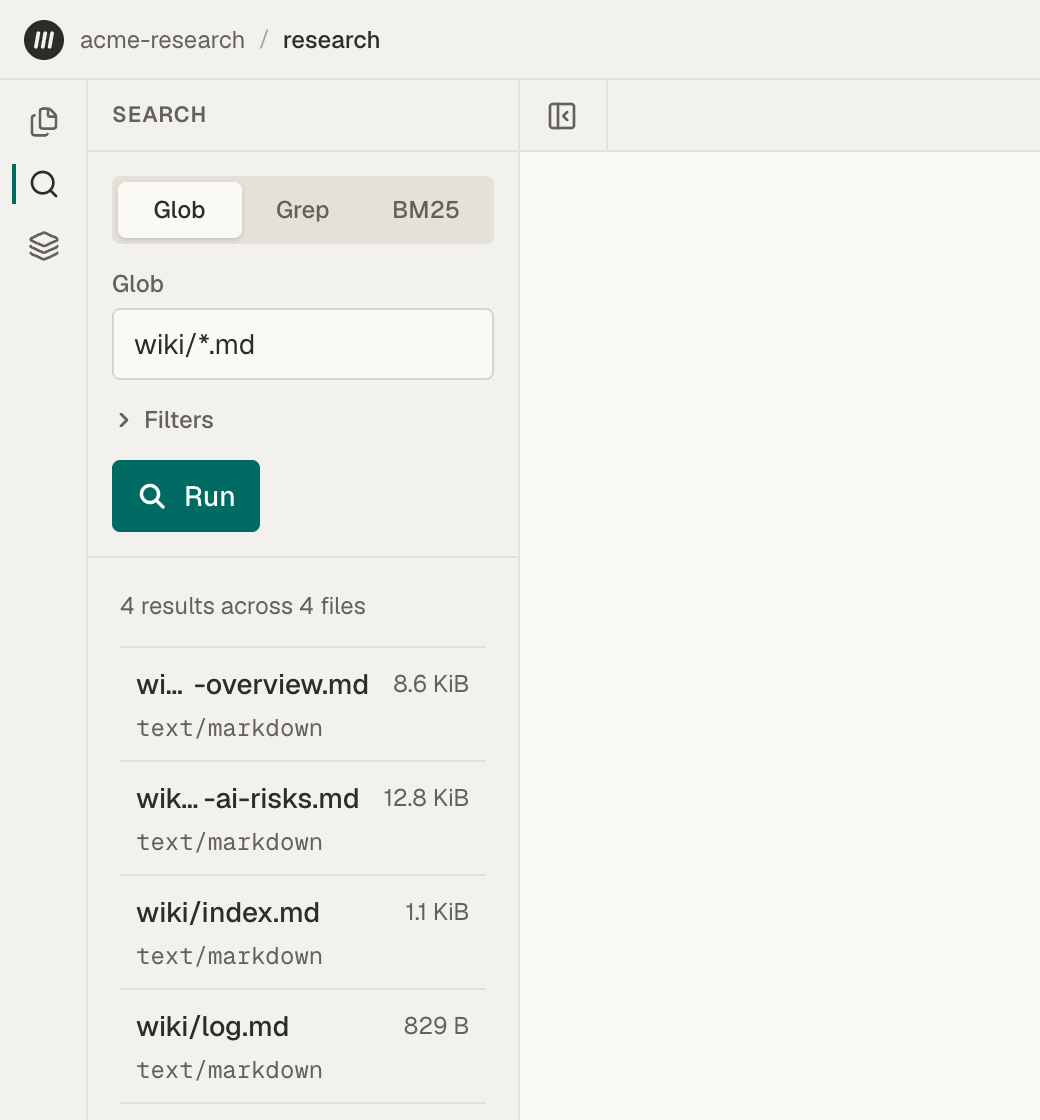
Open Search and choose Glob.
In the rail at the left edge, choose Search, then select Glob at the top of the panel.
-
Enter a pattern.
Type a pattern in Glob, such as
wiki/*.mdfor the Markdown files in thewikifolder. Choose Run or press Enter. -
Open a file.
Each result shows the file’s path, size, and type. Choose one to open it.
Glob shows one page of results, 50 files to start. If the count line says More available, choose Filters and raise Limit, up to 1,000, or make the pattern more specific.
Write a glob pattern
Section titled “Write a glob pattern”A pattern must match a file’s whole path, starting from the top of the Space. Letter case must match exactly, so *.PDF does not find report.pdf.
| Pattern | Finds |
|---|---|
*.pdf |
PDFs at the top level of the Space |
**/*.pdf |
every PDF, in any folder |
raw/* |
files directly inside raw |
raw/** |
every file inside raw, including its subfolders |
**/*risk* |
files with “risk” anywhere in their name |
data/*.{csv,sql} |
CSV and SQL files inside data |
*matches any characters within one folder.**matches any number of folders, including none.?matches exactly one character.{csv,sql}matches any one of the listed choices.[abc]matches any one of the listed characters.
Search, grep, and glob syntax has the full syntax.
Glob finds files, not folders. To see a folder’s contents, use a pattern such as raw/**, or open the folder in Files.
The same patterns work in Grep’s Glob filter, to search inside only the files that match. See Find an exact phrase in your documents.
- Search inside your PDFs and Markdown files once you’ve found the files you need.
- Organize files into folders to keep them easy to find.