What is a Space?
A Space is a workspace in Mempipe that holds one set of related files, such as the sources, notes, and wiki pages for a project. Mempipe processes the files in a Space so you can read, search, and cite them there. Search, the in-app agent, and each AI app you connect work in one Space at a time, so keep the files you want to use together in the same Space. Each Space belongs to an organization.
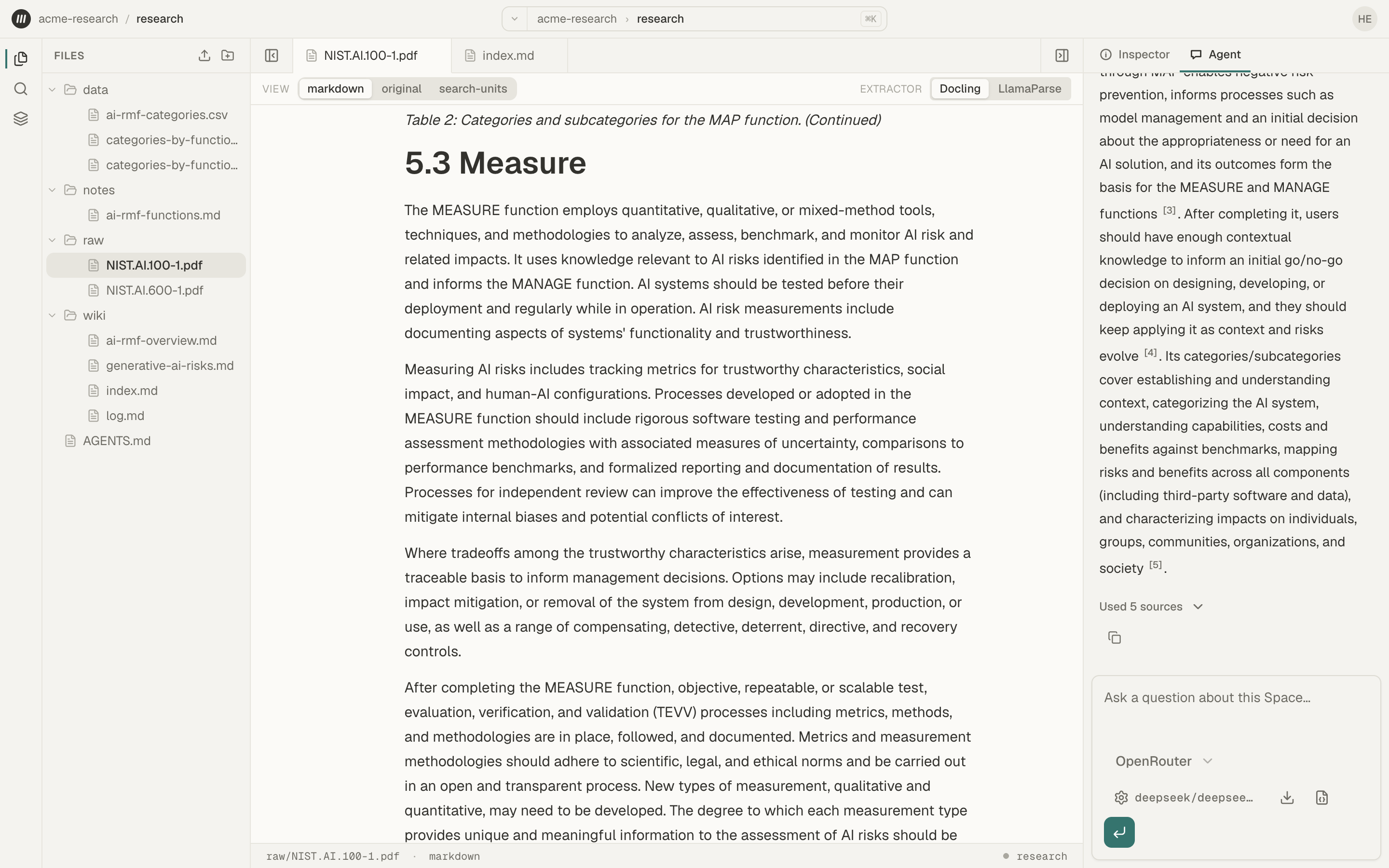
What a Space holds
Section titled “What a Space holds”- Files and folders. Anything you upload, write, or ask an agent to save. Mempipe can process PDF, Markdown, CSV, and TSV files and stores any other file as it is. See Supported file types and size limits.
- What Mempipe makes from them. The text of each PDF and Markdown file, the table of each CSV and TSV file, and a search index for the whole Space. See What happens after you upload a file.
- What you learn. Notes and wiki pages are ordinary Markdown files, so you can open, edit, and search them like the others. Saved queries and charts are files in the Space too.
- Instructions for the agent. An
AGENTS.mdfile at the top level of the Space tells the in-app agent how to work there. See Give the agent standing instructions with AGENTS.md. - Its history. Space Activity lists the changes to the Space’s files and the processing of each one.
- Its own MCP address, which connects an AI app to this Space. See Connect an AI assistant to Mempipe with MCP.
What belongs somewhere else
Section titled “What belongs somewhere else”- Your plan and its limits belong to the organization. Storage and the files-and-folders limit are shared by every Space in it. See Plans, usage limits, and upgrading.
- Your model API key is saved in your browser, so the in-app agent can use it in every Space you open there.
- Conversations with the in-app agent aren’t saved in the Space. Reloading the page clears them. See Keep the conversation.
One Space at a time
Section titled “One Space at a time”- Search looks only in the Space you’re in.
- The in-app agent reads only the Space you have open.
- An AI app you connect from a Space’s MCP Endpoint page reaches only that Space. To let one app read every Space, connect all your Spaces.
- Wiki links, queries, and charts find only files in the same Space.
The app can’t move or copy a file from one Space to another. To use a file in a second Space, upload it there too.
When to create another Space
Section titled “When to create another Space”Create a separate Space for a project whose files you don’t want mixed into the same search results and answers. The Free plan includes 2 Spaces and Starter 10.
A Space’s name and slug can’t be changed after you create it, so choose ones you are happy to keep. Create and switch organizations and Spaces shows how to create one, and Delete a Space, an organization, or your account how to delete one.