Connect Claude to your Mempipe files
To connect Claude to your Mempipe files, copy your Space’s address from Mempipe’s MCP Endpoint page and add it in Claude as a custom connector: open Customize, then Connectors, choose +, then Add custom connector. Claude opens Mempipe so you can sign in and approve access. Claude can then search and read the files in that Space and cite them in its answers.
This works in Claude on the web and in the Claude desktop app. For Claude Code in your terminal, see Connect Claude Code to Mempipe. To let Claude read every Space you belong to with one connector, see Use all your Spaces from Claude.
Before you start
Section titled “Before you start”- A Claude account that can add custom connectors. Anthropic offers them on every Claude plan, and the Free plan allows one. On Team and Enterprise, an Owner adds the connector for everyone. See Anthropic’s custom connector guide.
- A Mempipe Space with files in it, and the Mempipe account you use to open it. See Upload files to a Space.
Add Mempipe to Claude
Section titled “Add Mempipe to Claude”-
Copy the Space’s address.
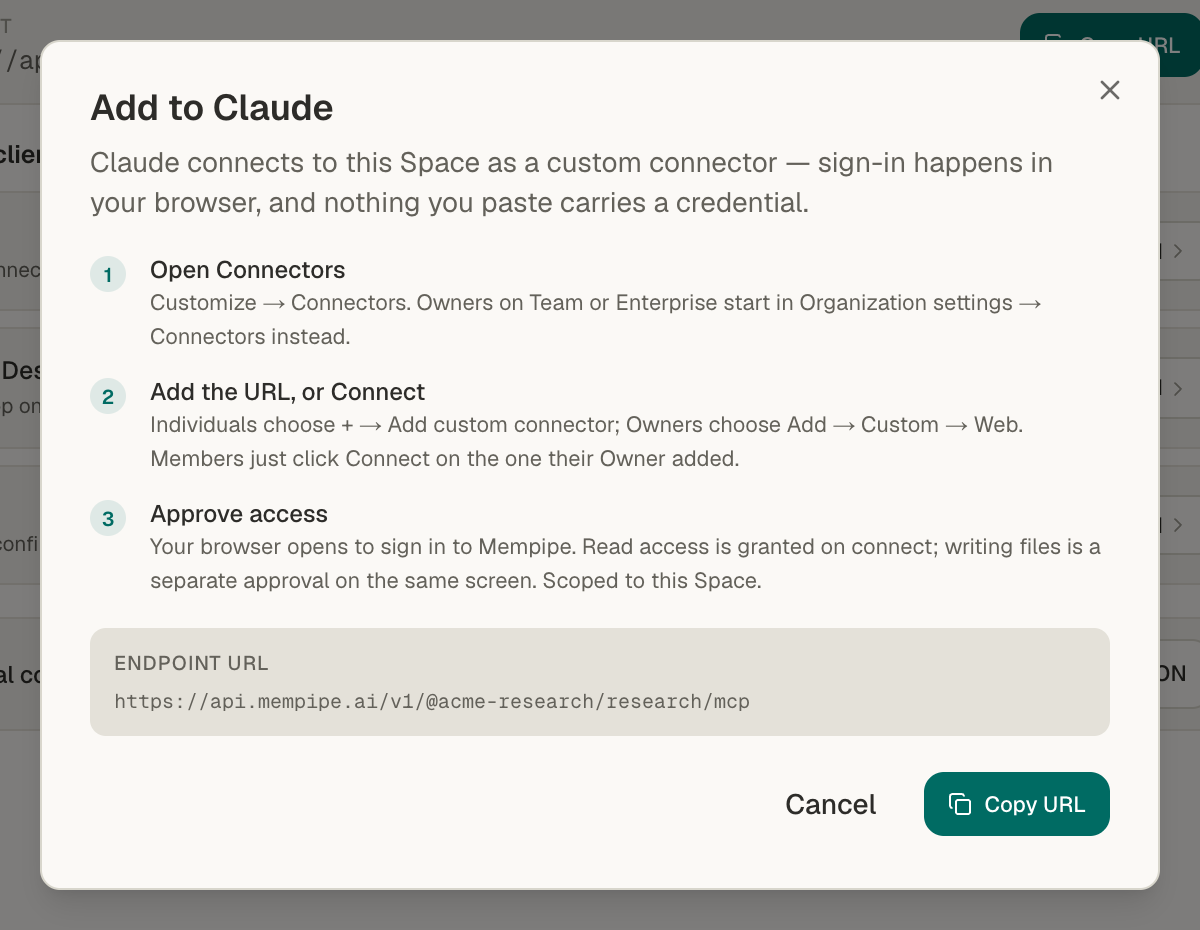
In Mempipe, open the Space. Choose Pipeline in the left rail, then MCP Endpoint. Choose Add beside Claude, then Copy URL.
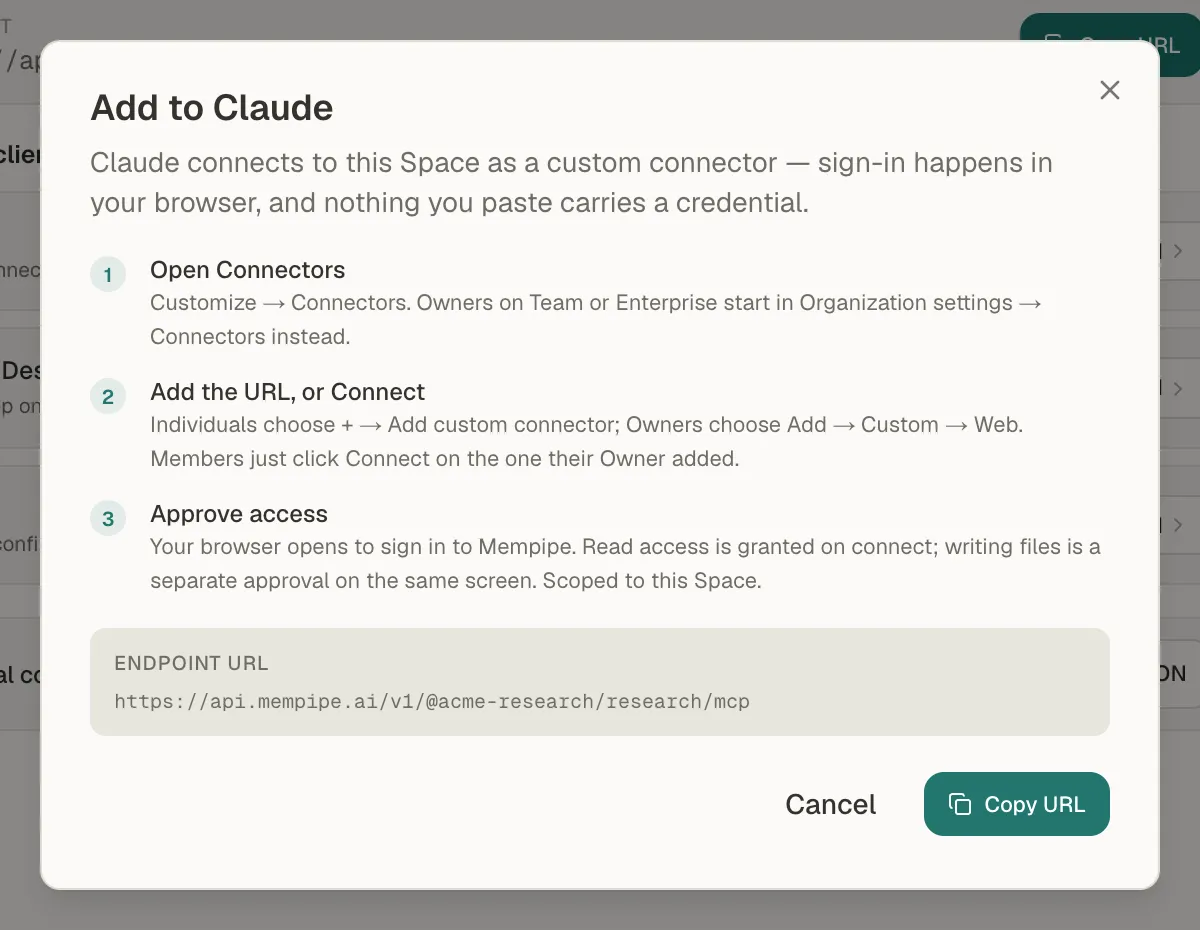
Mempipe's Add to Claude window has the address to paste into Claude. -
Open Connectors in Claude.
In Claude, open Customize, then Connectors. Choose +, then Add custom connector.
-
Add the address.
Give the connector a name you’ll recognize, such as the Space’s name, and paste the address. Leave the advanced settings empty. Choose Add.
-
Sign in and approve.
Claude opens Mempipe in your browser. If Claude shows Connect beside the new connector first, choose it. Sign in to Mempipe if asked. On Allow this client access to Mempipe?, check the Space’s name, decide whether to let Claude save files, and choose Approve access.
-
Turn it on in a chat.
In a new chat, choose +, then Connectors, and check that your Mempipe connector is on. Then ask a question about your files, and say to use the connector:
Use my Mempipe connector. Search my files for what they say about [topic], and answer with links to the passages you used.
Claude can now use the Space in any chat where the connector is on. Its answers link to the passages it used. Open a link to read the passage in Mempipe. Open a citation and check its source shows what to check.
On Claude Team or Enterprise
Section titled “On Claude Team or Enterprise”The connector has to be added once for the whole organization:
- An Owner opens Organization settings, then Connectors, and chooses Add, then Custom, then Web. They paste the Space’s address and choose Add.
- Each member opens Customize, then Connectors, and chooses Connect on the Mempipe connector. Members sign in with their own Mempipe account, which needs access to that Space.
The address belongs to one Space. To offer more Spaces, add a connector for each.
Use all your Spaces from Claude
Section titled “Use all your Spaces from Claude”Instead of one Space’s address, you can add Mempipe’s account address, https://api.mempipe.ai/v1/mcp, as the custom connector. Follow the same steps, then name the Space in your question. Connect an AI assistant to all your Spaces explains how the assistant chooses a Space.
If you tick Add, replace, and delete files in every Space you belong to, including Spaces you join later when you approve, Claude can also:
- save notes and wiki pages as Markdown, SQL, or chart files;
- replace one of those files after reading it;
- delete one file, when you ask it to.
Claude can’t save a PDF or a CSV file yet. Upload those in Mempipe. What a connected AI can read and change lists the limits.
If something goes wrong
Section titled “If something goes wrong”- There is no Add custom connector option. On Team or Enterprise, ask an Owner to add the connector. On the Free plan, remove your other custom connector first.
- Claude couldn’t connect after you approved. Remove the connector and add it again. If the sign-in page asks for a password you don’t have, see If the connection fails.
- Claude answers without using your files. Check that the connector is on for this chat, under + and Connectors, and name it in your question.
- Claude says it can’t save files. You approved read access only. See how to add write access.
- Claude says it can’t save a PDF. Claude can save Markdown, SQL, and chart files only. Upload the PDF in Mempipe, then ask Claude about it.
Still stuck? Email hello@mempipe.ai with the message Claude showed.
Remove the connector
Section titled “Remove the connector”In Claude, open Customize, then Connectors, and remove the Mempipe connector from its menu. Owners remove an organization connector from Organization settings, then Connectors.
- What a connected AI can read and change.
- Connect an AI assistant to all your Spaces, to read every Space from one connector.