Your Mempipe files, inside ChatGPT
Browse your folders and read the sources you are discussing without leaving ChatGPT. Choose files for the conversation, follow citations back to the evidence, and save useful answers as notes in your Space.
Opens ChatGPT’s plugin directory. New to Mempipe? Sign up and add a few files first, so the notebook has something to show.
See it in ChatGPT
Watch the notebook browse public NIST documents, choose a file for a question, follow a citation, query a CSV, and save a note. The 100-second recording includes English captions.
Browse your sources without leaving the chat
The notebook brings your Space’s folders into ChatGPT. Open several documents in tabs, search PDF and Markdown text, and read the passage behind a result. Your source reports and wiki pages stay in the folders where you organized them.
Follow a source link to the evidence in Mempipe. Notes remain ordinary Markdown files you can also open and edit in the app.
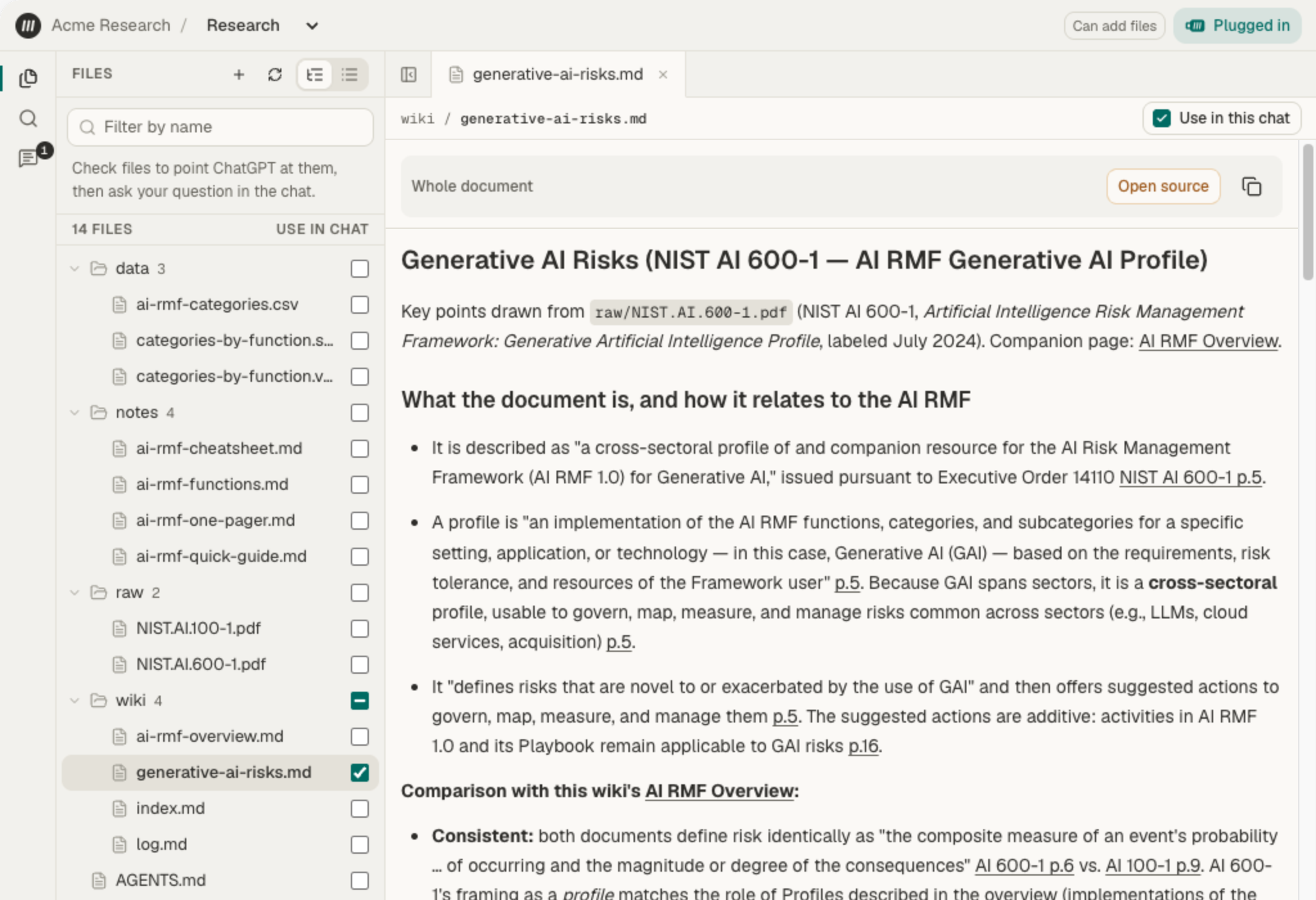
Choose what ChatGPT starts from
Select a file or a whole folder to point ChatGPT toward the work that matters. Start with a project overview, then include its source reports when you want to verify a detail or investigate an open question.
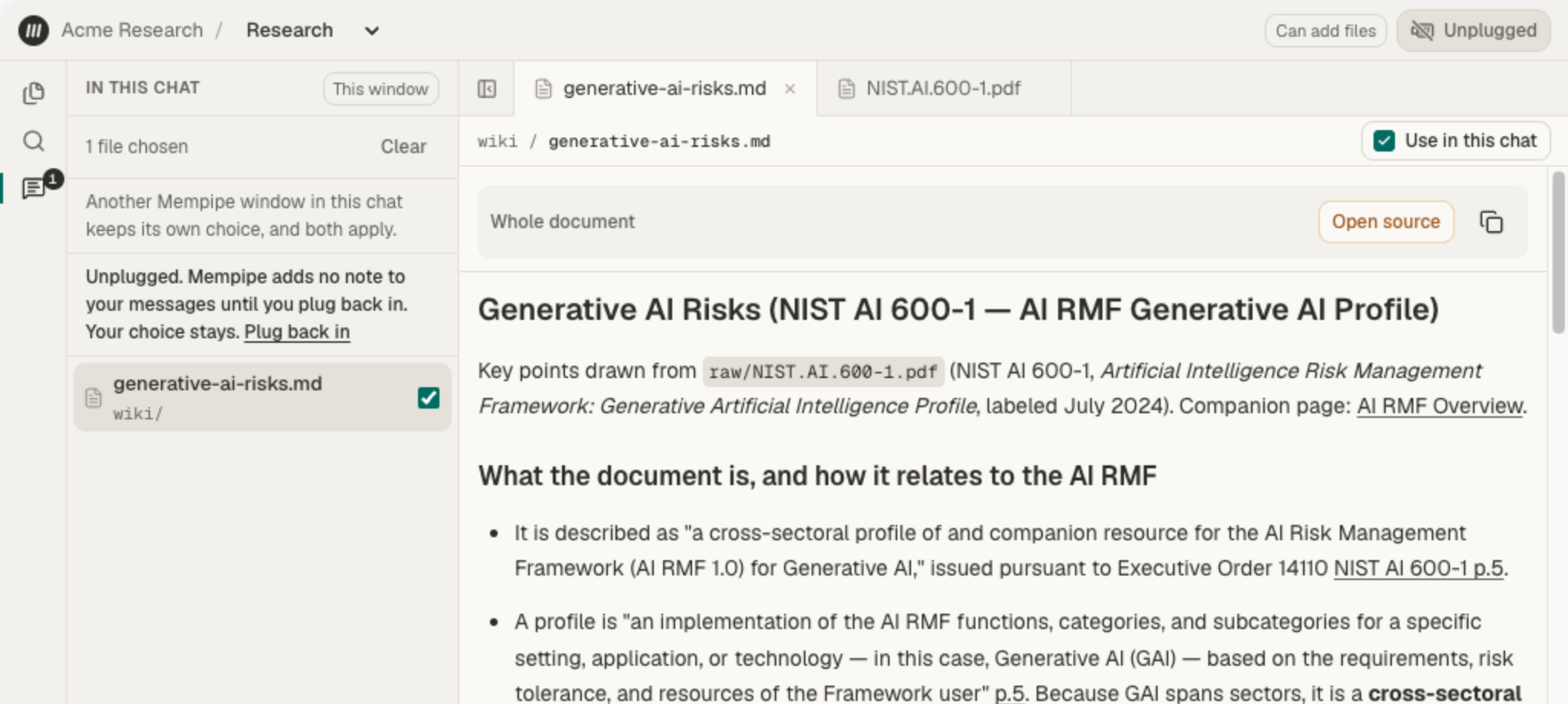
The plug control pauses the notebook’s context while keeping your selections ready. Selections guide the conversation; they do not restrict which files ChatGPT can access.
Save useful answers for the next conversation
Review an answer and its citations, then ask ChatGPT to save it as a Markdown note or update an existing wiki page. With write access approved, it can save the result in your Space. Edit the note in Mempipe’s Live Preview or reopen it in your next conversation.
Add new sources from the conversation too. Drop a PDF, Markdown, or CSV file onto the notebook, choose a folder, and confirm the save. PDFs and Markdown become available for reading and search. For a CSV, ask ChatGPT to read or query its data.
Control which apps can use your files
You can connect with read-only access or approve writes to let ChatGPT save and delete files. An all-Spaces connection includes Spaces you join later. Open Connected apps in Mempipe Settings to review permissions or disconnect an app.
Review or change an app's access →Learn how
Use Mempipe Notebook in ChatGPT →
Install Mempipe Notebook from ChatGPT's plugin directory to browse and read your Mempipe files beside the chat, choose which files ChatGPT starts from, and add new files.
What a connected AI can read and change →
A connected AI app can search and read your files. It can save or delete files only if you tick write access when you approve, and it can never move files, delete folders, or change your account.
Organize sources and revisions for your wiki →
Keep original documents in raw, maintained knowledge in wiki, and revised PDFs as separate named files so you can compare and cite both.
Frequently asked questions
- How do I connect Mempipe Notebook to ChatGPT?
- Install Mempipe Notebook from ChatGPT’s plugin directory, sign in to Mempipe, and approve access. Then ask ChatGPT to open the notebook. In a work or school workspace, an admin may need to allow it. The setup guide has the steps.
- Does selecting a folder limit what ChatGPT can read?
- No. Your selection tells ChatGPT where to start, but it can still search the Space. The connection you approved determines its access.
- What does Unplugged do?
- It stops adding the notebook’s context to your next messages. Mempipe tools and text already shared in the conversation remain available. Reloading the notebook plugs it in again.
- Can I save files from ChatGPT?
- Yes, if you approve write access. Drop PDF, Markdown, or CSV files onto the notebook and confirm the save, or ask ChatGPT on the web to save an attachment. You can also ask it to save an answer as a Markdown note in your Space.
Explore more
Build knowledge that comes with receipts.
Bring your sources. Find the evidence. Leave behind something worth keeping.
Public beta. Start on Free and upgrade to Starter for more capacity. Bring your own API key for the in-app agent. Reading, searching, and editing files needs no key.